Integrating Azure Power BI Embedded in your DevOps

imageimage

Before starting, this posts answers the question, Can we change the connection settings of the Power BI Embedded reports. YES. Let’s continue.

Azure Power BI Embedded is a great tool for developers to integrate reports and dashboards in the applications. You can read about what Azure Power BI Embedded is and how to use it in your application in this documentation.

The moment a feature is supported there comes the questions of how to fit it in the developer pipeline or the modern automated CI/CD DevOps process.

This article focuses on how to develop and deploy the Power BI Embedded applications in your automated CI/CD DevOps pipeline.

In order to make this works, we need to solve the burning question, can we change the connection settings of a published report in Power BI Embedded ? Answer is YES.

Power BI Embedded SDK has the support for this. In Azure Power BI Embedded we have the Workspace collection which is a container for the Workspaces. We publish our reports inside a workspace which is another container for our reports (.pbix files).

In the SDK a report is consists of two components. They are the DataSet object and the Report object. DataSet has operations to update the connection settings. Bingo, that’s what we’re looking for.

power bi embedded hierarchy


Automation

Since we can change the DataSet configuration using the Power BI SDK, we can automate this process using a small command line in our TFBuild process.

Since each application is different and there’s no solid rule on how to do this, but I have explained a simple process you can follow.

Developer creates the reports in his/her development machine connecting to the development database. Then the developer adds the .pbix to the Visual Studio solution, something similar to what is shown in the below image.

image

The command line utility adds the reports to the specified workspace and set the DataSet connection properties and updates the application database with the Ids.

In my TFBuild I’ve added this build step and specified the required arguments.

image

So now my Utility command line will do the work for me when ever I do a check-in. Same way we can maintain the CI/CD pipeline in multiple environments.  The image shows the idea.

image

When the command line utility runs it takes care of my reports and updates the connection settings.

image


Code Snippet for updating connection string

You can find this code in the Power BI Embedded sample in the Github. Check the line numbers from 212 to 236 in this file.  https://github.com/Azure-Samples/power-bi-embedded-integrate-report-into-web-app/blob/master/ProvisionSample/Program.cs

Power BI – Data Management Gateway

Power BI for Office 365 has a component known as Data Management Gateway which allows us to expose the on premise data sources to cloud. On premise boxes which host the data sources do not require a public IP but you servers still require an Internet connection. Currently Data Management Gateway supports SQL Server, Oracle and Power Query sources. This article guides you how to setup the Power BI Data Management Gateway and expose a SQL Server database to cloud. First Go to Power BI Admin Center from your Office 365 subscription.

image

In the Power BI Admin Center click gateways and then click new gateway

image Enter a name for you gateway and an optional description. If you want to store the credentials of the data sources you want to link to Office 365 in the cloud you can check the “Enable cloud credential store to archive business continuity for gateway” option. By checking this you agree to store the data source credentials in the cloud in a secure way. Storing the credentials in the cloud gives you the ability to restore the gateway without entering credentials. Most of the cases this would be an organizational decision based on the trust. This link explains the advantages of enabling cloud credential store. 

image

Once you click Create you will be directed to the second step. Here you will get the link to download the Data Management Gateway and the key to build the trust between the gateway and Office 365.

image

Copy the key (later you can change this). Download the Data Management Gateway and install in your on premise machine. Data Management Gateway is a Windows Service. Once the installation is done, you will get the Microsoft Data Management Gateway Configuration Manager in your machine. Open it and paste your gateway key and register the gateway.

image

In the settings you can configure the protocol and the port for the communication between your Data Management Gateway service and Office 365.  As of now we have completed setting up the gateway to communicate to the Office 365 environment. Below diagrams explains how the communication happens between your on premise machine and Office 365.

image

Click on the Settings tab in the Microsoft Data Management Gateway Configuration Manager in order to configure protocol and the port of the communication.

image

Next step is to create data sources, go to data sources tab in the Power BI admin center and setup a data source. Here we’ll setup a SQL Server data source.

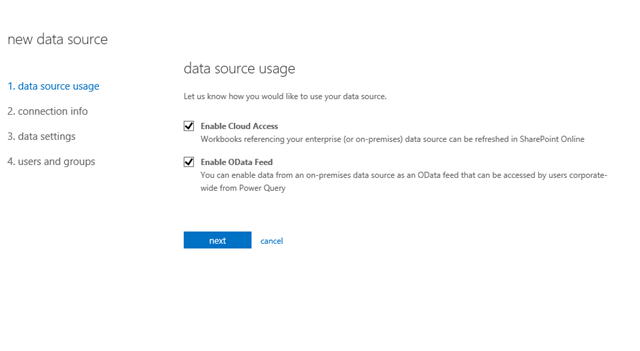
image Then we have to select how to expose the data source, only as a cloud source or as well as a OData feed. Enabling the data sources as OData feed provides the opportunity to use this data source in Power Query. Cloud Access makes the data source available in SharePoint online and refreshing is possible.

image In the next wizard enter the connection details. Select the Gateway, data source type and the appropriate provider. In this case my on premise database is SQL Server 2012 so I’ve used SQL Server Native Client 11.0. Then enter the server name and database name in order to construct the connection string. If you select the connection string option (rounded in blue) you need not to provide these details one by one, you can simple enter your connection string.

image

After setting up the server and database details along with the provider information, you can see that the credentials button is enabled. Click on the credentials this will launch a one click application. In that application enter your database credentials either Windows Authentication or SQL Authentication.

image

Test the connection and if the connection is successful click OK. This saves the credentials in the local machine specific to the application. The credentials are not transferred to the Office 365 since we didn’t select the Enable Cloud Credential Store. Now the data source setup is complete. Go to the data settings tab in the data sources and select the desired tables and views to be exposed from the Office 365.

image

That’s it, we have connected our on premise data source to Office 365. Go to data source section and click the properties shortcut (triple dots) in the context menu you can see the OData Feed URL for your on premise data base.

image

It’s amazingly simple to expose your on premise data sources across the organization and even to extranet through Power BI for Office 365. You can get the OData URL and start accessing your data source from Excel Power Query.

image 

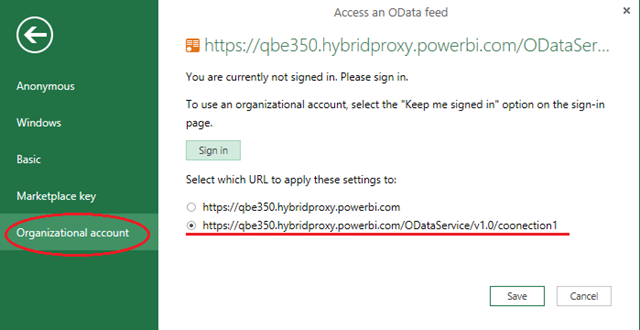
Paste the URL (note that OData feeds are exposed via HTTPS) and select the Organizational Account to enter your Office 365 credentials.

image 

Then you can access the data exposed through the OData feed in Excel. The below image shows the data exposed in this sample.

image

How does this entire process work ?

mm

Setting up Power BI Excel features

This is the second post in the Power BI category. In this post I explain how to setup Excel environment to user Power BI Excel components. Power BI offers 4 individual Add-ins for Excel.

They are Power Pivot, Power View, Power Query and Power Map

Power View and Power Pivot are available in the Office Professional Plus and Office 365 Professional Plus editions, and in the standalone edition of Excel 2013  You do not need to perform a separate installation you just have to activate them. But you have to download the Power Map and Power Query.

Power Query Download Link : http://office.microsoft.com/en-us/excel/redir/XT104104542.aspx

Power Map Download Link : http://office.microsoft.com/en-us/excel/redir/XT104048049.aspx

Once installed you should activate they aren’t activated by default. To activate the Add-ins (all the above Add-ins are COM Add-ins) click File and then Options; select the Add-Ins tab and select COM Add-Ins in the drop down.

image


Click Go and you will get the list of available COM Add-ins. Select the above 4 Add-ins and activate them. Power Query and Power Pivot reside in their own tab while Power Map and Power View are available under the Insert tab. If you do not have Silverlight installed in your machine you should install Silverlight in order to make the Power View work.

image


image


image

Now your Excel environment is enriched with the Power BI Excel features.

What is Power BI

Last week I delivered an introductory presentation about Power BI covering all the features of it in the SQL Server Universe user group meeting. I got a fair amount of time to showcase the features of Power BI to the audience.

I concluded my presentation giving the following definition to Power BI from Microsoft’s point of view or what Microsoft has been trying to do.


Productizing self service BI tools and services coupled with the company’s cloud based organizational strategy

Personally I think Microsoft is determined to have a product in the self service BI market, they’ve been trying to bring all the tools and services under one umbrella named Power BI.

It works perfectly well, it’s a very impressive product to deliver a showcase. I have delivered product introductory presentations for Azure and Windows 8 in other user group meetings. Compared to them Power BI is a small product which draws the interest of few people, but it didn’t fail to impress the audience, so thought of writing about Power BI.

Power BI has components categorized under 3 topics.

Excel Features

  • Power Query
  • Power Pivot
  • Power View
  • Power Map

Power BI for Office 365

  • Power BI Sites
  • Power BI Q&A
  • Query and Data Management
  • Power BI Windows App

IT Infrastructure service for Power BI

  • Provision Power BI for Office 365
  • Power BI Admin Center
  • Data Management Gateway

Excel features are available for download for free. You can download them from this URL

Detailed blog posts about each component will follow in the coming days.