Windows Phone All in One Kick Start => Meet Jack Sparrow

Hi this is a quick and simple WP7 application, which demonstrates some of the advanced features within very few steps.

If you are already familiar wit h WCF and Silverlight then WP7 development is very easy for you.

This application explains the following features.

  • Accessing the WCF service from the WP7 application.
  • Handling Cross reference threads in Wp7 and create responsive UI.

Application

The application asks you simple question, and if you answer correct then you will be taken to meet Jack Sparrow. If you do not answer correctly, then the application asks another question and this process repeats.

WCF service is responsible for generating the questions and evaluating the answer. Thread is used to load the web browser.  Browser object is in the Collapsed Visibility mode, and the thread used to navigate the page, and bind the delegate of Navigated event.

Since the web browser is created in the main thread and accessed in another thread, this creates the cross thread reference problem. It is solved using the traditional way of the BeginInvoke() call. But the BeginInvoke() call is made from the Dispatcher object of the current thread.

Code Implementation

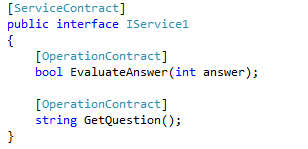
In my WCF service I have 2 operational contracts. One is to generate the question and the other one is for evaluate the answer. (Read the comments within the code blocks)

Code for my IService1.cs
image

Code implementation of those methods are mentioned here, You can download the complete solution here

As like Silverlight we have to call the WCF service through asynchronous method calls and binding a delegate to that. But we do not have to worry much since VS generates the Async methods for us.

Build the service, and the reference of the Service to the WP7 application.

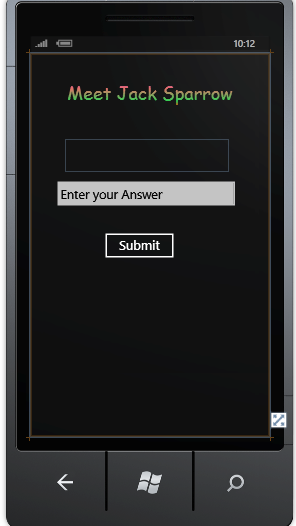
The below image shows my WP7 application interface in the design mode.
image


In the MainPage.xaml.cs file we have code logic of the application.

Here is the code for calling a service in WP7. It is 100% similar to Silverlight applications. (Read the comments ..)

image

Once the Method call is returned from the service, the following method will be fired. (Note that GetQuestion() is the method we created. GetQuestionAsync() is generated by VS. We have to simply call that. (If you are familiar with Silverlight then this is not a big deal for you)).

image

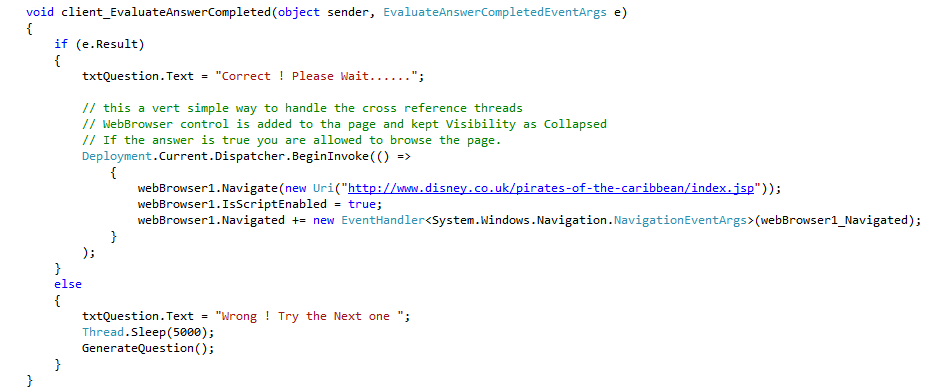
The following method handles the cross thread reference problem, and provides a responsive UI. (Note that I didn’t code any explicit Threads. In .NET you can do this with simple delegates, .NET handles the thread for you).
image

Notice that in the BeginInvoke() I’m again making a call to my main thread for the Navigated event.

After the application completes it happily displays Jack Sparrow Winking smile


image

Dynamic Controls and Static Events with Different output

The title sounds little awkward.. Well. This code explains an easy and a good coding practice in handling dynamic controls and writing events for them.

Let me explain the scenario, one of my friend needs a code for a garment fault detection system; the machine checks the cloths and detects the faults. Each fault has to appear as button and when the user clicks the button it has to do some other thing corresponding to that fault.

The problem is, we are not aware of the number of faults each piece of cloth has. So we have to generated the controls dynamically and the events.

Only one thing we know that, the hardware is capable of detecting 10 different types of faults. So maximum we can get 10 and that’s it.

He was so confused whether to write 10 different event handlers and assign them, to dynamic controls by writing some conditional branching statements.

The code below is simple but powerful, it makes life easier with just 2 methods. Let’s get into the action.

Some how you can get a parameter which says how many controls you have to generate dynamically. I store them in a List (for demonstration)

image

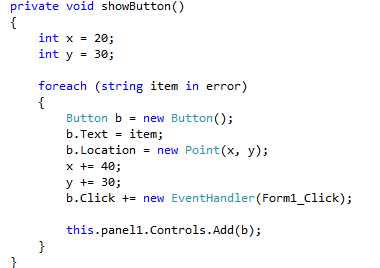
Another method to create the controls and load them to the Windows Form.  (here I’m using a Windows Form application)

image

As you see here I’m not keeping the references of the Button controls, but I’m assigning a single event to all of them.

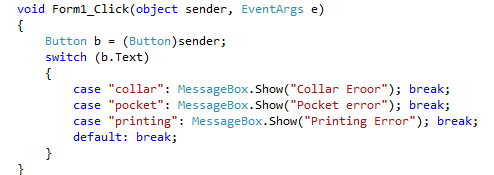
This event is the only thing I have to refer the controls. But let’s see how I use the single event to distinguish the different buttons and ask them to do different tasks.

As I mentioned earlier it so simple…

I’m loading the strings to the List from a method (which I haven’t metioned here, because getting the parameter which decides the number of dynamic controls depends on the scenario you are working on).

image

This is cool, I identify the Buttons with their Text field, you can use any of the fields which is comfortable and suits your need.

The power of this method is; it’s very simple, I’m not keeping any references to the Buttons. The same piece of code can be used to generate the any number of controls without any modifications.

And you have to write only one event handler for all the controls like the above method.

Just imagine 10 controls and 10 references and 10 different even handlers, and dynamically comparing them and calling every time. 😦 It’s too much of a work. But this is really cool.

You can design your actions in a separate library (.dll) and call them in the case : of the switch statements, that gives a good design also. So whenever you want the actions to be modified, you just have to change a seperated .dll file rather changing the main assembly.

Execute Batch File without any windows

If you have a need of executing your batch file where you do not want the window to be popped up; here’s the solution to that using VB Script.

Open the notepad and type the following

CreateObject("Wscript.Shell").Run "<your batch file path>",0

Save the above file in any name you want with the extension .vbs

That’s it you are done. Now simply double click the VB Script, your batch process has started without any windows or task bar minimizations.

You can call this .vbs file directly from the .NET code as to start like a process

Process p = new Process();

p.StartInfo.FileName = @”myFile.vbs”;

p.Start();

Note : This Requires Windows Script Host installed in your machine. (by default this installed in most Windows OS)

ref & out in C#

This post explains about the ‘ref’ and ‘out’ keywords in C#. In C# we have two types; 1) value types 2) reference types.

Value types variables are passed as copies to the methods and any changes inside a method does not affect the variable. ‘ref’ keyword is used to pass a value type as a reference type.


Have look on this code sample and the output.

image


Output for the above code

image


This is because the value is passed as a copy.

Let’s see hoe to use the ‘ref’ keyword to pass the value types as references in C#.

In order to do this you have to make the change in the methods declaration and as well when you call the method also you have to mention the ‘ref’ keyword.


Sample show what exactly you have to do.

image

Output shows

image


Now let’s have a look on where to use the ‘out’ keyword. The main purpose of the ‘out’ keyword is that it enables us to create and use uninitialized variables for output. Some ways it can be used to return more than one value.

But ‘out’ keyword is powerful since it uses the local variables to be used in such purposes rather than the traditional use of global variables.

We can accomplish the above task by other ways as well, but still ‘out’ keyword is handy. We can see that the ‘out’ keyword is used in some of the .NET framework methods.

Sample of ‘out’ keyword usage

image


Output as follows

image


Look that x is local variable and it is initialized in another method. This very handy and powerful concept.

As we can see both of these key words we can assure that ‘ref’ and ‘out’ pass the pointers to the methods with some framework built in restrictions.

And another nice feature of the C# compiler is that it checks whether any methods that initialize the x has been called before accessing it.

If you comment the line myMethod(out x);  and compile the code, it will complain that you are trying to use an unassigned variable.

So it is very safe and nice yet powerful as well.

Check whether a URL exist

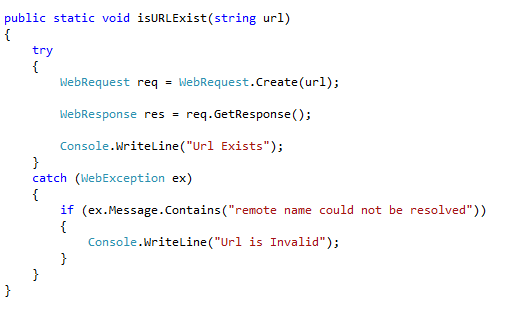
Use this code snippet to check whether a url exist or not .. . . .. .

MSDN Trackback : http://social.msdn.microsoft.com/Forums/en-US/csharplanguage/thread/c34f4f2e-038d-43da-a9f3-fc1ef64c49c7/#ea274ea3-31e8-4d61-a892-9e1bd4b2a97f

image

Getting the Radio Button Value in Windows Forms

I came across a question in the MSDN forums about accessing the Radio Buttons in Windows Forms. After reading the question I realized that radio buttons in Windows Forms are little tricky compared to the HTML or ASPX ones.

We can group the radio buttons using GroupBox control or the Panel Control. Then the set of radio buttons works together. The following code snippet explains on how to access the clicked radio buttons and their value when a button is clicked.

Radio buttons have the Click event and CheckChanged event, which we can use to get the value, but programmatically this snippet explains how to access the radio buttons inside a GroupBox.

image

Calendar in ASP.NET

We all know that .NET provides us rich set tools for us. Calendar control is one of them. We can simply use the calendar control for date input. But it is more powerful and we can simply create a complete application using calendar control which shows the tasks that have been scheduled.

To use the calendar control in a such way we should have to know about, how the calendar control is rendered in the HTML. Calendar control is rendered in as a table in HTML and every day is rendered in the order.

And calendar control provides a DayRender event as well. That’s enough for us to create the application.

Simply drag drop the calendar control inside your ASP.NET page. Make it big enough to fit to the screen.

And put the code behind as described here. I hardcoded the tasks in a HashTable but if you want, you can keep them in a data source.


image


In the Page_Load we load some data into the HashTable. This scenario may vary based on where you keep your data source. (As I mentioned earlier here it is simply hard coded).

DayRender method is triggered for each day that is rendered for the month. First in the if condition we check whether the rendered date is in the HashTable. Here we are providing the key and check whether value of the key is null or not. If it is not null then the key is available in the HashTable so a task has been assigned on that day.

Then we proceed inside the if condition.

We create a Literal control and make gives the text as <br/> (I don’t need to explain this as we all know why ?) And I add the Literal Control to the specific cell of the calendar control. (because as I explained earlier calendar control is rendered as a table in HTML)

Then I add a Label and feed the task of that particular day. Here DayRenderEventArgs object is very useful in getting the rendered day.

image

The above is simple and yet powerful. 🙂

Silverlight with PHP

I do not really need to tell about the Silverlight and its power, since it is apparent. But at the same time I cannot keep mouth shut with the features that Silverlight offers. I have been working on WPF and Silverlight these days. And Just wondering the power the Silverlight has over the Web Apps. It drives me crazy especially compared to ASP.NET Ajax.

What an effective and an easy way to build RIAs. Wondering about the Silverlight architecture and how the mixture of XAML and the managed code sit on the back of the Silverlight.js. Really Excellent.

Using the Silverlight with ASPX is OK, what about with the other languages. Of course not a big deal. Here I explained how to use Silverlight in your PHP application with the C# managed code.

Create a simple PHP file that can take your name and say Hello !

image

The above PHP script gets post to itself and say Hello.

Now build the Silverlight in VS 2010, when creating the Silverlight application project select the temporary hosting in an HTML file rather than the Web project. This will create an HTML where your Silverlight object is embedded; it would be easy to get the code later.

Put the following in the Layout Grid – XAML Code

image


Code for button1_Click event in the MainPage.xaml.cs


image

Now we have the PHP file and the Silverlight application, Let’s put them together.

I’m hosting the PHP using the WAMP, Create a folder SilverlightPHP and save the above PHP file as index.php (so it’s easy to access)

Browse your Silverlight application project folder and inside the Bin->Debug there would be a file with the extension of .xap (description says as XACT project file)

Copy that file and put it into the SilverlightPHP folder.

Then open the HTML file in the Silverlight application project folder (it’s also in the Debug folder)

copy the Javascript code and paste it inside the <head> </head> or keep it as separate .js file and link it.

Then copy the Silverlight embedding code from the HTML and paste it inside the body. You can set the size here.

image

Here rather than copying the .xap file to the target folder you can set the value to as the path of the .xap file.

Save the index.php

Then RUN !@# and have FUN.

The real amazing thing is this a very cool way to bring the RIA capability to our normal PHP apps. You can notice that when you click the Say Hello button of the PHP the page reloads but when you click the Say Hello button of Silverlight it is completely an asynchronous call to the Silverlight object model. (great AJAX feature). More than that here we use C#.NET and the PHP in the same web interface.

image