Configuring Azure CDN (Content Delivery Network)

Azure provides CDN. You can link websites, cloud services, mobile services, media services and storage accounts. Most of the cases we link the storage accounts to CDN. Because CDN is a very good choice for static content and in Azure mostly we keep the static content in the storage accounts (blobs).

CDN provides a greater network among different geographical network and place the content in the “Edge Servers” as they’re physically close to the users’ location. Azure Cache is a different service it offers in memory cache for high speed availability, it is relatively expensive compared to CDN. See this article on how to create Azure Cache.

Creating a CDN in Azure is fairly straight forward. Login to the Management Portal and Select the CDN and create new endpoint. You have the Quick Create option. You get the below screen. In the origin domain you can see your available services that could be linked as CDN endpoints under each category. Here I select my storage account as origin domain. You can notice that automatically the storage account’s blob storage service is linked with the CDN as it holds the static content. Neither the Table storage nor the Queue storage is linked as CDN.

image


I created a public container in the above blob storage and uploaded  a simple text file. The public URI for the resource goes as http://qbemediasvc.blob.core.windows.net/publiccontainer/dfdf.txt

Out CDN endpoint URL goes as http://az673726.vo.msecnd.net/

In order to check the content is in CDN we can simply append the last part of the blob URI to the CDN endpoint URL and we get the CDN URL as this. http://az673726.vo.msecnd.net/publiccontainer/dfdf.txt

When you put a content in the storage it will take up to 60 minutes for that content to propagate to CDN and once the propagation is done you can access the CDN rather than the direct URL of the content.

Windows Azure Scheduler

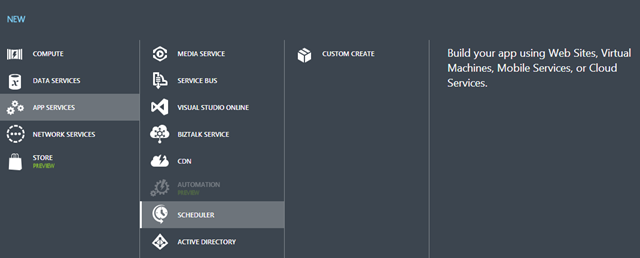
Windows Azure Scheduler is one of the new feature additions to Windows Azure. This is a cloud based scheduler service which analogous to the Task Scheduler.

Login to you Windows Azure Management Portal, If you do not see the Scheduler tab in the left hand side either you didn’t activate it or the feature is not available in your subscription. If you haven’t activated you can activate it and continue the following; if you don’t have the access to the Scheduler in your subscription don’t worry I’ve provided the screenshots. I always include the screenshots much as possible when writing Windows Azure posts just to explain the features as they are, in case you do not have access to them.

image

Click on the CREATE SCHEDULER JOB and you will get this nice Azure pop menu

image

Click CUSTOM CREATE, Select your region and enter a name for your Job Collection. (Note that at the top it says ‘You are creating a Standard Job Collection’ you can change this in the scale tab)

image

As of now we have Job actions for HTTP, HTTPS and Storage Queue. I used the Storage Queue action. Once you select your storage account and Queue name you should give the permissions to Scheduler Job to access the Queue storage. This can be achieved very easily by generating a Shared Access Signature (SAS) for the Queue.

image

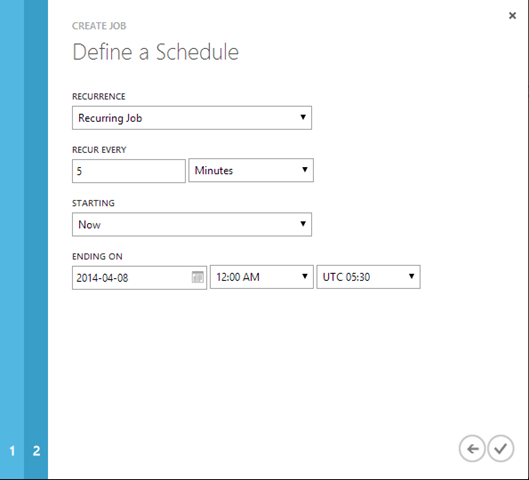
Next the you can configure the job timing schedules. It has more options; I have selected to run the job every 5 minutes till a specific date starting immediately after the job has been provisioned.

image

And that’s it. This is the sample message posted by the Job in the Queue.

   1: <?xml version="1.0" encoding="utf-16"?>

   2: <StorageQueueMessage xmlns:xsd="http://www.w3.org/2001/XMLSchema"

   3:     xmlns:xsi="http://www.w3.org/2001/XMLSchema-instance">

   4:   <ExecutionTag>4cf887834d7cd1466f549b2ac2fb56c8</ExecutionTag>

   5:   <ClientRequestId>d36f421b-9338-4e4f-ad89-69dd490530a1</ClientRequestId>

   6:   <ExpectedExecutionTime>2014-04-04T06:15:10</ExpectedExecutionTime>

   7:   <SchedulerJobId>msgQ</SchedulerJobId>

   8:   <SchedulerJobCollectionId>testjob</SchedulerJobCollectionId>

   9:   <Region>Southeast Asia</Region>

  10:   <Message />

  11: </StorageQueueMessage>

You can see the Message tag is empty since I didn’t put any messages. You have the complete control in editing the Job you created.