Put watermarks on uploaded images–ASP.NET

Here’s the simples piece of code in C# which can write some text on an image, eventually making it as a watermark.

StreamReader reader = new StreamReader(Server.MapPath("sample.jpg")); Bitmap bi = new Bitmap(reader.BaseStream); // base image Graphics gr = Graphics.FromImage(bi); string customString = "your string goes here"; gr.DrawString(s, new Font("Cooper Black", 25), Brushes.ForestGreen, new PointF(140, 115)); StreamWriter writer = new StreamWriter(Server.MapPath("edited.jpg")); writer.AutoFlush = true; bi.Save(writer.BaseStream, ImageFormat.Jpeg); // saving the edited image reader.Close(); writer.Close();

checked and unchecked keywords in C#

This post explains about checked and unchecked keywords in C#. In arithmetic calculations when constants are involved compiler detects the overflows in the data types. For example look at the following code.

   1: // int range is from -2,147,483,648 to 2,147,483,647

   2: int i = 2147483647 + 10;

The above will generate a compile time error. But the following won’t and it will give an output –2,147,483,639

   1: int ten = 10;       

   2: int i = 2147483647;

   3: Console.WriteLine(i + ten);

Because the compiler does not detect the overflows when non constants are are involved in the expression.

The above will not even raise an OverflowException. To make sure that the above is validated in runtime, we can use the checked keyword as a block or in line.

As a block

   1: checked

   2: {

   3:     Console.WriteLine(i + 10);

   4: }

Inline

   1: Console.WriteLine(checked(i + 10));

Since checked keyword validates against the overflows and throws an exception, it has a performance hit. So when you are sure that the expression is not going to cause an OverflowException it is better not use the checked keyword.


unchecked does the opposite of the checked. It mainly instructs the compiler not to do the validation for an expression. The following would generate a compile time error if it is not enclosed with the unchecked block. As checked keyword unchecked keyword can also be used in blocks and inline.

   1: unchecked

   2: {

   3:     int a = 2147483647 + 10;

   4:     Console.WriteLine(a);

   5: }

Charting with DotNet HighCharts

This post explains how to use the DotNet HighCharts wrapper for the HighCharts Javascript library. You can download the wrapper from Codeplex.

First create an ASP,NET file and add the following Javascript references.

   1: <script type="text/javascript" src="http://ajax.googleapis.com/ajax/libs/jquery/1.8.2/jquery.min.js"></script>
   1:  

   2: <script src="http://code.highcharts.com/highcharts.js">

   1: </script>

   2: <script src="http://code.highcharts.com/modules/exporting.js">

</script>

Download the wrapper and add the single .dll reference to the project and add the following using statements to the code.

   1: using DotNet.Highcharts;

   2: using DotNet.Highcharts.Options;

   3: using DotNet.Highcharts.Helpers;

   4: using DotNet.Highcharts.Enums;

The wrapper provides pure C# methods for generating the charts and has a method ToHtmlString() which returns the JavaScript version of the chart. This can be set to a ASP.NET Literal control for rendering.

Then here’s a sample for creating a column chart with two series.

   1: DotNet.Highcharts.Highcharts chart = new DotNet.Highcharts.Highcharts("chart").SetXAxis(new XAxis

   2:             {

   3:                 Categories = sales.GetSales().Select(list => list.ProductName).ToArray<string>()

   4:             })

   5:             .SetSeries(new Series []

   6:             {

   7:                 new Series()

   8:                 {

   9:                     Type = ChartTypes.Column,

  10:                     Data = new Data(new object [] {125,824,122}),

  11:                     Name = "Sales"

  12:                 },

  13:                 new Series()

  14:                 {

  15:                     Type = ChartTypes.Column,

  16:                     Data = new Data(new object [] { 57,234,67 }),

  17:                     Name = "Freight"

  18:                 }

  19:             });

‘sales’ is the object data source, and we get the product name from it and the values are hard coded. All charts has a name, here the column chart’s name is ‘chart’ itself. Names should be unique for the page. If you have another chart with same in the same page only the last chart will be displayed.

Then chart has SetXAxis method where set the X-Axis properties.  And the chart has number of series. We feed the data to the series through its Data property which takes an object array.

Finally we serialize the chart as HTML content to the Literal control (ltrChart)

Example of a pie chart generation.

   1: DotNet.Highcharts.Highcharts piechart = new DotNet.Highcharts.Highcharts("pie").SetXAxis(new XAxis

   2:             {

   3:                 Categories = sales.GetSales().Select(list => list.ProductName).ToArray<string>()

   4:             })

   5:             .SetSeries(new Series[]

   6:             {

   7:                 new Series()

   8:                 {

   9:                     Type = ChartTypes.Pie,

  10:                     Data = new Data(new object [] {125,824,122}),

  11:                     Name = "Sales"

  12:                 }

  13:             });

  14:  

  15:             piechartLiteral.Text = piechart.ToHtmlString();

Detecting the Windows Phone Theme Background Color

We often need to detect the WP background theme color to switch the color schemes of our apps.

This is very useful when we utilize the application bar and have some metro icons in our app. In built WP apps have this feature and switch between different icons. For example when you use the Messaging app in dark background mode the icons are white and when the background is in light mode. A very simple feature but how to detect the background theme color of the WP.

Here’s the code snippet for this. PhoneBackgroundBrush is a property of the Application.Current.Resources Dictionary object.

private readonly Color _lightThemeBackground = Color.FromArgb(255, 255, 255, 255); private readonly Color _darkThemeBackground = Color.FromArgb(255, 0, 0, 0); private void DetectPhoneTheme() { SolidColorBrush theme = Application.Current.Resources["PhoneBackgroundBrush"] as SolidColorBrush; if (theme.Color == _lightThemeBackground) { btnBack.IconUri = new Uri("Images/backB.png", UriKind.Relative); BtnNext.IconUri = new Uri("Images/nextB.png", UriKind.Relative); BtnShare.IconUri = new Uri("Images/shareB.png", UriKind.Relative); } else { btnBack.IconUri = new Uri("/Images/backW.png", UriKind.Relative); BtnNext.IconUri = new Uri("/Images/nextW.png", UriKind.Relative); BtnShare.IconUri = new Uri("/Images/shareW.png", UriKind.Relative); } } private readonly Color _lightThemeBackground = Color.FromArgb(255, 255, 255, 255); private readonly Color _darkThemeBackground = Color.FromArgb(255, 0, 0, 0); private void DetectPhoneTheme() { SolidColorBrush theme = Application.Current.Resources["PhoneBackgroundBrush"] as SolidColorBrush; if (theme.Color == _lightThemeBackground) { btnBack.IconUri = new Uri("Images/backB.png", UriKind.Relative); BtnNext.IconUri = new Uri("Images/nextB.png", UriKind.Relative); BtnShare.IconUri = new Uri("Images/shareB.png", UriKind.Relative); } else { btnBack.IconUri = new Uri("/Images/backW.png", UriKind.Relative); BtnNext.IconUri = new Uri("/Images/nextW.png", UriKind.Relative); BtnShare.IconUri = new Uri("/Images/shareW.png", UriKind.Relative); } }

Extension Methods

Extension methods in C# is a great way to add functionality to a closed class. Here the word ‘closed’ refers to both the sealed ones and the classes which you do not have the access to their source code.

Some can argue if we can actually add a method to a sealed class then it violates the sealed concept. In way it is but not indeed.

There are plenty few points you have to be aware of whilst implementing an extension method for a class in C#

■ Extension methods must be defined in a  C# public static class.
■ If you define an extension method for a type, and the type already has the same
method, the type’s method is used and the extension method is ignored.
■ Although extension methods are implemented as static methods,
they are instance methods on the type you are extending. You cannot add static methods
to a type with extension methods.

The last point is bit confusing, how come a method marked as static work as a non static method. This is a special case in C# where one of the basic rules is violated.

So let’s see how you can create an extension method for String type.

public static class StringHelper { public static bool IsNumeric(this string num, out double result) { return Double.TryParse(num, out result); } }

Create a helper class like the above one. But note how the IsNumeric is declared and it’s parameters. In an extension method the first parameter should be always the type on which the extension method is targeted on. And should have the ‘this’ keyword before. Other parameters are custom defined.

Just that it’s simple

double value; string myString = "Thuru"; myString.IsNumeric(out value);

You can call the extension method as it is declared in the String. This is really cool.

And also if you consider the last point of the extension method now you can understand why the static – instance violation is made. Because if the extension method is static then all the string values declared in the scope of this IsNumeric would be effected.

So in the extension method declaration the static is a mere format keyword and makes sense because the methods are under a static class. Real sense of static is not considered. As like having an awkward syntax of having ‘this’ keyword in the parameter list.

Accessing a WCF Service WinRT vs Silverlight

Hi, last few days I got some questions from few folks that they are confused on how to call a WCF service in WinRT (Windows 8). This confusion occurs mainly if you are Silverlight dev or Windows Phone 7.5 dev and you are used to the traditional async method and the CompletedEvent.

In Silverlight these two are very handy and generated by the VS.

Think a very simple WCF service that you get once you create a WCF Application project in the Visual Studio. It comes with a simple method GetData which accepts an int and returns a string.

In Silverlight, VS generates the async method and the async CompletedEvent method for us. so we can simply call the service and get the results like this.

private void Button_Click_1(object sender, RoutedEventArgs e) { Service1Client proxy = new Service1Client(); proxy.GetDataCompleted += (GetDataSender, Ev) => { TxtName.Text = Ev.Result; }; proxy.GetDataAsync(10); }


But in WinRT if you try do the same thing you soon will find that you are missing the CompletedEvent.

This is handled differently using the await and async keywords in C# 5.0 Read it in detail here.

Here’s the implementation detail of how you can call a WCF service in WinRT. Click to enlarge the image.

image

As you see the GetDataAsync method generated by the VS returns an awaitable Task. So it is simple than Silverlight, this what you have to do. Simple at its best.

Capture1 

But it is better to know how things work, but that is beyond the scope of this article and you can learn about it here

But what if you need to have a separate Application logic layer and wants to do some processing in the data returned by the service. (more often you need that)

Here’s a way to get the CompletedEvent architecture from Application logic and notifying it to the UI. I’m having my own even handler here.

Create a Class1 (your application logic layer)

class Class1 { public event EventHandler<MyWebServiceEventArgs> DataProcessed; public void HandleMethod(int value) { ProcessData(value); } private async void ProcessData(int value) { Service1Client proxy = new Service1Client(); string result = await proxy.GetDataAsync(value); DataProcessed(null,new MyWebServiceEventArgs(result)); } }

Create MyWebServiceEventArgs derived from EventArgs

public class MyWebServiceEventArgs : EventArgs { private string _myVar; public string MyProperty { get { return _myVar; } set { _myVar = value; } } public MyWebServiceEventArgs(string result) { _myVar = result; } }


In your UI layer do this

private void BtnClick_Click(object sender, RoutedEventArgs e) { Class1 c1 = new Class1(); c1.DataProcessed += c1_DataProcessed; c1.HandleMethod(10); } void c1_DataProcessed(object sender, MyWebServiceEventArgs e) { TxtName.Text = e.MyProperty; }


Open-mouthed smile I brought the Silverlight CompletedEvent model to WinRT.

But you can simply live a happy life with async and await keywords.

Styles and Templates in Silverlight

Styles

This post has very short code snippets to explain the styles and templates in Silverlight.

Styles are used to set the properties of a UI control. For example this shows the inline style setting of a Button control.

<Button Content="Direct Styling" Height="30" Margin="12,73,298,197" Width="90"> <Button.Style> <Style TargetType="Button"> <Setter Property="Background" Value="DarkOrange"/> <Setter Property="BorderBrush" Value="Blue"/> </Style> </Button.Style> </Button>

This is not interesting, because you can do this without using a Style tag by directly setting the Background and BorderBrush properties of a Button.

It is very useful when you declare the style definition as a resource. Then you name the style and can use across different Button controls as shown below.

Here you can notice for the Background property I have used the attached properties. It is possible since Value is an attached property of Style.

<UserControl.Resources> <Style TargetType="Button" x:Name="colorfulButtonStyle2"> <Setter Property="BorderBrush" Value="Red"></Setter> <Setter Property="BorderThickness" Value="5"></Setter> <Setter Property="Background"> <Setter.Value> <LinearGradientBrush StartPoint="0,0" EndPoint="1,0"> <GradientStop Color="DarkRed"></GradientStop> <GradientStop Color="Chocolate" Offset="1"></GradientStop> </LinearGradientBrush> </Setter.Value> </Setter> </Style> </UserControl.Resources>

Usage

<Button Style="{StaticResource colorfulButtonStyle2}" Content="I'm Colorful" Width="90" Margin="12,12,298,257" Click="Button_Click" Height="30" />

In the above Style declaration I have named the style as ‘colorfulButtonStyle2’. If you do not use a name then all the Buttons in the page will use the style automatically without the need of explicitly setting the Style. (In some applications it is useful mainly if you want all your buttons look same)

Styles also support inheritance. Though it is not recommended you can inherit a Style who’s TargetType is different from the one who inherits.

If you have a style defined for TextBox where it sets the BorderBrush, you can inherit this from a different style who’s TargetType is Button. This is possible because both the TextBox and the Button have the BorderBrush property.

Inheritance will raise errors only if the controls do not have the matching properties. But as a matter of a convention / good practice inheritance of Styles between two different types is not recommended.

Inheritance is done via BasedOn tag.

<Style TargetType="Button" x:Name="anotherStyle" BasedOn="{StaticResource colorfulButtonStyle2}"> <Setter Property="Background" Value="Green"></Setter> </Style>

Here the child will override the styles of the parent.

Templates

Templates allow you to change the visual “face” of any common control. In other words, if
you can’t get the custom appearance you want by tweaking properties alone (and often you
can’t), you can almost certainly get it by applying a new template.

And although creating custom templates is more work than just setting control properties, it’s still far simpler and more flexible than developing an entirely new custom control, which many other programming frameworks force you to do

In Silverlight every control has a way to be rendered. Controls are consist of other basic controls. Example Button is a complex control which consists of Rectangale, Border and other basic controls. This is known as Control Template.

<ControlTemplate x:Key="RawButtonTemplate" TargetType="Button"> <Border BorderBrush="BlueViolet" BorderThickness="3" CornerRadius="4" Background="Red"> <TextBlock Text="Custom Button Template"></TextBlock> </Border> </ControlTemplate>

Above we have defined the Control Template for the Button. You can see in Template we have the flexibility to go beyond the control’s properties and customize them.

<Style x:Key="ButtonStyle" TargetType="Button"> <Setter Property="Background" Value="Green"/> </Style>


We have a defined a style as well. Let’s see what happens when we apply these two to a Button. Because both the template and the style set the Background property.

<Button Content="Button" Height="46" HorizontalAlignment="Left" Margin="20,26,0,0" Name="button1" VerticalAlignment="Top" Width="166" Style="{StaticResource ButtonStyle}" Template="{StaticResource RawButtonTemplate}" Click="button1_Click" />

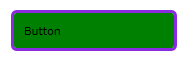
Output image


Few things to notice here, first it is obvious Style is rejected. Next we have set the Content property of the Button as ‘Button’. And it is overridden by the Control Template’s TextBlock control. And if you run the code you can notice that, Button would have lost it’s total Buttonness Open-mouthed smile ( I invented this word).

You can notice that Button would do its work and fires a click event, but you no longer see the visual transition and the hover effect of a typical button.

This is the way template is defined. It overrides all the properties.

But there’s a way to handle that, using the Content Presenter and Template Binding. Template Binding takes the property values from the control and pass it to the Template (Control Template)

<ControlTemplate x:Key="ContentPresenterButtonTemplate" TargetType="Button"> <Border BorderBrush="BlueViolet" BorderThickness="3" CornerRadius="4" Background="{TemplateBinding Background}"> <ContentPresenter Margin="{TemplateBinding Padding}"></ContentPresenter> </Border> </ControlTemplate>

It is used in a Button like this

<Button Content="Button" Height="41" HorizontalAlignment="Left" Margin="20,101,0,0" Name="button2" Style="{StaticResource ButtonStyle}" Template="{StaticResource ContentPresenterButtonTemplate}" VerticalAlignment="Top" Width="166" Padding="10" /

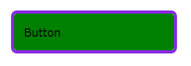
Output
image

You can see the value set on the Style is applied for Background. And Content Presenter wraps the content of a control which also used Template Binding, so the Content value in the Button is used.

Silverlight Dispatcher

Threading in Silverlight is simple and have very few classes and limited functionality.

In Silverlight we rarely go for the threading since the platform itself is asynchronous. Click to read how to do asynchronous programming in C# 5.0

In Silverlight the  main thread is incorporated with the Dispatcher, and we can use the BeginInvoke method of the Dispatcher class to update the UI from a different thread. According to the MSDN documentation Dispatcher in Silverlight is intended for the UI updates.

I’m using a dummy method which returns a string reversed of its input. And let’s assume it takes 4 seconds to complete the task.

So we need a thread to do the work, without blocking the UI. Once the task completed we have to display the string in the UI.

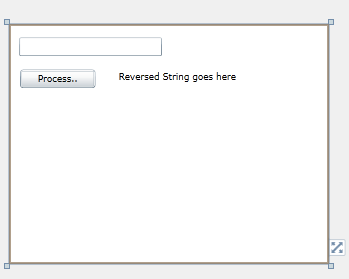
Here’s my simple and the dirty UI, a TextBox, a Button and a TextBlock to show the output.

image

Here’s the code goes under the Button click event , you can do the work in a thread and return the updates to the UI safely using Dispatcher.

{
string name = textBox1.Text;
Thread thread =new Thread(() =>
{  _reversedString = ReverseString(name);
   this.Dispatcher.BeginInvoke(() =>
     {
              textBlock1.Text = _reversedString;
     });
});
thread.Name =Reverse String Thread;
thread.Start();
}

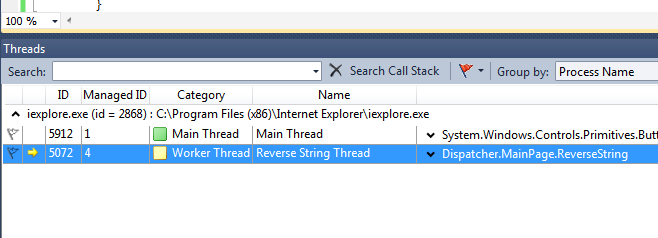
When hitting the debug and break point we can ensure that our thread is really started and running.

1

Code for the ReverseString method

private string ReverseString(string input)
{
     char[] array = input.ToCharArray();
    Array.Reverse(array);
    Thread.Sleep(4000);
    return new String(array);
}

Let’s discuss how Dispatcher can communicate across threads.

You can clearly notice that, I got the Dispatcher object using this.Dispatcher. This gives the Dispatcher of the Page (MainPage).

Dispatcher is a member of the DependencyObject class. So all the elements mainly UI controls have the Dispatcher property.

Silverlight is a Single Threaded Apartment (STA) Model. And as mentioned earlier it is incorporated with the main thread of the Silverlight. It is the thread responsible of the creation of the UI elements.

Trying to create UI elements from custom threads will throw thread exceptions as they try get the one and only Dispatcher from a different thread.

Here I compare the difference Dispatcher obrtained. First I got the Dispatcher of the RootVisual. Second the TextBlock control. Third I get the Dispatcher reference of the Deplyoment.

System.Windows.Threading.Dispatcher appDisptcher = Application.Current.RootVisual.Dispatcher;
System.Windows.Threading.Dispatcher textBlockDispatcher = textBlock1.Dispatcher;
System.Windows.Threading.Dispatcher deploymentDispatcher = System.Windows.Deployment.Current.Dispatcher;
if (appDisptcher.Equals(textBlockDispatcher))
{
    MessageBox.Show(Root Visual Dispatcher is same as TextBlock Dispatcher);
    
    if (appDisptcher.Equals(deploymentDispatcher))
    {
          MessageBox.Show(All three are same indeed);
    }
}

You can see that all Dispatchers equal. So Dispatcher works from one golden rule that is Silverlight is Single Threaded Apartment (STA) model where with that main thread Dispatcher is incorporated.