
VS 2010 SP1

VS 2010 SP1 has been released and you can download the installer from this location. The SP1 has most of the support tools in x64 mode if you are a x64 user.

The following are some features included in the SP1 this varies based on the features and updates you have already installed in your machine.

SetupUtility
Service Pack 1 Package
WCF RIA Services V1.0 SP1
Microsoft Team Foundation Server 2010 Object Model – ENU
Microsoft Visual Studio 2010 Performance Collection Tools – ENU
Microsoft Visual Studio 2010 IntelliTrace Collection (x64)
Microsoft Visual Studio 2010 Ultimate – ENU
Microsoft Visual Studio 2010 ADO.NET Entity Framework Tools
Dotfuscator Software Services – Community Edition
Microsoft SQL Server Data-tier Application Framework 1.1
Microsoft SQL Server 2008 R2 Data-Tier Application Project
Microsoft SQL Server 2008 R2 Transact-SQL Language Service
Microsoft SQL Server 2008 R2 Management Objects
Microsoft SQL Server 2008 R2 Management Objects (x64)
Microsoft SQL Server System CLR Types
Microsoft SQL Server System CLR Types (x64)
Microsoft F# Redist 2.0
VSTO 4.0 Runtime x64
Visual Studio Tools for Office
Help Viewer v1.1
Microsoft SharePoint Developer Tools
Microsoft Visual C++ 2010  x86 Runtime – 10.0.40219
Microsoft Visual C++ 2010  x64 Runtime – 10.0.40219
NDP40-KB2468871.exe

The estimated download size will be 350 ~ 670 Mbs.
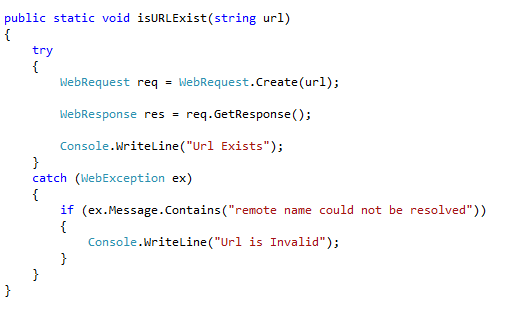
Check whether a URL exist

Use this code snippet to check whether a url exist or not .. . . .. .

MSDN Trackback : http://social.msdn.microsoft.com/Forums/en-US/csharplanguage/thread/c34f4f2e-038d-43da-a9f3-fc1ef64c49c7/#ea274ea3-31e8-4d61-a892-9e1bd4b2a97f

image

Getting the Radio Button Value in Windows Forms

I came across a question in the MSDN forums about accessing the Radio Buttons in Windows Forms. After reading the question I realized that radio buttons in Windows Forms are little tricky compared to the HTML or ASPX ones.

We can group the radio buttons using GroupBox control or the Panel Control. Then the set of radio buttons works together. The following code snippet explains on how to access the clicked radio buttons and their value when a button is clicked.

Radio buttons have the Click event and CheckChanged event, which we can use to get the value, but programmatically this snippet explains how to access the radio buttons inside a GroupBox.

image

SQL Stored Procedures

You can have a good sample on SQL Server Stored procedures using ADO.NET in C# in this link. http://www.codeproject.com/KB/cs/simplecodeasp.aspx

The article is simple and easy to understand.

Feel free to ask any questions on stored procedures as I will try my best to answer.

LightSwitch beta 1

Microsoft has introduced a new easy way to create Windows and Web based applications. When we develop applications much of the code we write for CRUD operations and data validation. LightSwitch makes this really easier by providing a very friendly manner.

You can download the LightSwitch beta 1and try it out. Download the LightSwitch Training kit. (Training Kit only provides VB.NET samples ).

LightSwitch is built on the Silverlight out of the browser feature. It has specific data types like phone number, email and others. These types are transparent to the database since a typical RDBMS ( in this case SQL Server) doesn’t have those types. So if you create table with email type in the LightSwitch it makes the SQL data type as varchar and it keeps the data type as email. So this makes LightSwitch to validate the string as email and store it in a typical varchar value in the database.

This works similar to the validation module we have in the ASP.NET where the validation is done through a Javascript code. Adobe Dreamweaver’s Spry also does the same thing.

But LightSwitch has more cool features like guided database relations, screen selections and connecting to external live data sources like bing maps.

Download the module and have fun

Smile

Starting a process from a Windows Service

If you have some knowledge about Windows services and their functionalities then go ahead. Otherwise you may not understand some of the points mentioned here.

Are you suffering from starting a process from your windows service ? I have a cunning solution for that. Normally we cannot start any process either on our local machine or from a remote machine through a windows service.

We can start the process by enabling the Desktop Interactive of the service, but the UAC system of Vista and Windows 7 is a problem, that every time we start the process from a service it asks whether to allow the desktop interactivity. We can’t ask our clients to stop the UAC system. So what is the solution ?

Now I think you have some idea why can’t we start a process from service. But you might have a question in your mind why we need a process for a service ? There can be several answers

  • We need to perform a CPU intensive operation
  • COM interoperability is clashing with some threading components of the service
  • Some actions can be performed more efficiently by a separate process rather than a service

I figured out this solution as I suffered from the bolded point. Here the method I have used.

Create an ASPX webpage (it should be hosted in a later version of IIS 4.0)

In the Page_Load method start the process.

Then Create the Windows Service to access the the web page. (Access it through normal WebRequest and WebResponse). Cool !

The real cool thing is you can almost start all the processes by using this method from a windows service. Even processes with arguments and Verbs.’

Here’s the code for the webpage

protected void Page_Load(object sender, EventArgs e)
{

Process p = new Process();

p.StartInfo.FileName = "path to your process (your .exe file)"

p.StartInfo.UseShellExecute = false;

p.StartInfo.CreateNoWindow = true;

p.Start();

p.WaitForExit();

p.Dispose();

}


In the service within the OnStart() put the following code

try

{

HttpWebRequest req = (HttpWebRequest)WebRequest.Create("ASPX page path");

HttpWebResponse resp = (HttpWebResponse)req.GetResponse();

}

catch (Exception ex)

{

}