Adaptive Bitrate (ABR) Playback in HTML 5 and Azure Media Services

I highly recommend to read these following posts before continuing on this.

Once your media is ready to be streamed we need some mechanism for the ABR playback in the browser without any plugins. Because HTML 5 video tag does not perform ABR and it just performs progressive download. (This is explained in the first link above).

MPEG DASH is the protocol / standard to stream ABR playback using HTML 5.

YouTube adapted this in January 2015.

Creating a DASH player is a custom implementation since W3C defines it in the MSE (Media Source Extensions) as a standard.

Dash.js – https://github.com/Dash-Industry-Forum/dash.js
is an open source project which helps to build the DASH player. The source contains samples ranging from simple streaming to complex samples like captioning and ad insertion.

Azure Media Player (AMP)

Azure Media Player is an implementation of a DASH player adhering to MSE and EME (Encrypted Media Extensions). AMP is also provides fallback mechanism to play the media using Flash / Silverlight when DASH is not supported by the browser. It has a limitation of it will only playback the media streamed from Azure Media Services, but for the intended purpose it serves very well.

Read documentation of AMP here. http://amp.azure.net/libs/amp/latest/docs/

You can check a sample online AMP here. http://amsplayer.azurewebsites.net/azuremediaplayer.html

Simple implementation of AMP using DASH without any fallback mechanisms would look very similar to the below code snippet.

Custom Authorization Filter returns 200 OK during authorization failure in Web API / MVC

This is a very specific and a quick post. In Web APIs sometimes we need to implement custom authorization filter which is extended from AuthorizeAttribute class, this is mainly useful in implementing authorization.

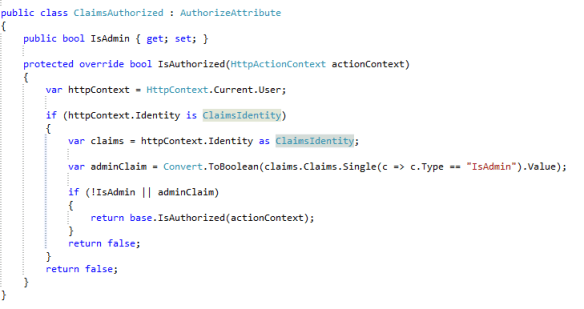
The below code shows how to implement an admin authorization in claims based authentication using ClaimsIdentity

The above code works perfectly in controllers and actions. If you pass ‘true’ to IsAdmin only the authentication requests with the claim IsAdmin true can access the respective controllers or actions.

So when a user who is not an admin tries to access controller / action decorated with the above attribute the client should receive a 401 (Unauthorized) / 403 (Forbidden) reply.

The Problem

But the in Web API you will get a response with status code 200 (OK) with the response body with the following message.

This is not a desirable behavior mainly in APIs because when you make a request from AJAX using any Javascript library, there’s a high probability that they would treat the request as success. You should in cooperate specific client logic to detect this and read the response body JSON message.

And also as API developers we do not prefer this default behavior.

The Solution

The solution is very simple, yet I thought to write a blog on this because in the Internet most of the posts say that this behavior cannot be altered from the API side. But API developers have full control over this behavior. Simply override the HandleUnauthorizedRequest method of the AuthorizeAttribute class.

Now you will get 403 error code as expected with the custom message provided in the Content in the response body.

If it is an MVC application you could do a redirection to the login page.

Delivering media content using Azure Media Services – Part 2

Preparing the video for the HTTP Adaptive Streaming using AMS

I assume you have read the Part 1 of this series and you have the understanding about the HTTP Adaptive Streaming and why we need to support it in HTML 5.

HTTP adaptive streaming allows the browsers to request video fragments in varying quality based on the varying bandwidth. In order to serve video fragments in varying qualities, the media should be encoded in different qualities and kept ready to be streamed. For example if you have a video in 4K quality, you have to encode it in different qualities like 1080p, 720p and 480p likewise. This eventually will produce individual files in different qualities.

Note: Typically upscale encoding process do not produce quality videos, meaning that if your original video is in 2K quality and encoding it in lower qualities would produce best outputs but encoding it in the 4K quality would not produce clear 4K most of the times.

So in the process of encoding the video files in different qualities, the first step is uploading the source file. This is known as Ingestion in the media work flow.

Assuming that you have AMS up and running in you Azure account, the following code snippet would upload your video file to the AMS. When creating the AMS you have to create a new / associate an existing storage account with that. This storage account will be used to store the source files and the encoding output files (these files are known as assets).

First install the following AMS NuGet packages

var mediaServicesAccountName = “<your AMS account name>”;

var mediaServicesKey = “<AMS key>”;

var credentials = new
MediaServicesCredentials(mediaServicesAccountName, mediaServicesKey);

var context = new
CloudMediaContext(credentials);

var ingestAsset = context.Assets.CreateFromFile(“minions.mp4”, AssetCreationOptions.None);

After the upload we should encode the file with one of the available HTTP Adaptive Streaming encoding types. The encoding job will produce different files in different qualities for the same source. In the date of this writing AMS supports 1080p as the maximum ABR encoding quality.

Following lines of code submit the encoding job to the AMS Encoder. You can scale the number of encoders and the type based on your demand like any other services in Azure. When the encoding is completed AMS will put the output files in the storage account under the specified name (adaptive minions MP4).

var job = context.Jobs.CreateWithSingleTask(MediaProcessorNames.AzureMediaEncoder,


MediaEncoderTaskPresetStrings.H264AdaptiveBitrateMP4Set1080p, ingestAsset, “adaptive minions MP4”,


AssetCreationOptions.None);

job.Submit();

job = job.StartExecutionProgressTask(p =>

{


Console.WriteLine(p.GetOverallProgress());

},


CancellationToken.None).Result;

Once the job is finished, we can retrieve the encoded asset, apply polices to it and create locators. Locators could have conditions on the access permission and the availability. When we create locators, assets will be published.

var encodedAsset = job.OutputMediaAssets.First();

var policy = context.AssetDeliveryPolicies.Create(“Minion Policy”,


AssetDeliveryPolicyType.NoDynamicEncryption, AssetDeliveryProtocol.Dash, null);

encodedAsset.DeliveryPolicies.Add(policy);

context.Locators.Create(LocatorType.OnDemandOrigin, encodedAsset, AccessPermissions.Read, TimeSpan.FromDays(7));

var dashUri = encodedAsset.GetMpegDashUri();

We can retrieve the URLs for different streaming protocols like HLS, Smooth and DASH. Since our topic of discussion focuses on delivering HTTP adaptive streaming over HTML 5, we will focus on constructing the DASH URI for the asset.

This is the manifest URI, which should be used in HTTP adaptive streaming playback.

In the Part 1 of this series, I have explained what HTML 5 video tag does and the browser is not aware of requesting varying fragments based on varying bandwidths. In order to do this we need a browser which supports DASH.

There’re several implementations of the DASH player, we will be using Azure Media Player for the playback since it has fallbacks for the other technologies if DASH isn’t supported.

Note: AMS should be configured with at least one streaming end point in order to enable the HTTP Adaptive Streaming.

Azure Active Directory (AAD): Common Application Development Scenarios

Azure Active Directory is a cloud identity management solution, but not limited to cloud identity alone. In this post let’s discuss about how AAD can be used in designing multi-tenant applications in cloud. As usual consider that MassRover is an ISV.

MassRover got this great idea of developing a document management application named ‘Minion Docs‘ for enterprises, they simply developed the application for Intranet using Windows Authentication. VTech was the first customer of Minion Docs. MassRover installed the application on premise (in the VTech data centers).

After a while VTech started complaining that the users want to access it outside the organization in a more secure way using different devices, and VTech also proposed that they are planning to move to Azure.

MassRover decided to move the application to the cloud in order to sustain the customers, also they realized that moving to the cloud would open the opportunity to cater multiple clients and they can introduce new business models.

Creating Multi-Tenant Applications

The Intranet story I explained is very common in the enterprises.

All the organizations have the burning requirements of handling the modern application demands like mobility, Single Sign On and BYOD without compromising existing infrastructure and the investments.

MassRover team decided to move the application to the Azure in order to provide solutions for those problems and leverage the benefits of the cloud.

First Mass Rover got an Azure subscription and integrated Minion Docs as a multi-tenant application in their AAD. As an existing Intranet application this requires minimum rewrite with more configuration.

The below setup window is the out of the box ASP.NET Azure Active Directory multi-tenant template, you see in Visual Studio.

Registering an application in AAD as a multi-tenant application allows other AAD administrators to sign up and start using our application. Considering the fact that Minion Docs is an AAD application there 2 primary ways that VTech can use Minion Docs.

  • Sync Local AD with AAD along with passwords – allows users to single sign on using their Active Directory credentials even though there’s no live connection between local AD and AAD.
  • Federate the authentication to local AD – users can use the same Active Directory credentials but the authentication takes place in local AD.

The only significant different between the above two methods is, where the authentication takes place; in the AAD or in federated local AD.

Local AD synced with Azure Active Directory with passwords

VTech IT decides to sync their local AD with their AAD along with the passwords. And VTech AD administrator signs up for the Minion Docs and allows the permissions (read / write) to Minion Docs.

What happens here?

  • MassRover created and registered Minion Docs as a multi-tenant Azure Active Directory application in their Azure Active Directory.
  • VTech has their local AD which is the domain controller which had been used in the Minion Docs Intranet application.
  • VTech purchases an Azure Subscription and they sync their local AD to their Azure Active Directory along with the passwords.
  • VTech Azure Active Directory admin signs up for the Minion Docs application, during this process VTech admin also grants the permissions to the Minion Docs.
  • After the sign up Minion Docs will be displayed under the ‘Applications my company uses’ category in the VTech’s AAD.
  • Now a user named ‘tom’ can sign in to the Minion Docs application with the same local AD credentials.

Sign in Work Flow


Few things to note

  • Minion Docs does not involve in the authentication process.
  • Minion Docs gets the AAD token based on the permission granted to Minion Docs application by the VTech AAD admin.
  • Minion docs can request additional claims of the user using the token and if they are allowed Minion Docs will get them.
  • Authorization within the application is handled by the Minion Docs.

Local AD is federated using ADFS

This the second use case where the local AD is synced with the AAD but VTech decides to federate the local Active Directory. In order to do this, first VTech should enable ADFS and configure it. ADFS doesn’t allow any claims to be retrieved by default, so VTech admin should specify the claims as well.

Federated Sign in Work Flow

In the federated scenario the authentication happens in the local AD.

As an ISV Minion Docs is free from, whether the authentication happens in the customer’s AAD or in their local AD.

Tenant Customization

Anyone with the right AAD admin rights can sign up to the Minion Docs, but this is not the desired behavior.

The better approach would be during the first sign up we can notify the Minion Doc administrators with the tenant details and they can decide or this could be automated in subscription scenarios.

A simple example, consider Voodo is another customer who wants to use Minion Docs. The Voodo admin signs up and before adding Voodo as an approved tenant in the Minion Docs database they have to complete a payment. Once the payment is done Voodo will be added to the database. This is very simple and very easy to implement.

Delivering media content using Azure Media Services – Part 1

Introduction

Media is a big business in the Internet, and it is the highest bandwidth consuming content available in WWW. This post will give you detailed information about delivering media through the Internet, what are the concepts and technologies associated with that and how Azure Media Services (AMS) can be used to deliver media.

Before talking about what AMS is and how to use it in delivering media content through the HTTP, let me explain some basics of the media (here the topic of discussion is videos but the concepts are very analogous to audio as well).

Video formats are just containers for media content. It packages the video content, audio content and other extras like the poster, header and much more. There are many video container formats available, the *.mp4, *.ogv, *.flv and *.webm are few well known container formats.

CODECS are used to package the media content in those containers. The term CODEC is used to describe both the encoding and decoding. So for any playback the player should know two things.

  • How to open / read the specific media container.
  • How to decode the media content using the CODEC used to encode it.

H.264, Theora and VP8 are few well known video codecs.

I highly recommend this post in order to get more information about media containers and codecs.

The real world experience

Talking about video creation, it is very easy for all of us to create a video even with 4K quality using smartphones. We record the video using our devices, edit them and share it.

From that point onwards what happens to that content and how it is handled by the sites like YouTube is the core part of this discussion.

Before the introduction of HTML 5 video tag, we had to install a third party plugin (mostly the Flash Player) in order to view the videos. This is because before the HTML 5, browsers did not know how to perform the above mentioned two tasks to play a video. (They didn’t know how to open the container and they didn’t know how to decode the content).

When delivering media to highly diversified audience (different operating systems, different browsers and different devices) we should concentrate we should concentrate on the format (container and codec) of the media. Prior to HTML 5, we had no choice other than installing the plugins for our browsers.

These plugins were smart enough to do the following main tasks.

  • They can read and decode the media
  • They could detect the bandwidth variations and request the media fragments in the right quality which is known as adaptive streaming / adaptive bitrate streaming (ABR)

The second task is very important and that made the streaming a fruitful experience in low bandwidth conditions as well. I’m pretty sure everyone has experienced this in YouTube. (Don’t tell me that you haven’t used YouTube).

In order to provide this experience not only the client players (plugins) need special capabilities, the streaming servers should also encode the video in different qualities as well.

HTML 5

HTML 5 ripped off most plugins from the browsers. It also has the video tag which can play the video. Browsers do not need a third party plugin to playback videos / audios. Put your video files in a static directory in your web application and open it using the <video> tag. Things works perfectly well.

This will work perfectly fine as long as your browser supports *.mp4 / H.264 (all modern browsers do support this).

This is how browser handles the request.

You can notice, before hitting the play there are few requests to the media content in order to render the initial frame. But the content request is made after hitting the play (as auto play is not enabled in the above HTML snippet) and it is in the Pending state because the browser has made the request to the HTTP server (localhost in this case) and the response is not complete.

But your browser starts to play the video before the response is completed, because browsers are capable of rendering the content. When you seek the progress bar you have to wait till content to be loaded to that point from the start. Because your browser just send a HTTP request for the video file and it simply downloading it, the browser do not know anything about how to request based on varying bandwidth and how to request in the middle of the download. It is just a start to end download. This is known as Progressive Download.

Progressive download can give us the streaming experience though technically it is not streaming because the browsers know how to render / playback the content what is available to it.

HTML 5 video / audio tags do this. They render / playback the content.

In this case we do not have a client which can detect varying bandwidth. We cannot request video chunks (known as fragments) in different qualities since we have only one video file. In the progressive download you will get an uninterrupted video playback only if your bandwidth is higher than the bitrate of the video.

The above diagram shows the flow. It is very similar how you deliver any other static content like images and scripts.

So it is obvious using the static content delivery we do not get ABR which is very important in the modern world since we have multiple devices and varying bandwidth.

So we require a technology in HTML 5 that can perform the ABR streaming. This requires changes in both the client and streaming side. Part 2 of this series will explain how to do Adaptive HTTP Streaming and ABR play back in HTML 5 without plugins.

Azure Key Vault Manager

Azure Key Vault is generally available. If you use Azure Key Vault in your projects, then there’s a high probability that you felt the need of a handy dev tool to manage your Vault.

Here it is. http://keyvaultmanager.azurewebsites.net

GitHub: https://github.com/thuru/AzureKeyVaultManager

More about Azure Key Vault: https://thuruinhttp.wordpress.com/2015/05/30/azure-key-vault-setup-and-usage-scenarios/

Redis on Azure : Architecting applications on Redis and its data types

Redis is the recommended option in the Azure PaaS caching techniques (Read why). Still Azure provides and supports other caching options too (What are the other available options)

Redis cache is available in Azure. View the Azure Redis Documentation and Pricing details.

When talking about caching, often we think of key value pair store. But Redis is not just a key value store, Redis has its own data types and support transactional operations.

Having a clear idea about the Redis cache and Redis data types will certainly help us designing applications in more Redis way.

Clone this git repository to get the idea about Redis data types. https://github.com/thuru/azure-redis-cache

The application demonstrates a crude sample of posting messages. Users can post messages and like the posts. Most recent posts and most liked posts are shown in different grids. Also users can tag posts.

Key Value pairs, Lists, (capped lists), Redis functions, Hashsets and Sets are used in the sample.

Read more on Redis data types

I will update source with more samples and information. Apart from the Redis features in the Azure portal we get comprehensive dashboards about the cache usage, cache hits, cache misses, reads, writes, memory usage and many more.

Azure Key Vault setup and usage scenarios

Introduction

At the time of this writing Azure Key Vault is in preview.  Azure Key Vault is a secure store solution for storing string based confidential information.

The reason I’ve mentioned that the string based confidential information is that you can store a key used for encrypting a file, but you cannot store the encrypted file itself as a file object; because some people have the confusion what could be stored inside the Key Vault.

Azure Key Vault – http://azure.microsoft.com/en-gb/services/key-vault/

Key Vault store 2 types of information

  1. Keys
  2. Secrets

Secrets– This could be any sequence of byte under 10 KB. Secrets can be retrieved back from the vault. Very much suitable for retrievable sensitive information like connection strings, passwords and ect. From the design point of view, we can either retrieve the keys every time we need or retrieve it once and store in the cache.

Keys – Keys could be imported to the vault from your existing vaults, also if your organization has Hardware Security Modules (HSM) you can directly transfer them to HSM based Azure Key Vault. Keys cannot be retrieved from the vault. For example if you store the key of a symmetric encryption which encrypts the files, you should send the files to vault ask the vault to encrypt / decrypt the data. Since keys cannot be retrieved from the vault this provides a higher isolation.

Keys could be stored in 2 different ways in the vault

  1. Software protected keys
  2. Hardware protected keys

Software Protected Keys – This is available in the standard tier of the vault. Compared to the Hardware protection this is theoretically less secured.

Hardware Protected Keys – HSMs are used to add premium hardware based circuitry secure storage for the keys. The most advanced key vault system available.


Provisioning Azure Key Vault

As Azure Key Vault is used to store sensitive information the authentication to the Azure Key Vault should happen via Azure AD. Let me explain it in simple steps.

  1. First a subscription administrator (either the service admin or co-admin) will create a Azure Key Vault using PowerShell.
  2. Then the admin registers an Azure AD application and generate the App Id and the App Secret Key.
  3. Admin grants the permission (trust) to the App to access the Key Vault using PowerShell.
  4. The subscription where the Vault is created should be attached to the Azure AD where the accessing app in the above step is created.
  5. This ensures that accessing app is an object of the Azure AD on which the subscription where the Vault is created is attached to.

Sometimes the 4th and 5th points might be bit confusing and you might face them especially when dealing with the multiple Azure subscriptions. See the below image for a clear picture.

Picture5

Assume that you have two subscriptions in your Azure Account, if you create the Vault in the Development subscription the app which can authenticate to the Vault should be in the Default AD. If you want to have the app in the Development AD you have to change the directory of the Development subscription.

Usage

Assume MassRover is a fictional multi tenant application on Azure.

ISV owns the Azure Key Vault

Scenario 1 (using secrets to for the encryption) – MassRover allows users to upload documents and it promises high confidential data security to its tenants. So it should encrypt the data at rest. MassRover uses it’s own Azure Key Vault to store the secrets (which are the encryption keys).  A Trust has been setup between the Azure Key Vault and MassRover AD client application. MassRover Web App authenticates to the Azure Key Vault retrieves the secrets and performs the encryption / decryption of the data.

Picture1


Scenario 2 (using keys) – MassRover Azure Key Vault stores the keys which cannot be retrieved out of the Vault. So the web app authenticate itself with the Vault and sends the data to the Vault to perform the encryption of decryption. This scenario has higher latency than scenario 1.

Picture2


Tenant owns the Azure Key Vault

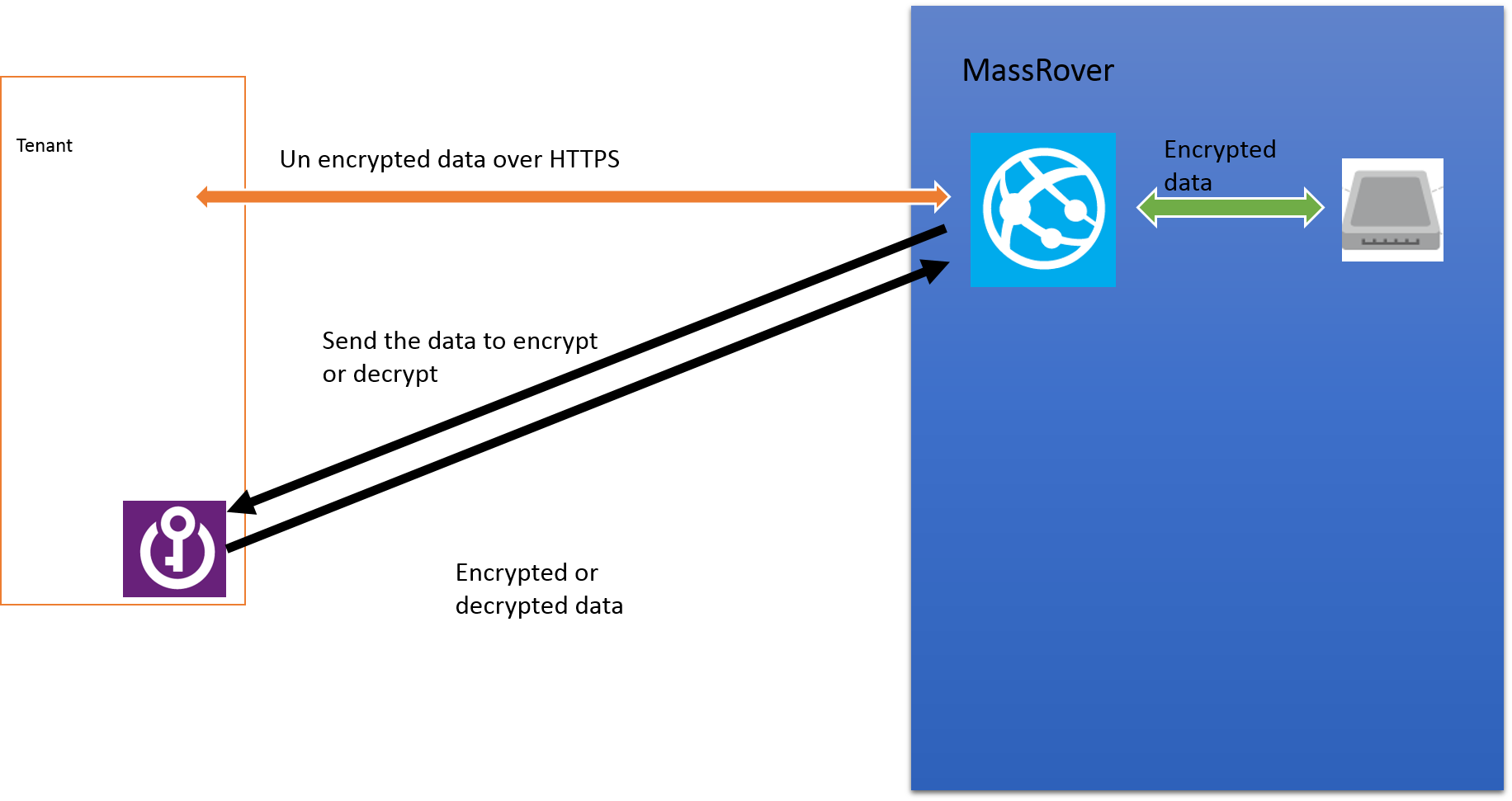
Tenants can own their Key Vault and give access to MassRover by sharing the the authorized application Id and application secret. This is an added benefit if the tenants worry about ISVs keeping the keys in their subscription and administrative boundary. Tenant maintained Key Vaults give additional policy based security for sure but latency is high since data transfer has to happen across different wires. (this could be solved to certain extent if the tenant provisions the Key Vault in same region).

Tenant maintained Key Vault also has 2 scenarios explained above, as either to go with the secrets or go with the keys.

Scenario 3 (using secrets)

Picture3

Scenario 4 (using keys)

Picture1


Useful links

Azure Key Vault NuGet packages (at the time of this writing they in pre release stage : http://www.nuget.org/packages/Microsoft.Azure.KeyVault/

PowerShell for provisioning Azure Key Vault and .NET code sample : https://github.com/thuru/AzureKeyVaultSample

Channel 09 – http://channel9.msdn.com/Shows/Cloud+Cover/Episode-169-Azure-Key-Vault-with-Sumedh-Barde