Difference between Single and First in C#

In the extension methods Single / SingleOrDefault and First / FirstOrDefault have semantic distinction. Though in many places these methods are being used without the semantic consideration, more often they return the expected results. This behavior makes this misuse more common.

Both the Single and First methods have an accompanying helper method named as xxOrDefault which does nothing more than returning the default value of the specified data type if no element matches the query in the collection. For example if it’s a string collection they return null and if it’s an integer collection they return 0.

So the main semantic distinction comes between Single and First

To check this we create 3 collections like the following.

   1: private static List<StudentViewModel> list0;

   2:  

   3: private static List<StudentViewModel> list1 = new List<StudentViewModel>()

   4: {

   5:     new StudentViewModel() { StudentId = 1, StudentName = "Thuru", Gpa = 3.92},

   6:     new StudentViewModel() { StudentId = 2, StudentName = "Kristin", Gpa = 3.92},

   7:     new StudentViewModel() { StudentId = 3, StudentName = "Jack", Gpa = 3.92},

   8:     new StudentViewModel() { StudentId = 4, StudentName = "Anna", Gpa = 3.92},

   9:     new StudentViewModel() { StudentId = 5, StudentName = "Anderson", Gpa = 3.92},

  10:     new StudentViewModel() { StudentId = 6, StudentName = "Niki", Gpa = 3.92},

  11:     new StudentViewModel() { StudentId = 7, StudentName = "Jhon", Gpa = 3.92},

  12:     new StudentViewModel() { StudentId = 7, StudentName = "Brown", Gpa = 3.92},

  13: };

  14:  

  15: private static List<StudentViewModel> list2 = new List<StudentViewModel>()

  16: {

  17:     

  18: };

list0 is null, list1 and list2 are instantiated collections where list2 has no elements.


Single / SingleOrDefault

Single as the name specifies is used and should be used where there’s one and only element match the query.

   1: //ArgumentNullException

   2: list0.Single();

   3:  

   4: //ArgumentNullException

   5: list0.SingleOrDefault();

   6:  

   7: // InvalidOperationException - Sequence contains no elements

   8: list2.Single();

   9:  

  10: // works return null if there's no elements matching the criteria

  11: StudentViewModel st = list2.SingleOrDefault();

  12:  

  13:  

  14: // InvalidOperationException - Sequence contains more than one element

  15: // if collection has only one element it returns that element

  16: Console.WriteLine(list1.Single());

  17:  

  18: // works

  19: Console.WriteLine(list1.Single(e => e.StudentId == 1));

  20:  

  21: // InvalidOperationException - Sequence contains more than one matching element

  22: Console.WriteLine(list1.Single(e => e.StudentId == 7));

  23:  

  24: // InvalidOperationException - Sequence contains no matching element

  25: Console.WriteLine(list1.Single(e => e.StudentId == 8));

  26:  

  27: StudentViewModel st1;

  28:  

  29: // InvalidOperationException - Sequence contains more than one element

  30: st1 = list1.SingleOrDefault();

  31:  

  32: //works

  33: st1 = list1.SingleOrDefault(e => e.StudentId == 1);

  34:  

  35: // InvalidOperationException - Sequence contains more than one matching element

  36: st1 = list1.SingleOrDefault(e => e.StudentId == 7);

  37:  

  38: // works st1 is null

  39: st1 = list1.SingleOrDefault(e => e.StudentId == 8);


First / FirstOrDefault

First has no issues when there’re more than one element matches the query, it simply returns the first element. But if there’re no element matching the query it prompts.

   1: // ArgumentNullException

   2: list0.First();

   3:  

   4: // ArgumentNullException

   5: list0.FirstOrDefault();

   6:  

   7: // InvalidOperationException - Sequence contains no elements

   8: list2.First();

   9:  

  10: // works return null if there's no elements matching the criteria

  11: StudentViewModel st = list2.FirstOrDefault();

  12:  

  13:  

  14: // returns the first element of the collection

  15: Console.WriteLine(list1.First());

  16:  

  17: // works

  18: Console.WriteLine(list1.First(e => e.StudentId == 1));

  19:  

  20: // returns the first element of the collection matches the query

  21: Console.WriteLine(list1.First(e => e.StudentId == 7));

  22:  

  23: // InvalidOperationException - Sequence contains no matching element

  24: Console.WriteLine(list1.First(e => e.StudentId == 8));

  25:  

  26: StudentViewModel st1;

  27:  

  28: // returns the first element of the collection

  29: st1 = list1.FirstOrDefault();

  30:  

  31: // works

  32: st1 = list1.FirstOrDefault(e => e.StudentId == 1);

  33:  

  34: // returns the first element of the collection matches the query

  35: st1 = list1.FirstOrDefault(e => e.StudentId == 7);

  36:  

  37: // works st1 is null

  38: st1 = list1.FirstOrDefault(e => e.StudentId == 8);


The code snippets and the comments describes the functions of the Single and First extension methods and their helping counter parts xxOrDefault.

 About the semantic distinction.

If you know that your query should return only one element it’s better to use Single or SingleOrDefault. For example when you query a customer collection by customer ID you know that according to the business there’s only one customer ID with a specific value. First or FirstOrDefault could be used in the scenario but it doesn’t give you the semantics of the business logic.

And Single or SingleOrDefault throws an InvalidOperationException with the message ‘sequence contains more than one element’ if the collection has more than one element matching the query. This behavior sometimes can be used to validate.

Another common misuse of the above extension methods is chaining them unnecessarily with ‘where’ statement like this

   1: // this is a common misuse

   2: list1.Where(e => e.StudentId == 7).Single();

   3:  

   4: list1.Single(e => e.StudentId == 7);


If you want the code for the demonstration purpose you can download it here
VS 2013 Preview – New Features

VS 2013 preview is here. It has loads of new cool features. Mainly it comes with the .NET 4.5.1 If you are to develop for Windows 8.1 then you should install VS 2013 preview. This blog post describes some of the cool features in the VS 2013.

Immediately after installing the VS 2013 Preview, I started a simple Console project just  to check the features listed in the above post. But besides everything one feature attracted me and it’s not mentioned in the above post. (They might have thought this is too obvious for anyone to figure it out)

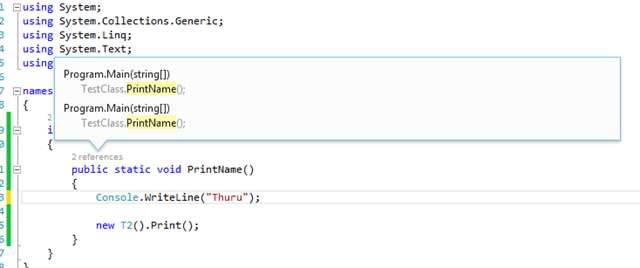
VS 2013 shows the number of times each class or method is referenced on top of their declaration. This is cool and when you click on that info it will open a tooltip.

image

When you hover the mouse on the each reference info you will get another tooltip showing more details about the reference.

image

When click on the reference in the main tooltip, no wonder it will take you to the exact location of that particular reference is.

This is a super fabulous feature and we can use it for code reviews as well. This gives the overall information of how many times a class / method is referenced or called. This will provide helpful information for the performance analysis as well.


VS Blog shows how the map view in the scrollbar works, but by default this feature is disabled. To enable this right click on the scroll bar and go to Scroll Bar Options. There you can select the Use map mode for vertical scroll bar it will bring the map view which you can use to view the areas of your code without scrolling.

image

The VS blog says the main goal behind the VS 2013 is to bring the developer in context, it is facilitated that developer can do more without losing his scope of working context.

This is GREAT 🙂

Installing SQL Server 2012 on Windows 8

Installing SQL Server 2012 on Windows 8 is a pain, because SQL Server 2012 needs .NET 3.5. The problem is activating .NET 3.5 in Windows 8 via Turn On/Off Windows features won’t help because .NET 3.5 is considered as an on demand installation feature. Windows Update also fail to address the need. There are good articles describing the exact problem in detail.

You can install the .NET 3.5 in Windows 8 using your installation media and activating the feature. Simple. Insert your installation media or mount the Windows 8 image in a drive.

Open CMD as administrator

Type the following

DISM /Online /Enable-Feature /FeatureName:NetFx3 /All /LimitAccess /Source:J:\sources\sxs

Here J:\ is the drive of my installation media.

You will see a similar screen like this, wait for the installation completes.

sql 2012 installation failure - solution [installing .net 3.5 from media ]


Done ! Now .NET 3.5 has been installed successfully on your Windows 8 PC.

AES Cryptography

Contains the code for AES encryption and decryption in C#.

   1: public byte [] EncryptText(string plainData)

   2:         {

   3:             RijndaelManaged rij = new RijndaelManaged();

   4:             

   5:             rij.GenerateKey();

   6:             _key = rij.Key;

   7:  

   8:             rij.GenerateIV();

   9:             _intializationVector = rij.IV;

  10:  

  11:             ICryptoTransform encryptor = rij.CreateEncryptor(_key, _intializationVector);

  12:  

  13:             using (MemoryStream msEncrypt = new MemoryStream())

  14:             {

  15:                 using (CryptoStream csEncrypt = new CryptoStream(msEncrypt, encryptor, CryptoStreamMode.Write))

  16:                 {

  17:                     using (StreamWriter swEncrypt = new StreamWriter(csEncrypt))

  18:                     {

  19:                         swEncrypt.Write(plainData);

  20:                     }

  21:  

  22:                     return msEncrypt.ToArray();

  23:                 }

  24:             }

  25:  

  26:         }

  27:  

  28:  

  29:         public string  DecryptText(byte [] encrytedData)

  30:         {

  31:             RijndaelManaged rij = new RijndaelManaged();

  32:  

  33:             ICryptoTransform decryptor = rij.CreateDecryptor(_key, _intializationVector);

  34:  

  35:             using (MemoryStream msDecrypt = new MemoryStream(encrytedData))

  36:             {

  37:                 using (CryptoStream csDecrypt = new CryptoStream(msDecrypt, decryptor, CryptoStreamMode.Read))

  38:                 {

  39:                     using (StreamReader srDecrypt = new StreamReader(csDecrypt))

  40:                     {

  41:                         return srDecrypt.ReadToEnd();

  42:                     }

  43:                 }

  44:             }

  45:         }

  46:         

  47:     }

UI Updates – Part 1

Updating the UI is a problem and it is tricky. There are very few simple rules to follow. Let’s see Here we’ll see  some smart ways to perform UI updates on Console applications, Windows Forms, WPF, ASP.NET, Silverlight, Windows Phone and Windows Store apps.

Console Applications

Do they have UI ? No. But we’ll check how different threads perform updates on Console applications. Look at the following code. It has a main thread and another thread (worker thread) perform some time consuming task and updates the UI. Main thread shows a rotating bar till the worker thread completes.

   1: class Program

   2:     {

   3:         static void Main(string[] args)

   4:         {

   5:             Console.WriteLine("Application Start");

   6:             Thread worker = new Thread(PerformTask);

   7:  

   8:             worker.Start();

   9:  

  10:             ShowConsoleWaitAnimation(worker);

  11:  

  12:             Console.WriteLine("Application End");

  13:             Console.ReadKey();

  14:  

  15:         }

  16:  

  17:  

  18:         private static void PerformTask()

  19:         {

  20:             // job time 4 - 10 seconds

  21:             int time = new Random().Next(4,11);

  22:             Thread.Sleep(1000 * time);

  23:             Console.WriteLine("Hello from worker - ran for {0} seconds",time);

  24:         }

  25:  

  26:  

  27:         private static void ShowConsoleWaitAnimation(Thread thread)

  28:         {

  29:             while (thread.IsAlive)

  30:             {

  31:                 Console.Write("Processing - /\r");

  32:                 Thread.Sleep(100);

  33:                 Console.Write("Processing - -\r");

  34:                 Thread.Sleep(100);

  35:                 Console.Write("Processing - \\\r");

  36:                 Thread.Sleep(100);

  37:                 Console.Write("Processing - |\r");

  38:                 Thread.Sleep(100);

  39:             }

  40:         }

  41:     }


Windows Forms

Look at the below code. In a simple Windows Forms application, for a button click event, a time consuming task runs in a separate thread and tries to update a Label control.

   1: private void BtnStartWork_Click(object sender, EventArgs e)

   2: {

   3:     Thread worker = new Thread(PerformTask);

   4:     worker.Start();

   5: }

   6:  

   7: private void PerformTask()

   8: {

   9:     // job time 4 - 10 seconds

  10:     int time = new Random().Next(4, 11);

  11:     Thread.Sleep(1000 * time);

  12:     LblStatus.Text = String.Format("Work completed - ran for {0} seconds", time);

  13: } 


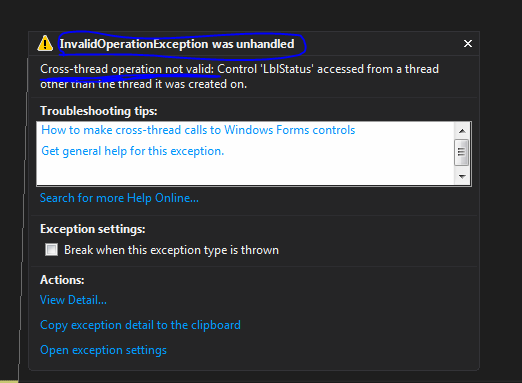
When you run the above code, you will get this famous Exception. Because the Label control is created in UI thread and our worker thread tries to reach it. Cross thread referencing cannot happen as this is a violation of operating system thread handling policies. ( Do not mistake the cross thread communication and cross thread referencing, cross thread communication can happen among threads)

image

There are plenty of solutions for this problem, but the ready made one is to use BackgroundWorker class. The below code shows how you can use BackgroundWorker class and perform UI updates and also shows a progress bar on the UI. Events are coded inline to reduce the number of methods for this small demo.

   1: public partial class Form1 : Form

   2: {       

   3:        private BackgroundWorker _bgWorker = new BackgroundWorker();

   4:        private string _result = String.Empty;

   5:  

   6:        public Form1()

   7:        {

   8:            InitializeComponent();

   9:        }

  10:  

  11:        private void BtnStartWork_Click(object sender, EventArgs e)

  12:        {

  13:            _bgWorker.WorkerReportsProgress = true;

  14:  

  15:            _bgWorker.DoWork += (s, ev) =>

  16:                {

  17:                    _result = PerformTask();

  18:                };

  19:            

  20:            _bgWorker.ProgressChanged += (s, ev) =>

  21:                {

  22:                    workerProgressBar.Value = ev.ProgressPercentage * 100;

  23:                };

  24:  

  25:            _bgWorker.RunWorkerCompleted += (s, ev) =>

  26:                {

  27:                    LblStatus.Text = _result;

  28:                };

  29:  

  30:            _bgWorker.RunWorkerAsync();

  31:        }

  32:  

  33:  

  34:        private string PerformTask()

  35:        {

  36:            // job time 4 - 10 seconds

  37:            int time = new Random().Next(4, 11);

  38:            int fullTime = time;

  39:  

  40:            while (time >= 0)

  41:            {

  42:                Thread.Sleep(1000);

  43:                _bgWorker.ReportProgress(1 - (time / fullTime));

  44:                time--;

  45:            }

  46:  

  47:            return String.Format("Work completed - ran for {0} seconds", fullTime);

  48:         }

  49:           

  50: } 


WPF

In WPF we can use the BackgroundWorker, but also there’s a well refined solution in the WPF is to use the Dispatcher object. WPF model has Dispatcher object common across all the controls. So we can use this to update the UI.

Little modification in the PerformTask() and make it return the result.

   1: private string PerformTask()

   2: {

   3:     // job time 4 - 10 seconds

   4:     int time = new Random().Next(4, 11);

   5:     int fullTime = time;

   6:  

   7:     Thread.Sleep(time);      

   8:  

   9:     return String.Format("Work completed - ran for {0} seconds", fullTime);

  10: } 

Button click event.

   1: private void BtnWork_Click(object sender, RoutedEventArgs e)

   2: {

   3:     Thread thread = new Thread(() =>

   4:         {

   5:             string result = PerformTask();

   6:             Dispatcher.Invoke(() =>

   7:                 {

   8:                     TxtStatus.Text = result;

   9:                 });

  10:         });

  11:     thread.Start();

  12: }

Part 2 – will discuss about UI updates in ASP.NET and Silverlight.

checked and unchecked keywords in C#

This post explains about checked and unchecked keywords in C#. In arithmetic calculations when constants are involved compiler detects the overflows in the data types. For example look at the following code.

   1: // int range is from -2,147,483,648 to 2,147,483,647

   2: int i = 2147483647 + 10;

The above will generate a compile time error. But the following won’t and it will give an output –2,147,483,639

   1: int ten = 10;       

   2: int i = 2147483647;

   3: Console.WriteLine(i + ten);

Because the compiler does not detect the overflows when non constants are are involved in the expression.

The above will not even raise an OverflowException. To make sure that the above is validated in runtime, we can use the checked keyword as a block or in line.

As a block

   1: checked

   2: {

   3:     Console.WriteLine(i + 10);

   4: }

Inline

   1: Console.WriteLine(checked(i + 10));

Since checked keyword validates against the overflows and throws an exception, it has a performance hit. So when you are sure that the expression is not going to cause an OverflowException it is better not use the checked keyword.


unchecked does the opposite of the checked. It mainly instructs the compiler not to do the validation for an expression. The following would generate a compile time error if it is not enclosed with the unchecked block. As checked keyword unchecked keyword can also be used in blocks and inline.

   1: unchecked

   2: {

   3:     int a = 2147483647 + 10;

   4:     Console.WriteLine(a);

   5: }

Detecting the Windows Phone Theme Background Color

We often need to detect the WP background theme color to switch the color schemes of our apps.

This is very useful when we utilize the application bar and have some metro icons in our app. In built WP apps have this feature and switch between different icons. For example when you use the Messaging app in dark background mode the icons are white and when the background is in light mode. A very simple feature but how to detect the background theme color of the WP.

Here’s the code snippet for this. PhoneBackgroundBrush is a property of the Application.Current.Resources Dictionary object.

private readonly Color _lightThemeBackground = Color.FromArgb(255, 255, 255, 255); private readonly Color _darkThemeBackground = Color.FromArgb(255, 0, 0, 0); private void DetectPhoneTheme() { SolidColorBrush theme = Application.Current.Resources["PhoneBackgroundBrush"] as SolidColorBrush; if (theme.Color == _lightThemeBackground) { btnBack.IconUri = new Uri("Images/backB.png", UriKind.Relative); BtnNext.IconUri = new Uri("Images/nextB.png", UriKind.Relative); BtnShare.IconUri = new Uri("Images/shareB.png", UriKind.Relative); } else { btnBack.IconUri = new Uri("/Images/backW.png", UriKind.Relative); BtnNext.IconUri = new Uri("/Images/nextW.png", UriKind.Relative); BtnShare.IconUri = new Uri("/Images/shareW.png", UriKind.Relative); } } private readonly Color _lightThemeBackground = Color.FromArgb(255, 255, 255, 255); private readonly Color _darkThemeBackground = Color.FromArgb(255, 0, 0, 0); private void DetectPhoneTheme() { SolidColorBrush theme = Application.Current.Resources["PhoneBackgroundBrush"] as SolidColorBrush; if (theme.Color == _lightThemeBackground) { btnBack.IconUri = new Uri("Images/backB.png", UriKind.Relative); BtnNext.IconUri = new Uri("Images/nextB.png", UriKind.Relative); BtnShare.IconUri = new Uri("Images/shareB.png", UriKind.Relative); } else { btnBack.IconUri = new Uri("/Images/backW.png", UriKind.Relative); BtnNext.IconUri = new Uri("/Images/nextW.png", UriKind.Relative); BtnShare.IconUri = new Uri("/Images/shareW.png", UriKind.Relative); } }

Extension Methods

Extension methods in C# is a great way to add functionality to a closed class. Here the word ‘closed’ refers to both the sealed ones and the classes which you do not have the access to their source code.

Some can argue if we can actually add a method to a sealed class then it violates the sealed concept. In way it is but not indeed.

There are plenty few points you have to be aware of whilst implementing an extension method for a class in C#

■ Extension methods must be defined in a  C# public static class.
■ If you define an extension method for a type, and the type already has the same
method, the type’s method is used and the extension method is ignored.
■ Although extension methods are implemented as static methods,
they are instance methods on the type you are extending. You cannot add static methods
to a type with extension methods.

The last point is bit confusing, how come a method marked as static work as a non static method. This is a special case in C# where one of the basic rules is violated.

So let’s see how you can create an extension method for String type.

public static class StringHelper { public static bool IsNumeric(this string num, out double result) { return Double.TryParse(num, out result); } }

Create a helper class like the above one. But note how the IsNumeric is declared and it’s parameters. In an extension method the first parameter should be always the type on which the extension method is targeted on. And should have the ‘this’ keyword before. Other parameters are custom defined.

Just that it’s simple

double value; string myString = "Thuru"; myString.IsNumeric(out value);

You can call the extension method as it is declared in the String. This is really cool.

And also if you consider the last point of the extension method now you can understand why the static – instance violation is made. Because if the extension method is static then all the string values declared in the scope of this IsNumeric would be effected.

So in the extension method declaration the static is a mere format keyword and makes sense because the methods are under a static class. Real sense of static is not considered. As like having an awkward syntax of having ‘this’ keyword in the parameter list.