Youtube like progress bar using NProgress.js with Angular.js

NProgress provides decent and attractive Javascript library to get a nice progress bar similar to the Youtube one. This is very sleek and classy, I love that and it’s very useful for the Single Page Applications.

You can download NProgress.js from http://ricostacruz.com/nprogress/

If you’re doing the development in Visual Studio you can install the NProgress from the NuGet. It is very simple library. When you install NProgress you get all the other dependencies as well. NProgress has one simple CSS file which very easy to work with and handle.

image

It has 4 methods.

  • NProgress.start() – to start the progress bar
  • NProgress.set(0.5) – set the progress bar value; ranges from 0 to 1
  • NProgress.inc() – increment the progress bar value.
  • NProgress.done() – complete the load process and hides the bar

Let’s see how to use with Angular.js. Better practice is to use the progress bar in background operations or when the UI wait happens. In this sample I didn’t use $http service of the Angular I just used $scope.

The HTML goes like this.

image

nprogress.css is the style sheet where you can control the behavior of the progress bar. It also contains the code for the spinner. If you want you can disable the spinner by simply commenting the code. Spinner only has start and done methods. HTML contains 3 Javascript references nprogress.js, angular.js and the custom controller AppController.js.

Code for AppController.js

image 

You can this is a very crud code sample, when request data from web service using $http service, you can call NProgress start and done methods appropriately. 

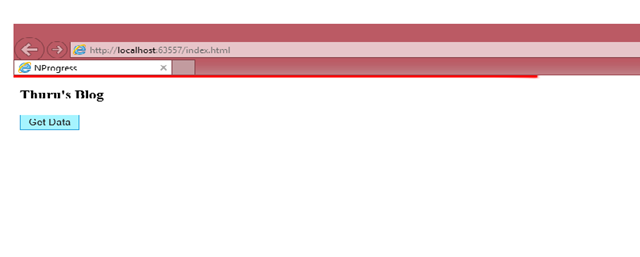
I also did some color changes in the nprogress.css file and made the progress bar to red.

image

Configuring Azure CDN (Content Delivery Network)

Azure provides CDN. You can link websites, cloud services, mobile services, media services and storage accounts. Most of the cases we link the storage accounts to CDN. Because CDN is a very good choice for static content and in Azure mostly we keep the static content in the storage accounts (blobs).

CDN provides a greater network among different geographical network and place the content in the “Edge Servers” as they’re physically close to the users’ location. Azure Cache is a different service it offers in memory cache for high speed availability, it is relatively expensive compared to CDN. See this article on how to create Azure Cache.

Creating a CDN in Azure is fairly straight forward. Login to the Management Portal and Select the CDN and create new endpoint. You have the Quick Create option. You get the below screen. In the origin domain you can see your available services that could be linked as CDN endpoints under each category. Here I select my storage account as origin domain. You can notice that automatically the storage account’s blob storage service is linked with the CDN as it holds the static content. Neither the Table storage nor the Queue storage is linked as CDN.

image


I created a public container in the above blob storage and uploaded  a simple text file. The public URI for the resource goes as http://qbemediasvc.blob.core.windows.net/publiccontainer/dfdf.txt

Out CDN endpoint URL goes as http://az673726.vo.msecnd.net/

In order to check the content is in CDN we can simply append the last part of the blob URI to the CDN endpoint URL and we get the CDN URL as this. http://az673726.vo.msecnd.net/publiccontainer/dfdf.txt

When you put a content in the storage it will take up to 60 minutes for that content to propagate to CDN and once the propagation is done you can access the CDN rather than the direct URL of the content.

Creating and connecting to SQL Server in AWS RDS

Amazon Web Services (AWS) offers Relational Database Service (RDS) with the following RDMSs. 

  • Microsoft SQL Server
  • MySQL
  • PostgreSQL
  • Oracle

In order to create a AWS Managed RDS click on the RDS link in the management console under the Database section.

image This will lead to the following screen, and here you can begin creating a SQL Server in AWS managed RDS.

image

Fill the below details.

image

In the above form I selected micro instance as it gets qualified for the free tier service,  and Multi-AZ Deployment is disabled. Multi-AZ Deployment helps you to scale up the instances and works as a failover mechanism. Scaling the storage after the database engine has been provisioned is not supported by the SQL Server in AWS. Note that scaling the instances and scaling the storage are two different things.

image

After filling the details you can launch the DB Instance. You will see the following information about the DB instance you created.

image


Connecting to AWS SQL Server from SSMS

Notice that in this instance SQL Server is running in its default port. In order to connect to the DB Instance from any client tool like SSMS you have to enable the inbound rule for the security group in which your DB instance lives. In order to perform this action quickly from the above screen click on the exclamation mark icon beside the underlined section.

image


In this case I put the DB instance in the default security group. Click on the default link and it will take you to the Networks and Security section.  Click the Inbound tab, select Edit and configure the SQL Server port and assign IP rule. (You have the options to select a specific IP, or your current IP and All IP). In this example I added the rule connect from anywhere (All IPs). But mostly for your production server you will not do this.

image

Save the settings for the security group.

Now the inbound port TCP:1433 is enabled and you can connect from the SSMS. Copy the underlined endpoint name of the server without the port number, that is your SQL Server name.

image

Enter the password and you will be connected to the DB Instance.

image

How to create a certificate authentication with Azure Management Service

In order to carry out any management tasks in Azure using an agent (Visual Studio or any custom code), it should authenticate itself with Azure. Requests to the Azure Management API should be authenticated using on of the following methods.

  • Active Directory
  • Certificate Authentication

This article covers the certificate authentication. Azure Management Service (AMS) APIs require a X.509 certificate for the authentication. For the development purpose we can create a sample certificate in our machine using the following command line. Make sure you open the Visual Studio command line in administrator mode to execute this.

makecert -sky exchange -r -n "CN=<CertificateName>" -pe -a sha1 -len 2048 -ss My "<CertificateName>.cer"

image

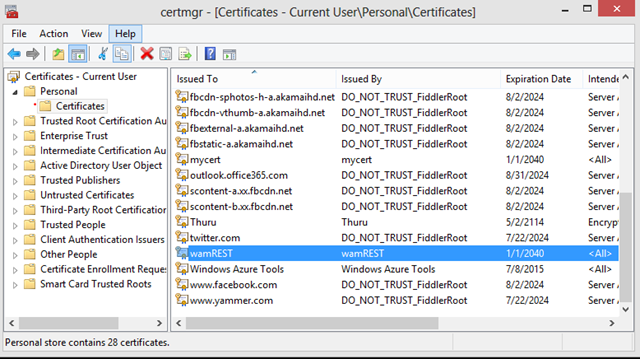
This creates the certificate in the local machine under the Personal Certificates since I have specified “My”as location.

Open the Certificate Manager in your local machine (enter certmgr.msc in the Run). You can check for your new certificate.
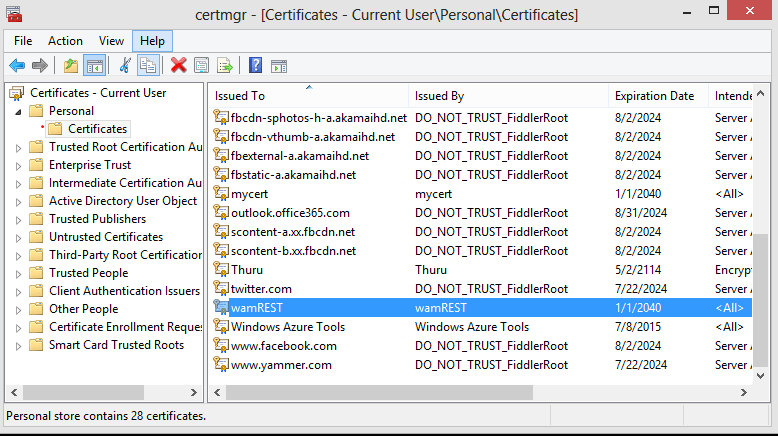
image


We should upload this certificate to Azure to establish the trust and each and every API request should contain the certificate. Certificates are saved in Azure under subscriptions thus they are used to manage the subscription owner actions. Each subscription can contain up to 100 certificates as of this writing.

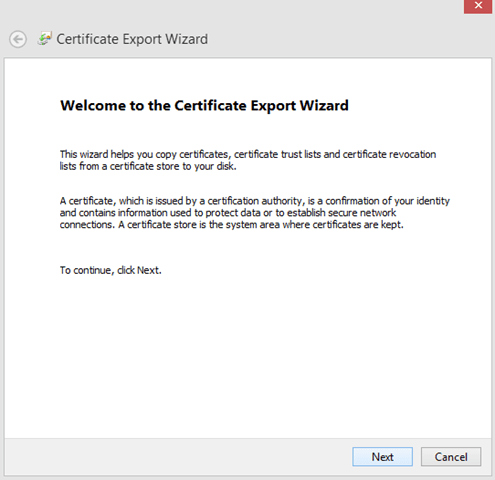
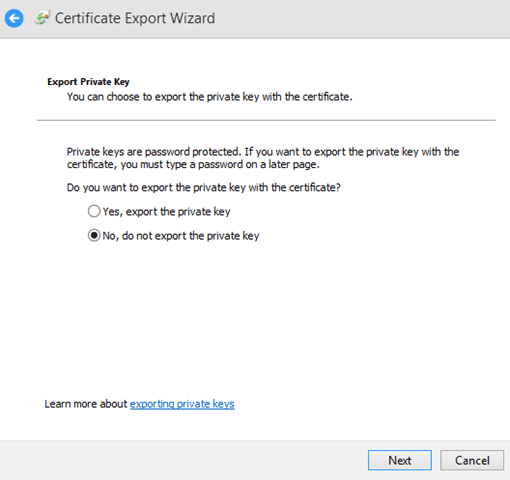
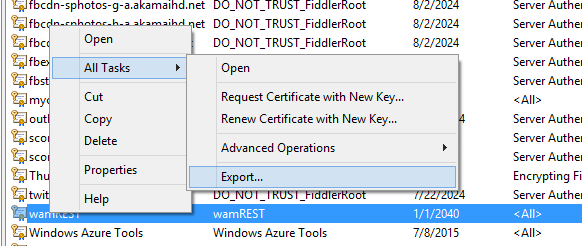
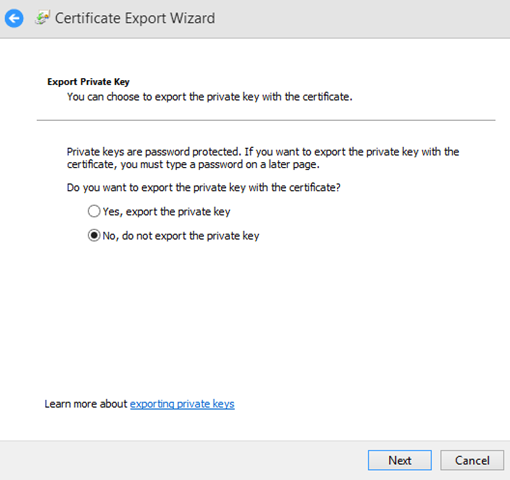
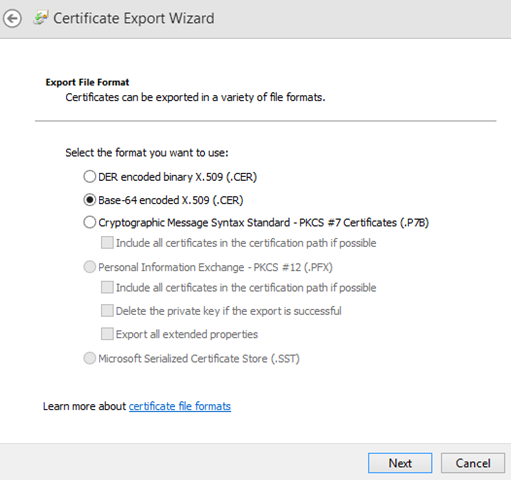
Export the certificate from certificate store, as a .cer file. Follow the screen shots below.

image image image image image

Once you have exported the certificate, next step is to upload it to the Azure subscription. Login to the Azure select the correct directory if you more than one under your login and select the correct subscription to which you need to upload the certificate. Then go Settings and go to Management Certificates tab, there you can upload your certificate.

After uploading the certificate you can view it in grid like this.

image


To summarize what we’ve done up to now,

  • We need establish a trust between Azure and the subscription agent via certificate authentication.
  • Subscription agent is the party / tool which programmatically carries our the tasks of a subscription owner.
  • First we generated a local certificate using certmgr.msc
  • We exported the certificate and put it in the Azure management certification store.
  • So now any subscription agent with the certificate can perform the subscription ownership tasks (using Azure Management API) thus authenticating using the certificate.

The below C# code shows how to retrieve the certificate from your local store by providing the thumbprint.

   1: public X509Certificate2 GetStoreCertificate(string thumbprint)

   2: {

   3:     List<StoreLocation> locations = new List<StoreLocation>

   4:     {

   5:         StoreLocation.CurrentUser,

   6:         StoreLocation.LocalMachine

   7:     };

   8:

   9:     foreach (var location in locations)

  10:     {

  11:         X509Store store = new X509Store("My", location);

  12:         try

  13:         {

  14:             store.Open(OpenFlags.ReadOnly | OpenFlags.OpenExistingOnly);

  15:             X509Certificate2Collection certificates = store.Certificates.Find(X509FindType.FindByThumbprint, thumbprint,false);

  16:

  17:             if (certificates.Count == 1)

  18:             {

  19:                 return certificates[0];

  20:             }

  21:         }

  22:         finally

  23:         {

  24:             store.Close();

  25:         }

  26:     }

  27:

  28:     throw new ApplicationException("No Certificate found");

  29: }

The above code tries to get the certificate from the Personal certification location, as the parameter “My” has been passed to the X509Store constructor.

After obtaining the certificate, you should pass it through each and every Azure Management API request whether you use the REST API or any language SDK.

How to create Cascading Dropdowns in Angular JS using Web API

Angular JS is one of the famous and a ‘WoW’ making Javascript frameworks available. https://angularjs.org/ has plenty of learning resources for Angular JS. This post shows how to create cascading drop downs using Angular JS whilst showing the use of other basic features of Angular JS.

Angular JS relies heavily on angular directives which HTML extended attributes with prefix of ng-

The following sample shows a simple web application developed using Angular JS and Web API. I used the AdventureWorks2012LT database and a Web API 2. UI has two dropdowns, first one shows the product categories and when a category is selected the second one shows the products for that particular category.

http://localhost/ADLTService/api/productcategory – to get the product categories

http://localhost/ADLTService/api/productforcategory/{id} – to get the products for a category id.

Create a simple HTML project and add Angular from NuGet. The below code shows the app script.

thuruinhttp.wordpress.com

The below is my HTML

thuruinhttp.wordpress.com

ng-repeat directive loops through the collection and creates the <options> tag for us. ng-model binds the value to the parameter in ng-change event. Here the name should be identical. The rest Angular knows how to interpret. Cascading drop down simple as that. You can also use ng-options as a directive for the <select> for more details refer this article.

Working Model.

angular cascading drop down

How to create code snippets in SQL Server Management Studio (SSMS)

Recently I’ve been working on a project which requires plenty of stored procedures and custom logging. For error handling I don’t want to repeat my logging TSQL statements for each and every SP I write. I created a code snippet and let the IDE code for me. Follow these simple steps to create code snippets in SSMS. The following example inserts pure TSQL code without any parameters and at the end of this blog post I’ve mentioned how to create code snippets which include parameters using one of the built in code snippets of SSMS.

Code snippets are stored as XML files in particular format and imported in to the SSMS. These XML files have the extension of .snippet and you can find the built in code snippets in this location

C:\Program Files (x86)\Microsoft SQL Server\110\Tools\Binn\ManagementStudio\SQL\Snippets\1033

Let’s call this path as 1033 Snippet Root

In order to get the .snippet file template open one of the simplest built in code snippets from the 1033 Snippet Root. You can find this from the View folder. Under the View folder there’s a code snippet name Create View.snippet

Open it in a text editor, (Notepad++ would be a good choice). This is the structure of a basic TSQL code snippet XML file.

View Snippet

The snippet I created is far more simpler than the above as it does not require any parameters, so I do not need the <Declarations></Declarations> section. Under the <Snippet></Snippet> I have only the <Code></Code> block.

image


The above code snippet will get the error details of the current execution context and THROW it.

After creating the XML file save it with a .snippet extension. I saved the above as Default Throw.snippet Now we have to import the snippet into the SSMS.

Importing a code snippet into SSMS

Open SSM, go to Tools and then click Code Snippets Manager

image

Select a folder where you want to put your snippet (This folder structure is simply a categorization of the snippets). If you want you can add a new folder as well. In my case I wanted to put the snippet under My Code Snippets folder. Then click Import. Browse for the snippet file and import it.

image

That’s all, now we can use the our snippets in the TSQL editor of SSMS. In order to bring the snippet intellisense press Ctrl +K, Ctrl + X and choose the folder then your snippet and press TAB to insert it.

image

Handling File Attachments in SharePoint Hosted apps using REST API

SharePoint List items can have one or more attachments. This post describes how to save/upload attachments and how to retrieve/download them for a specific list item in a list using SharePoint client REST API using Javascript.

Uploading an Attachment to SharePoint List using REST API using Javascript

First we have to read the file content and then upload the file to the list item as an attachment. I have used HTML 5 FileReader in order to read the file content. You have to pass the control id of your file input control to the following function. The function returns a promise that we can use to get the output.

   1: function readFile (uploadControlId) {

   2:  

   3:      if (!window.FileReader)

   4:          throw "The browser does not support HTML 5";

   5:  

   6:      var def = new $.Deferred();

   7:  

   8:      var element = document.getElementById(uploadControlId);

   9:      var file = element.files[0];

  10:      var parts = element.value.split("\\");

  11:      var fileName = parts[parts.length - 1];

  12:  

  13:      var reader = new FileReader();

  14:      reader.onload = function (e) {

  15:          def.resolve(e.target.result, fileName);

  16:      }

  17:      reader.onerror = function (e) {

  18:          def.reject(e.target.error);

  19:      }

  20:  

  21:      reader.readAsArrayBuffer(file);

  22:  

  23:      return def.promise();

  24:  }


The following function upload the attachment to the specified list. It takes the ID of the list item as the first parameter, list name as the second parameter, file name and buffer go as third and fourth parameters which we get from the above function.

   1: function uploadAttachment (id, listName, fileName, buffer) {

   2:         var url = _spPageContextInfo.webServerRelativeUrl +

   3:             "/_api/web/lists/getByTitle('" + listName + "')/items('" + id.toString() + "')/AttachmentFiles/add(FileName='" + fileName + "')";

   4:  

   5:         return $.ajax({

   6:             url: url,

   7:             type: "POST",

   8:             data: buffer,

   9:             processData: false,

  10:             headers: {

  11:                 Accept: "application/json;odata=verbose",

  12:                 "X-RequestDigest": $("#__REQUESTDIGEST").val(),

  13:                 "Content-Length": buffer.byteLength,

  14:                 "IF-MATCH": "*"

  15:             }

  16:         });

  17:     },

Now we have the function to read the file content and the other function to upload the content as an attachment to a list item, so next we have to chain them together to make a proper call. We do the chaining using the .done function.

   1: function executeUploadAttachment (id, listname) {

   2:         readFile("uploadControlId").done(function (buffer, fileName) {

   3:             uploadAttachment(id, listname, fileName, buffer).done(function () {

   4:                 alert("success");

   5:             }).fail(function () {

   6:                 alert("error in uploading attachment");

   7:             })

   8:         }).fail(function (err) {

   9:             alert("error in reading file content");

  10:         });

  11: }


Downloading the attachments of a list item

This is pretty straight forward.  The following URL will give the relative URLs of the attachments of a list item.

_spPageContextInfo.webServerRelativeUrl + /_api/web/lists/getbytitle(‘” + listname + “’)/items(‘” + id.toString() + “’)/AttachmentFiles

   1: function getAttachments (id, listname) {

   2:         return $.ajax({

   3:             url: _spPageContextInfo.webServerRelativeUrl + "/_api/web/lists/getbytitle('" + listname + "')/items('" + id.toString() + "')/AttachmentFiles",

   4:             type: "GET",

   5:             contentType: "application/json;odata=verbose",

   6:             headers: {

   7:                 "Accept": "application/json;odata=verbose"

   8:             }

   9:         });

  10:     }

Use the following code snippet get the output.

   1: getBillingAttachments(1, "mylist").done(function (data) {

   2:                 var result = data.d.results;

   3:  

   4:                 for (var i = 0; i < result.length; i++) {

   5:                     alert(result[i].ServerRelativeUrl);

   6:                }

   7:             })

Script Loading Error in SharePoint Hosted Apps

If you are into developing SharePoint Hosted apps there’s a high probability that you might have encountered script loading issues. In SharePoint Hosted apps this is common because most of the SP Javascript libraries are loaded on demand.

Sometimes JS libraries aren’t loaded into the application properly. Since this is a common issue and it’s better practice to load all Javascript files using a single loader rather than referencing all the required Javascript files in every we use script loaders. Script loaders are again Javascript libraries which loads the Javascript into the page and have events attached to this task.

Commonly when we use jQuery we do start our Javascript functionality from the well known $(document).ready(function () { }) event. This event is triggered by jQuery once the HTML DOM graph is being generated in the memory. Then we start doing our work.

But in SharePoint Hosted app space we might encounter a problem, that some script files will not load even after the jQuery document ready is fired. This could happen due to several reasons, internal errors, files are too large and still in the transition from the server, or custom settings (such as the on demand load in SharePoint).

The problem is though it is said to be on demand Javascript loading sometimes the components aren’t loaded when ever we need them. So using custom script loaders and making sure that all the required are loaded is a good a practice. Some can argue that this will delay the startup; it is true but the benefits you get definitely overrun the drawbacks.

There are plenty of script loaders but my favorite is yepnope.js. It is very light weight and works fast, and does not collide with any other Javascript libraries. I recommend this especially for SharePoint Hosted apps development.

You can download the yepnope.js here

The following a sample code on how to use yepnope to load the libraries. yepnope.js has many other methods as well.

   1: spinit_array = [];

   2:  

   3: spinit_array.push("url1");

   4: spinit_array.push("url2");

   5:        

   6: yepnope({

   7:     load: spinit_array,

   8:     complete: function () {

   9:         callback();

  10:     }

  11: });

You can include the above code in the page itself within the script tags, or can have one self invoking function and refer that in the page and call this. You can carry on your tasks in the callback function. Mostly I used my jQuery $(document).ready( function () { } ) as my callback.