Facebook like link sharing

When you paste a URL in the FB share, FB pulls out some information about the URL along with any available images.

I created a similar feature in ASP.NET few years ago and I got the project file while clearing out  one of my disk partitions and thought of sharing it.

This project uses HTMLAgilitPack (http://htmlagilitypack.codeplex.com/) and XPATH for processing the HTML.

A working preview.

image


You can download the code here (http://sdrv.ms/MM5zA1) from SkyDrive.

2013 in review

The WordPress.com stats helper monkeys prepared a 2013 annual report for this blog.

Here’s an excerpt:

The concert hall at the Sydney Opera House holds 2,700 people. This blog was viewed about 14,000 times in 2013. If it were a concert at Sydney Opera House, it would take about 5 sold-out performances for that many people to see it.

Click here to see the complete report.

CRUD operations in Infragistics WebDataGrid

DataGrids are vital controls in many user interfaces. Like it or not still 2D tables are one of the most comfortable user interface elements in not only viewing data but also in performing rapid inserts and updates.

CRUD operations of DataGrid is not a big innovation, but there are plenty of ways to do that. This post explains how to perform CRUD operations using Infragistics WebDataGrid control in ASP.NET.

This code is written using Infragistics version 12.2

Create a simple WebDataGrid.

   1: <ig:WebDataGrid ID="WebGridCarton" runat="server" Height="350px" Width="100%" AutoGenerateColumns="False" 

   2:    DataKeyFields="CartonViewModelGuid" EnableDataViewState="True" 

   3:    OnRowAdded="WebGridCarton_RowAdded" OnRowAdding="WebGridCarton_RowAdding" 

   4:    OnRowDeleted="WebGridCarton_RowDeleted" OnRowsDeleting="WebGridCarton_RowsDeleting" 

   5:    OnRowUpdated="WebGridCarton_RowUpdated" OnRowUpdating="WebGridCarton_RowUpdating">

   6:    <Columns>

   7:        <ig:BoundDataField DataFieldName="CartonViewModelGuid" Key="CartonViewModelGuid" Hidden="true" HtmlEncode="true">

   8:        <Header Text="Guid">

   9:        </Header>

  10:        </ig:BoundDataField>

  11:        <ig:BoundDataField DataFieldName="CartonInfoId" Key="CartonInfoId" Hidden="true" HtmlEncode="true">

  12:            <Header Text="Id">

  13:            </Header>

  14:        </ig:BoundDataField>

  15:        <ig:BoundDataField DataFieldName="SelectionColumn" Key="SelectionColumn" HtmlEncode="true" Width="15">

  16:        </ig:BoundDataField>

  17:        <ig:BoundDataField DataFieldName="Size" Key="Size" HtmlEncode="true">

  18:            <Header Text="Size">

  19:            </Header>

  20:        </ig:BoundDataField>

  21:        <ig:BoundDataField DataFieldName="Length" Key="Length" HtmlEncode="true">

  22:            <Header Text="Length (cm)">

  23:            </Header>

  24:        </ig:BoundDataField>

  25:        <ig:BoundDataField DataFieldName="Width" Key="Width" HtmlEncode="true">

  26:            <Header Text="Width (cm)">

  27:            </Header>

  28:        </ig:BoundDataField>

  29:        <ig:BoundDataField DataFieldName="Height" Key="Height" HtmlEncode="true">

  30:            <Header Text="Height (cm)">

  31:            </Header>

  32:        </ig:BoundDataField>

  33:        <ig:BoundDataField DataFieldName="Volume" Key="Volume" HtmlEncode="true">

  34:            <Header Text="Volume (cbm)">

  35:            </Header>

  36:        </ig:BoundDataField>

  37:        <ig:BoundDataField DataFieldName="Weight" Key="Weight" HtmlEncode="true">

  38:            <Header Text="Weight (kg)">

  39:            </Header>

  40:        </ig:BoundDataField>

  41:        <ig:BoundDataField DataFieldName="WeightLimit" Key="WeightLimit" HtmlEncode="true">

  42:            <Header Text="Weight Limit (kg)">

  43:            </Header>

  44:        </ig:BoundDataField>

  45:    </Columns>

  46:    <Behaviors>

  47:        <ig:Activation Enabled="true"></ig:Activation>

  48:        <ig:Selection CellClickAction="Row" RowSelectType="Single" Enabled="true"></ig:Selection>

  49:        <ig:EditingCore AutoCRUD="false">

  50:            <Behaviors>

  51:                <ig:CellEditing EditModeActions-EnableF2="true" EditModeActions-MouseClick="Single" Enabled="true">

  52:                    <ColumnSettings>

  53:                        <ig:EditingColumnSetting ColumnKey="CartonInfoId" ReadOnly="true" />

  54:                        <ig:EditingColumnSetting ColumnKey="SelectionColumn" ReadOnly="true" />

  55:                        <ig:EditingColumnSetting ColumnKey="CartonViewModelGuid" ReadOnly="true" />

  56:                        <ig:EditingColumnSetting ColumnKey="Size" EditorID="DropDownProvider_Size" ValidatorID="RequiredFieldValidator1" />

  57:                        <ig:EditingColumnSetting ColumnKey="Length" EditorID="WebTextEditor1" ValidatorID="DecimalValidator" />

  58:                        <ig:EditingColumnSetting ColumnKey="Width" EditorID="WebTextEditor1" ValidatorID="DecimalValidator" />

  59:                        <ig:EditingColumnSetting ColumnKey="Height" EditorID="WebTextEditor1" ValidatorID="DecimalValidator" />

  60:                        <ig:EditingColumnSetting ColumnKey="Volume" EditorID="WebTextEditor1" ReadOnly="true" ValidatorID="DecimalValidator" />

  61:                        <ig:EditingColumnSetting ColumnKey="Weight" EditorID="WebTextEditor1" ValidatorID="DecimalValidator" />

  62:                        <ig:EditingColumnSetting ColumnKey="WeightLimit" EditorID="WebTextEditor1" ValidatorID="DecimalValidator" />

  63:                    </ColumnSettings>

  64:                    <EditModeActions MouseClick="Single" />

  65:                </ig:CellEditing>

  66:                <ig:RowAdding Alignment="Top" EditModeActions-EnableF2="true" EditModeActions-EnableOnActive="true"

  67:                    EditModeActions-MouseClick="Single" Enabled="true">

  68:                    <EditModeActions EnableOnActive="True" MouseClick="Single" />

  69:                    <ColumnSettings>

  70:                        <ig:RowAddingColumnSetting ColumnKey="SelectionColumn" ReadOnly="true" />

  71:                        <ig:RowAddingColumnSetting ColumnKey="Size" EditorID="DropDownProvider_Size" ValidatorID="RequiredFieldValidator1" />

  72:                        <ig:RowAddingColumnSetting ColumnKey="Length" EditorID="WebTextEditor1" ValidatorID="DecimalValidator" />

  73:                        <ig:RowAddingColumnSetting ColumnKey="Width" EditorID="WebTextEditor1" ValidatorID="DecimalValidator" />

  74:                        <ig:RowAddingColumnSetting ColumnKey="Height" EditorID="WebTextEditor1" ValidatorID="DecimalValidator" />

  75:                        <ig:RowAddingColumnSetting ColumnKey="Volume" EditorID="WebTextEditor1" ReadOnly="true" ValidatorID="DecimalValidator" />

  76:                        <ig:RowAddingColumnSetting ColumnKey="Weight" EditorID="WebTextEditor1" ValidatorID="DecimalValidator" />

  77:                        <ig:RowAddingColumnSetting ColumnKey="WeightLimit" EditorID="WebTextEditor1" ValidatorID="DecimalValidator" />

  78:                    </ColumnSettings>

  79:                </ig:RowAdding>

  80:                <ig:RowDeleting Enabled="true" />

  81:            </Behaviors>

  82:        </ig:EditingCore>

  83:    </Behaviors>

  84:    <EditorProviders>

  85:        <ig:TextBoxProvider ID="WebTextEditor1">

  86:            <EditorControl ID="EditorControl1" ClientIDMode="Static" runat="server"></EditorControl>

  87:        </ig:TextBoxProvider>

  88:        <ig:DropDownProvider ID="DropDownProvider_Size">

  89:            <EditorControl ClientIDMode="Predictable" DropDownContainerMaxHeight="100px" EnableAnimations="False"

  90:                EnableDropDownAsChild="False" ID="CartonSizeDrdEditor" DropDownContainerWidth="185px" AutoPostBack="true" 

  91:                EnableAjaxViewState="true">

  92:            </EditorControl>

  93:        </ig:DropDownProvider>

  94:    </EditorProviders>

  95: </ig:WebDataGrid>

This grid has one drop down editor and others fields are text box editors. And it supports CRUD. The grid control has 6 CRUD events associated with it. They’re RowAdding, RowAdded, RowUpdating, RowUpdated, RowDeleting and RowDeleted.

This is the ViewModel class used for data binding.

   1: public class CartonInfoGridViewModel

   2: {

   3:     public string CartonViewModelGuid { get; private set; }

   4:  

   5:     public int CartonInfoId { get; set; }

   6:     public string Size { get; set; }

   7:     public string Length { get; set; }

   8:     public string Width { get; set; }

   9:     public string Height { get; set; }

  10:     public string Volume { get; set; }

  11:     public string Weight { get; set; }

  12:     public string WeightLimit { get; set; }

  13:  

  14:     public CartonInfoGridViewModel()

  15:     {

  16:         this.CartonViewModelGuid = Guid.NewGuid().ToString();

  17:     }

  18: }

CartonViewModelGuid property is used identify the objects in the Session collection.


Adding Rows

In the RowAdding event we create a new ViewModel object with the values entered in the grid. And add it to the Session collection then we bind the Session collection to the grid. Please note these property names are same as the ones in the ASPX file.

   1: protected void WebGridCarton_RowAdding(object sender, Infragistics.Web.UI.GridControls.RowAddingEventArgs e)

   2: {

   3:     var cartonRow = new CartonInfoGridViewModel();

   4:  

   5:     cartonRow.CartonInfoId = -1;

   6:     cartonRow.Size = e.Values["Size"].ToString();

   7:     cartonRow.Length = e.Values["Length"].ToString();

   8:     cartonRow.Width = e.Values["Width"].ToString();

   9:     cartonRow.Height = e.Values["Height"].ToString();

  10:     cartonRow.Volume = e.Values["Volume"].ToString();

  11:     cartonRow.Weight = e.Values["Weight"].ToString();

  12:     cartonRow.WeightLimit = e.Values["WeightLimit"].ToString();

  13:  

  14:     if (this.Session["GridGridCartonsInfo"] != null && this.Session["GridCartonsInfo"] is List<CartonInfoGridViewModel>)

  15:     {

  16:         var collection = Session["GridCartonsInfo"] as List<CartonInfoGridViewModel>;

  17:         collection.Add(cartonRow);

  18:     }

  19:     else

  20:     {

  21:         var collection = new List<CartonInfoGridViewModel>();

  22:         collection.Add(cartonRow);

  23:     }

  24:  

  25:     this.DataBindCaronInfoGrid();

  26: }

DataBindCaronInfoGrid method binds the Session data to the Grid.

Just to prevent any Javascript errors popping up during this process in the RowAdded event we suppress the exceptions.

   1: protected void WebGridCarton_RowAdded(object sender, Infragistics.Web.UI.GridControls.RowAddedEventArgs e)

   2: {

   3:     e.ExceptionHandled = true;

   4: }


Deleting Rows

To delete a row we get the Id of the object and remove it from the Session collection. And bind the Session data to the grid.

   1: protected void WebGridCarton_RowsDeleting(object sender, Infragistics.Web.UI.GridControls.RowDeletingEventArgs e)

   2: {

   3:     string id = e.Row.DataKey.First().ToString();

   4:  

   5:     if (this.Session["GridGridCartonsInfo"] != null && this.Session["GridCartonsInfo"] is List<CartonInfoGridViewModel>)

   6:     {

   7:         var collecion = this.Session["GridGridCartonsInfo"] as List<CartonInfoGridViewModel>;

   8:  

   9:         var removeItem = collecion.FirstOrDefault(c => c.CartonViewModelGuid == id);

  10:  

  11:         if (removeItem != null)

  12:             collecion.Remove(removeItem);

  13:     }

  14:  

  15:     this.DataBindCaronInfoGrid();

  16: }

  17:  

  18: protected void WebGridCarton_RowDeleted(object sender, Infragistics.Web.UI.GridControls.RowDeletedEventArgs e)

  19: {

  20:     e.ExceptionHandled = true;

  21: }


Updating Rows

Updating the rows happens the same way, we identify the object via the Id and update the values.

   1: protected void WebGridCarton_RowUpdating(object sender, Infragistics.Web.UI.GridControls.RowUpdatingEventArgs e)

   2: {

   3:     if (Session["GridGridCartonsInfo"] != null && Session["GridGridCartonsInfo"] is List<CartonInfoGridViewModel>)

   4:     {

   5:         var collection = Session["GridGridCartonsInfo"] as List<CartonInfoGridViewModel>;

   6:  

   7:         if (e.OldValues["CartonViewModelGuid"].ToString() == e.Values["CartonViewModelGuid"].ToString())

   8:         {

   9:             string id = e.Values["CartonViewModelGuid"].ToString();

  10:  

  11:             var editItem = collection.FirstOrDefault(c => c.CartonViewModelGuid == id);

  12:  

  13:             if (editItem != null)

  14:             {

  15:                 editItem.CartonInfoId = Convert.ToInt32(e.Values["CartonInfoId"]);

  16:                 editItem.Size = e.Values["Size"].ToString();

  17:                 editItem.Length = e.Values["Length"].ToString();

  18:                 editItem.Width = e.Values["Width"].ToString();

  19:                 editItem.Height = e.Values["Height"].ToString();

  20:                 editItem.Volume = e.Values["Volume"].ToString();

  21:                 editItem.Weight = e.Values["Weight"].ToString();

  22:                 editItem.WeightLimit = e.Values["WeightLimit"].ToString();

  23:             }

  24:         }

  25:  

  26:         this.DataBindCaronInfoGrid();

  27:     }          

  28: }

  29:  

  30: protected void WebGridCarton_RowUpdated(object sender, Infragistics.Web.UI.GridControls.RowUpdatedEventArgs e)

  31: {

  32:     e.ExceptionHandled = true;

  33: }


Note

In the ViewModel class CartonViewModelGuid property is used as the object identifier in the collection. (In this case collection is persisted in the ASP.NET Session) For the new rows we set the CartonInfoId to –1, because this is an identity column in the database.

When we update the objects which are stored in the database already we can’t change the CartonInfoId that’s the reason why we use a separate Id property for the ViewModels.


The code for the DataBindCaronInfoGrid method

   1: private void DataBindCaronInfoGrid()

   2: {

   3:     if (this.Session["GridCartonsInfo"] != null && this.Session["GridCartonsInfo"] is List<CartonInfoGridViewModel>)

   4:     {

   5:         this.WebGridCarton.DataSource = Session["GridCartonsInfo"] as List<CartonInfoGridViewModel>;

   6:         this.WebGridCarton.DataBind();

   7:     }

   8:     else

   9:         this.LblStatus.Text = "Session expired, Please reload the page.";

  10: }

C# – implicit & explicit keywords

What are the uses of the implicit and explicit keywords in C#.

implicit is used when we need implicit conversions between types. It works on value types and as well on reference types.

The below code shows the use of implicit keyword. Create a class named Digit as below and note the two static methods with implicit keyword.

   1: class Digit

   2: {

   3:     public double val;

   4:     

   5:     public Digit(double d)

   6:     {

   7:         val = d;

   8:     }

   9:  

  10:     public static implicit operator double(Digit d)

  11:     {

  12:         return d.val;

  13:     }

  14:  

  15:     public static implicit operator Digit(double d)

  16:     {

  17:         return new Digit(d);

  18:     }

  19:  

  20: }

Since the Digit class has both the Digit to double conversion and the double to Digit conversion implicit functions defined, it is safe to do the following.

   1: Digit dig = new Digit(7);

   2:  

   3: //This call invokes the implicit "double" operator 

   4: double num = dig;

   5: //This call invokes the implicit "Digit" operator

   6: Digit dig2 = 12;

Same works on complete reference types as well. Look at the following example.

   1: class Animal

   2: {

   3:     public string  Family { get; set; }

   4:  

   5:     public static implicit operator Dog(Animal animal)

   6:     {

   7:         return new Dog() { Breed = animal.Family };

   8:     }

   9:  

  10:     public static implicit operator Animal(Dog d)

  11:     {

  12:         return new Animal() { Family = d.Breed };

  13:     }

  14: }

  15:  

  16: class Dog

  17: {

  18:     public string Breed { get; set; }

  19: }

These following conversions are possible.

   1: Animal a = new Animal() { Family = "Golden Retriever" };

   2: Dog d1 = a;

   3: a = d1;


explicit keyword does the right opposite, where we have to explicitly cast the one type to the other. Say we’ve a set of classed like this.

   1: class WaterCleaner

   2: {

   3:     public string Name;

   4: }

   5:  

   6: class RoboticCleaner

   7: {

   8:     public string Name;

   9:  

  10:     public static explicit operator WaterCleaner(RoboticCleaner r)

  11:     {

  12:         return new WaterCleaner() { Name = r.Name };

  13:     }

  14:  

  15:     public static explicit operator RoboticCleaner(WaterCleaner w)

  16:     {

  17:         return new RoboticCleaner() { Name = w.Name };

  18:     }

  19: }

Then you should do the explicit casting like this.

   1: RoboticCleaner rc = new RoboticCleaner() { Name = "Super Cleaner" };

   2: WaterCleaner wc = (WaterCleaner)rc;


If RoboticCleaner has implicit conversion defined then you don’t need the explicit conversion.

Now the question is what if the RoboticCleaner class has both implicit and explicit conversions defined.

Now your RoboticCleaner should be like this.

   1: class RoboticCleaner

   2: {

   3:     public string Name;

   4:  

   5:     public static explicit operator WaterCleaner(RoboticCleaner r)

   6:     {

   7:         return new WaterCleaner() { Name = r.Name };

   8:     }

   9:  

  10:     public static explicit operator RoboticCleaner(WaterCleaner w)

  11:     {

  12:         return new RoboticCleaner() { Name = w.Name };

  13:     }

  14:  

  15:     public static implicit operator WaterCleaner(RoboticCleaner r)

  16:     {

  17:         return new WaterCleaner() { Name = r.Name };

  18:     }

  19: }

Then the compiler gets confused and shows this message. (click on the image to enlarge)

image

How to become Zeus, the great Greek God in less than $ 3,000

Jupiter Smyrna Louvre Ma13.jpg

Have you ever thought about this ? How much do you really have to spend to become like Zeus, the great Greek god. Zeus is a Greek god considered as the god of the gods. Among his many super natural powers one that’s very powerful that he can materialize the objects by thinking.

So, what is to do with the current technology, how we can get that power, if we’re to get that how much it would cost ?

I say it would cost you less than $ 3,000

What do you need ?

1

EPOC neuroheadset – a device / gadget which is used to give commands to the computers just by thinking. This costs around $ 299.

MakerBot Replicator 2 Desktop 3D Printer

MakerBot – A 3D printer for the desktops costs around $ 2,199. It comes with a software (MakerBot Makerware) to model the objects and you import other file formats as well.

What else do we need ? We might need the EPOC SDK for the development of custom software (a free version is available or we can go for a single license which costs around  $500)

We have to write our own piece of code which can get the model in our mind using EPOC SDK and transfer it to the MakerBot Makerware. Then the magic happens.

You’re Zeus, you can materialize objects just by thinking.

Deactivate Windows

Hi, this is really a different type of post, could be considered as radical too. Because almost everywhere in the Internet you see the posts describing how to activate the Windows (either genuinely or using any cracked piece of software or some fake serial key). But this post in contrast describes how to deactivate the Windows.

First why do you want to deactivate the Windows ? Simple, you may want to deactivate the Windows for several reasons, but one main reason is to install another serial key with a different edition. You can always do this without deactivating the current one, but still in few circumstances you may need to deactivate the Windows.

Deactivating the Windows is quite simple, just a simple command line statement. Open CMD in the Admin mode. Then type the following slmgr.vbs –upk and enter.

This will remove the current serial key from the Windows and leaves the OS in the deactivated state.

Embedding Resources in Silverlight

This post explains how to embed a resource file in Silverlight and use it. For the example we’ll consider embedding a CSV file and using it.

Copy the file inside the project under the appropriate path. In the properties of the file set the Build Action as Embedded Resource.

The below sample code shows how to access an embedded CSV file.

   1: Stream shareInfo = typeof(ShareInformationManipulation)

   2:                    .Assembly

   3:                    .GetManifestResourceStream("data.csv");

You can read any type of embedded resource as  a Stream.

VS 2013 Preview – New Features

VS 2013 preview is here. It has loads of new cool features. Mainly it comes with the .NET 4.5.1 If you are to develop for Windows 8.1 then you should install VS 2013 preview. This blog post describes some of the cool features in the VS 2013.

Immediately after installing the VS 2013 Preview, I started a simple Console project just  to check the features listed in the above post. But besides everything one feature attracted me and it’s not mentioned in the above post. (They might have thought this is too obvious for anyone to figure it out)

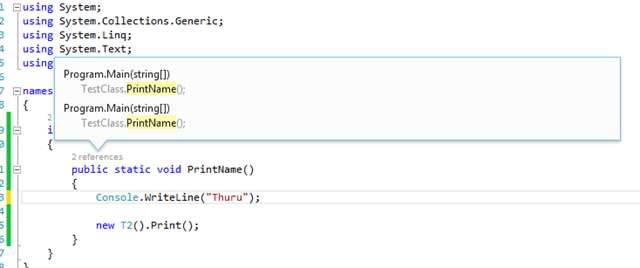
VS 2013 shows the number of times each class or method is referenced on top of their declaration. This is cool and when you click on that info it will open a tooltip.

image

When you hover the mouse on the each reference info you will get another tooltip showing more details about the reference.

image

When click on the reference in the main tooltip, no wonder it will take you to the exact location of that particular reference is.

This is a super fabulous feature and we can use it for code reviews as well. This gives the overall information of how many times a class / method is referenced or called. This will provide helpful information for the performance analysis as well.


VS Blog shows how the map view in the scrollbar works, but by default this feature is disabled. To enable this right click on the scroll bar and go to Scroll Bar Options. There you can select the Use map mode for vertical scroll bar it will bring the map view which you can use to view the areas of your code without scrolling.

image

The VS blog says the main goal behind the VS 2013 is to bring the developer in context, it is facilitated that developer can do more without losing his scope of working context.

This is GREAT 🙂