AES Cryptography

Contains the code for AES encryption and decryption in C#.

   1: public byte [] EncryptText(string plainData)

   2:         {

   3:             RijndaelManaged rij = new RijndaelManaged();

   4:             

   5:             rij.GenerateKey();

   6:             _key = rij.Key;

   7:  

   8:             rij.GenerateIV();

   9:             _intializationVector = rij.IV;

  10:  

  11:             ICryptoTransform encryptor = rij.CreateEncryptor(_key, _intializationVector);

  12:  

  13:             using (MemoryStream msEncrypt = new MemoryStream())

  14:             {

  15:                 using (CryptoStream csEncrypt = new CryptoStream(msEncrypt, encryptor, CryptoStreamMode.Write))

  16:                 {

  17:                     using (StreamWriter swEncrypt = new StreamWriter(csEncrypt))

  18:                     {

  19:                         swEncrypt.Write(plainData);

  20:                     }

  21:  

  22:                     return msEncrypt.ToArray();

  23:                 }

  24:             }

  25:  

  26:         }

  27:  

  28:  

  29:         public string  DecryptText(byte [] encrytedData)

  30:         {

  31:             RijndaelManaged rij = new RijndaelManaged();

  32:  

  33:             ICryptoTransform decryptor = rij.CreateDecryptor(_key, _intializationVector);

  34:  

  35:             using (MemoryStream msDecrypt = new MemoryStream(encrytedData))

  36:             {

  37:                 using (CryptoStream csDecrypt = new CryptoStream(msDecrypt, decryptor, CryptoStreamMode.Read))

  38:                 {

  39:                     using (StreamReader srDecrypt = new StreamReader(csDecrypt))

  40:                     {

  41:                         return srDecrypt.ReadToEnd();

  42:                     }

  43:                 }

  44:             }

  45:         }

  46:         

  47:     }

UI Updates – Part 2

ASP.NET

ASP.NET UI updates are handles using Ajax. In this example it is described how to use the ASP.NET Ajax for the updates.

In ASP.NET Ajax we can have update panel and make the updates via Ajax calls. Prepare your ASPX markup like below.

   1: <body>

   2:     <form id="form1" runat="server">

   3:         <asp:ScriptManager ID="ScriptManager1" runat="server"></asp:ScriptManager>

   4:         

   5:         <div>

   6:             <asp:Button ID="BtnPostback" runat="server" Text="PostBack" OnClick="BtnPostback_Click" />

   7:         </div>

   8:  

   9:         <div>

  10:             <asp:UpdateProgress ID="UpdateProgress1" runat="server">

  11:                 <ProgressTemplate>

  12:                     <asp:Label Text="Working..." ID="LblBusyIndicator" runat="server"></asp:Label>

  13:                 </ProgressTemplate>

  14:             </asp:UpdateProgress>

  15:         </div>

  16:  

  17:         <div>

  18:             <asp:UpdatePanel ID="UpdatePanel1" runat="server">

  19:                 <ContentTemplate>

  20:                     <asp:Label ID="Label1" runat="server" Text=""></asp:Label>

  21:                 </ContentTemplate>

  22:                 <Triggers>

  23:                     <asp:AsyncPostBackTrigger ControlID="BtnPostback" />

  24:                 </Triggers>

  25:             </asp:UpdatePanel>

  26:         </div>

  27:  

  28:     </form>

  29: </body>

Code behind..

   1: private void PerformTask()

   2: {

   3:     // job time 4 - 10 seconds

   4:     int time = new Random().Next(4, 11);

   5:     Thread.Sleep(1000 * time);

   6:     Label1.Text = String.Format("Hello from worker - ran for {0} seconds", time);

   7: }

   8:  

   9:  

  10: protected void BtnPostback_Click(object sender, EventArgs e)

  11: {

  12:     PerformTask();

  13: }


Silverlight

Silverlight the platform itself is asynchronous. And we can have the same mechanism we used in WPF for the UI updates, but little different.

Read the Silverlight Dispatcher for the Silverlight UI updates

UI Updates – Part 1

Updating the UI is a problem and it is tricky. There are very few simple rules to follow. Let’s see Here we’ll see  some smart ways to perform UI updates on Console applications, Windows Forms, WPF, ASP.NET, Silverlight, Windows Phone and Windows Store apps.

Console Applications

Do they have UI ? No. But we’ll check how different threads perform updates on Console applications. Look at the following code. It has a main thread and another thread (worker thread) perform some time consuming task and updates the UI. Main thread shows a rotating bar till the worker thread completes.

   1: class Program

   2:     {

   3:         static void Main(string[] args)

   4:         {

   5:             Console.WriteLine("Application Start");

   6:             Thread worker = new Thread(PerformTask);

   7:  

   8:             worker.Start();

   9:  

  10:             ShowConsoleWaitAnimation(worker);

  11:  

  12:             Console.WriteLine("Application End");

  13:             Console.ReadKey();

  14:  

  15:         }

  16:  

  17:  

  18:         private static void PerformTask()

  19:         {

  20:             // job time 4 - 10 seconds

  21:             int time = new Random().Next(4,11);

  22:             Thread.Sleep(1000 * time);

  23:             Console.WriteLine("Hello from worker - ran for {0} seconds",time);

  24:         }

  25:  

  26:  

  27:         private static void ShowConsoleWaitAnimation(Thread thread)

  28:         {

  29:             while (thread.IsAlive)

  30:             {

  31:                 Console.Write("Processing - /\r");

  32:                 Thread.Sleep(100);

  33:                 Console.Write("Processing - -\r");

  34:                 Thread.Sleep(100);

  35:                 Console.Write("Processing - \\\r");

  36:                 Thread.Sleep(100);

  37:                 Console.Write("Processing - |\r");

  38:                 Thread.Sleep(100);

  39:             }

  40:         }

  41:     }


Windows Forms

Look at the below code. In a simple Windows Forms application, for a button click event, a time consuming task runs in a separate thread and tries to update a Label control.

   1: private void BtnStartWork_Click(object sender, EventArgs e)

   2: {

   3:     Thread worker = new Thread(PerformTask);

   4:     worker.Start();

   5: }

   6:  

   7: private void PerformTask()

   8: {

   9:     // job time 4 - 10 seconds

  10:     int time = new Random().Next(4, 11);

  11:     Thread.Sleep(1000 * time);

  12:     LblStatus.Text = String.Format("Work completed - ran for {0} seconds", time);

  13: } 


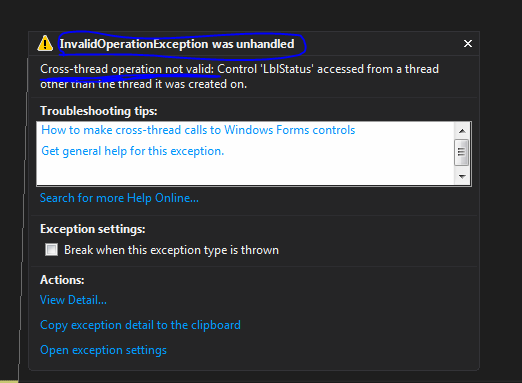
When you run the above code, you will get this famous Exception. Because the Label control is created in UI thread and our worker thread tries to reach it. Cross thread referencing cannot happen as this is a violation of operating system thread handling policies. ( Do not mistake the cross thread communication and cross thread referencing, cross thread communication can happen among threads)

image

There are plenty of solutions for this problem, but the ready made one is to use BackgroundWorker class. The below code shows how you can use BackgroundWorker class and perform UI updates and also shows a progress bar on the UI. Events are coded inline to reduce the number of methods for this small demo.

   1: public partial class Form1 : Form

   2: {       

   3:        private BackgroundWorker _bgWorker = new BackgroundWorker();

   4:        private string _result = String.Empty;

   5:  

   6:        public Form1()

   7:        {

   8:            InitializeComponent();

   9:        }

  10:  

  11:        private void BtnStartWork_Click(object sender, EventArgs e)

  12:        {

  13:            _bgWorker.WorkerReportsProgress = true;

  14:  

  15:            _bgWorker.DoWork += (s, ev) =>

  16:                {

  17:                    _result = PerformTask();

  18:                };

  19:            

  20:            _bgWorker.ProgressChanged += (s, ev) =>

  21:                {

  22:                    workerProgressBar.Value = ev.ProgressPercentage * 100;

  23:                };

  24:  

  25:            _bgWorker.RunWorkerCompleted += (s, ev) =>

  26:                {

  27:                    LblStatus.Text = _result;

  28:                };

  29:  

  30:            _bgWorker.RunWorkerAsync();

  31:        }

  32:  

  33:  

  34:        private string PerformTask()

  35:        {

  36:            // job time 4 - 10 seconds

  37:            int time = new Random().Next(4, 11);

  38:            int fullTime = time;

  39:  

  40:            while (time >= 0)

  41:            {

  42:                Thread.Sleep(1000);

  43:                _bgWorker.ReportProgress(1 - (time / fullTime));

  44:                time--;

  45:            }

  46:  

  47:            return String.Format("Work completed - ran for {0} seconds", fullTime);

  48:         }

  49:           

  50: } 


WPF

In WPF we can use the BackgroundWorker, but also there’s a well refined solution in the WPF is to use the Dispatcher object. WPF model has Dispatcher object common across all the controls. So we can use this to update the UI.

Little modification in the PerformTask() and make it return the result.

   1: private string PerformTask()

   2: {

   3:     // job time 4 - 10 seconds

   4:     int time = new Random().Next(4, 11);

   5:     int fullTime = time;

   6:  

   7:     Thread.Sleep(time);      

   8:  

   9:     return String.Format("Work completed - ran for {0} seconds", fullTime);

  10: } 

Button click event.

   1: private void BtnWork_Click(object sender, RoutedEventArgs e)

   2: {

   3:     Thread thread = new Thread(() =>

   4:         {

   5:             string result = PerformTask();

   6:             Dispatcher.Invoke(() =>

   7:                 {

   8:                     TxtStatus.Text = result;

   9:                 });

  10:         });

  11:     thread.Start();

  12: }

Part 2 – will discuss about UI updates in ASP.NET and Silverlight.

Delegates

Methods are delegate types. It is that simple. Since delegates are types in .NET we can use any method as types, that means we can pass methods as parameters and we can return methods.

The below code shows different ways we can instantiate a delegate.

   1: namespace DelegatesVsInterfaces

   2: {

   3:     public delegate string MyDelegate(string param);

   4:  

   5:     class Program

   6:     {

   7:         static void Main(string[] args)

   8:         {

   9:             // delegate initialization based on history

  10:             

  11:             // C# 1.0

  12:             MyDelegate md1 = new MyDelegate(MyMethod);

  13:             Console.WriteLine(md1("C# 1.0"));

  14:  

  15:             // C# 2.0

  16:             MyDelegate md2 = MyMethod;

  17:             Console.WriteLine(md2("C# 2.0"));

  18:  

  19:             // C# 2.0 - anonymous method

  20:             MyDelegate md3 = delegate(string message) 

  21:             { 

  22:                 return String.Format("Your message, {0} - from anonymous method",message); 

  23:             };

  24:             Console.WriteLine(md3("C# 2.0 and later"));

  25:  

  26:             // C# 3.0 - lamda expressions

  27:             MyDelegate md4 = message => 

  28:             { 

  29:                 return String.Format("Your message, {0} - from lamda methods", message); 

  30:             };

  31:             Console.WriteLine(md4("C# 3.0 and later"));

  32:  

  33:             Console.ReadKey();

  34:         }

  35:  

  36:        public static string MyMethod(string greeting)

  37:        {

  38:            //Thread.Sleep(5000);

  39:            return String.Format("Your message, {0} - relayed from MyMethod",greeting);

  40:        }

  41:    }

  42: }

A delegate has different ways of invocation. The very direct way is calling the delegate itself with the parameters. This indirectly invokes the Invoke() method of the delegate. Invoke() is generated by the compiler with the correct parameter list.

The following code shows the direct invocation.

   1: string result = md1("parameter");

   2: result = md1.Invoke("parameter");


Other way of handling a delegate invocation is, invoking the method asynchronously. BeginInvoke() and EndInvoke() of a delegate is used for this.

BeginInvoke() is generated for a delegate with that specific delegate’s parameters as first set of parameters, next parameter is a AsyncCallback type method and last one is a object which could have values to the callback method.

The following code explains how to use the BeginInvoke() and EndInvoke() to asynchronous execution.

   1: // put this in your method invocation code

   2: MyDelegate md = MyMethod;

   3: AsyncCallback callback = CallBackMethod;

   4:  

   5: IAsyncResult result = md.BeginInvoke("Param", callback, null);

   6:  

   7:  

   8: // callback method

   9: public static void CallBackMethod(IAsyncResult result)

  10: {

  11:     AsyncResult asyncResult = (AsyncResult)result;

  12:     MyDelegate caller = (MyDelegate)asyncResult.AsyncDelegate;

  13:     

  14:     string value = caller.EndInvoke(result);

  15:  

  16:     Console.WriteLine(value);

  17: }

If the method hasn’t finished the execution when the EndInvoke() is called, the callback method waits till the execution is finished.

Another way of invoking a delegate is by using its DynamicInvoke(). More often this is direct as Invoke(), but has the difference in the parameters passed to the delegate. DynamicInvoke() has a object array parameter. We should pass the parameters with the correct data types and it should be with the correct parameter count. If the parameter is not correct it will throw an ArgumentException and if the number of parameters doesn’t match it will throw TargetParameterCountException.

Posted in C#

Put watermarks on uploaded images–ASP.NET

Here’s the simples piece of code in C# which can write some text on an image, eventually making it as a watermark.

StreamReader reader = new StreamReader(Server.MapPath("sample.jpg")); Bitmap bi = new Bitmap(reader.BaseStream); // base image Graphics gr = Graphics.FromImage(bi); string customString = "your string goes here"; gr.DrawString(s, new Font("Cooper Black", 25), Brushes.ForestGreen, new PointF(140, 115)); StreamWriter writer = new StreamWriter(Server.MapPath("edited.jpg")); writer.AutoFlush = true; bi.Save(writer.BaseStream, ImageFormat.Jpeg); // saving the edited image reader.Close(); writer.Close();

Windows Azure – VMs

Windows Azure provides the facility to host VMs. This is really a cool thing, because if you want a server infrastructure running you can get it done  in few seconds. Windows Azure provides some pre defined images and it offers the flexibility to include the images we have.

The use of the Azure hosted VM is up to. You can use it in the way you want. For example if you want a test server running in Windows Server 2012, simply you can create one and do the testing. Once the testing is done you can simply delete that.

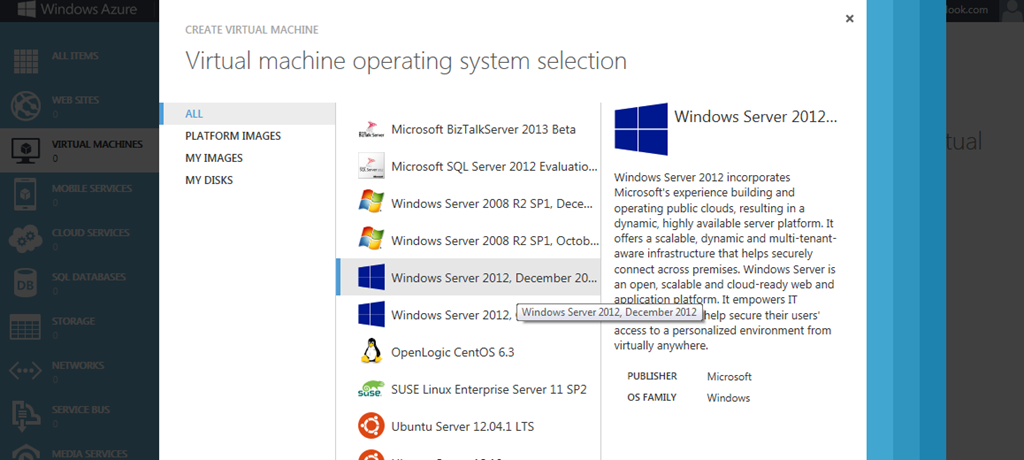
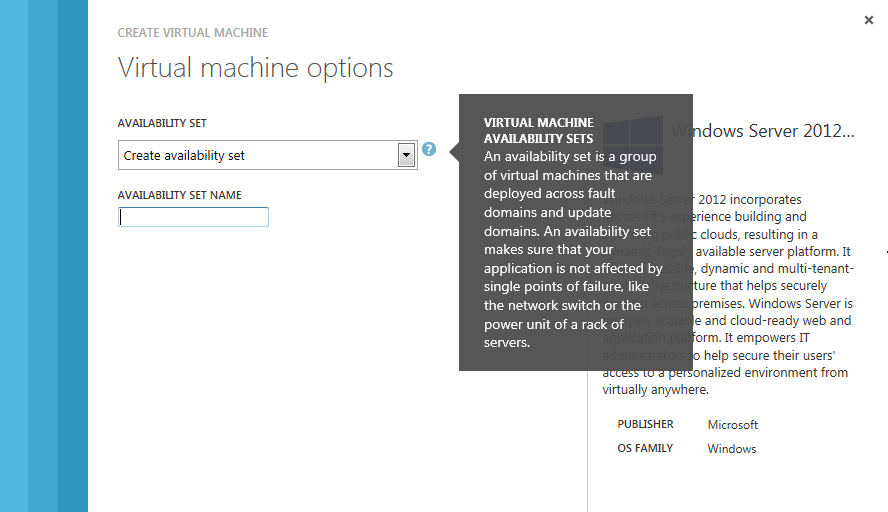
In this post I have provided the images / screenshots that you might see in the process of creating a VM in Windows Azure.

Red marks are manually added to hide some personal details of the page.

Images in order

1


2

3

4

5

6


Once you create the VM you can connect to it.

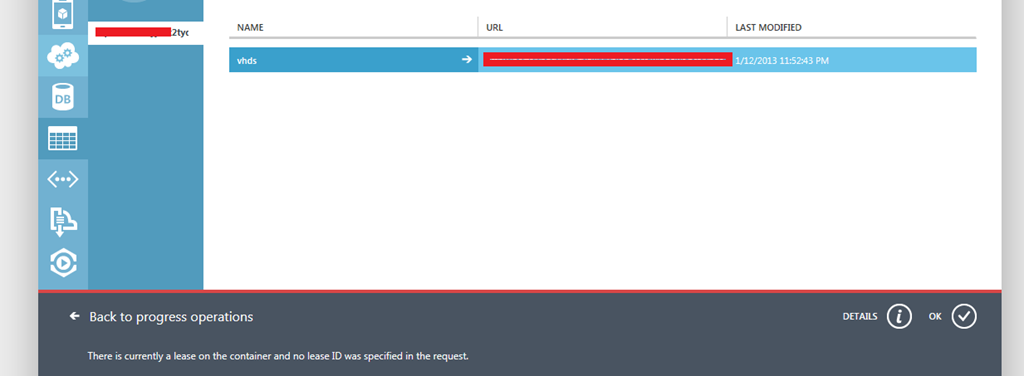
There’s a known issue when we delete the VM. It’s better to say it as a work load than an issue, when you delete the VM the associated VHD remains undeleted as storage blob.

You might run into an error like this.

error

This blog article describes how to solve the issue.

http://social.msdn.microsoft.com/Forums/en-US/WAVirtualMachinesforWindows/thread/7381ea0e-0443-4b33-aa12-ba39df003409

checked and unchecked keywords in C#

This post explains about checked and unchecked keywords in C#. In arithmetic calculations when constants are involved compiler detects the overflows in the data types. For example look at the following code.

   1: // int range is from -2,147,483,648 to 2,147,483,647

   2: int i = 2147483647 + 10;

The above will generate a compile time error. But the following won’t and it will give an output –2,147,483,639

   1: int ten = 10;       

   2: int i = 2147483647;

   3: Console.WriteLine(i + ten);

Because the compiler does not detect the overflows when non constants are are involved in the expression.

The above will not even raise an OverflowException. To make sure that the above is validated in runtime, we can use the checked keyword as a block or in line.

As a block

   1: checked

   2: {

   3:     Console.WriteLine(i + 10);

   4: }

Inline

   1: Console.WriteLine(checked(i + 10));

Since checked keyword validates against the overflows and throws an exception, it has a performance hit. So when you are sure that the expression is not going to cause an OverflowException it is better not use the checked keyword.


unchecked does the opposite of the checked. It mainly instructs the compiler not to do the validation for an expression. The following would generate a compile time error if it is not enclosed with the unchecked block. As checked keyword unchecked keyword can also be used in blocks and inline.

   1: unchecked

   2: {

   3:     int a = 2147483647 + 10;

   4:     Console.WriteLine(a);

   5: }

Retiring MCTS Exams

In the year 2013 by June most of the .NET 3.5 MCTS exams will be retired along with few .NET 4 ones. Since Microsoft is doing a different Windows Client model with Windows 8, they are passionately retiring the MCTS: Microsoft .NET Framework 4, Windows Applications Development (70-511)

MCTS: Microsoft .NET Framework 4, Web Applications Development (70-515) is retiring too.

In the SQL Server MCTS collection

MCTS: Microsoft SQL Server 2008, Database Development (70-443) is retiring in July 31st.


About the full details about the exam collections and retiring dates refer to the following link.

http://www.microsoft.com/learning/en/us/mcts-certification.aspx