Silverlight Dispatcher

Threading in Silverlight is simple and have very few classes and limited functionality.

In Silverlight we rarely go for the threading since the platform itself is asynchronous. Click to read how to do asynchronous programming in C# 5.0

In Silverlight the  main thread is incorporated with the Dispatcher, and we can use the BeginInvoke method of the Dispatcher class to update the UI from a different thread. According to the MSDN documentation Dispatcher in Silverlight is intended for the UI updates.

I’m using a dummy method which returns a string reversed of its input. And let’s assume it takes 4 seconds to complete the task.

So we need a thread to do the work, without blocking the UI. Once the task completed we have to display the string in the UI.

Here’s my simple and the dirty UI, a TextBox, a Button and a TextBlock to show the output.
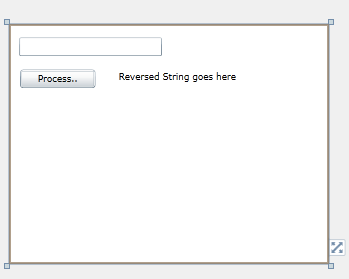
image

Here’s the code goes under the Button click event , you can do the work in a thread and return the updates to the UI safely using Dispatcher.

{
string name = textBox1.Text;
Thread thread =new Thread(() =>
{  _reversedString = ReverseString(name);
   this.Dispatcher.BeginInvoke(() =>
     {
              textBlock1.Text = _reversedString;
     });
});
thread.Name =Reverse String Thread;
thread.Start();
}

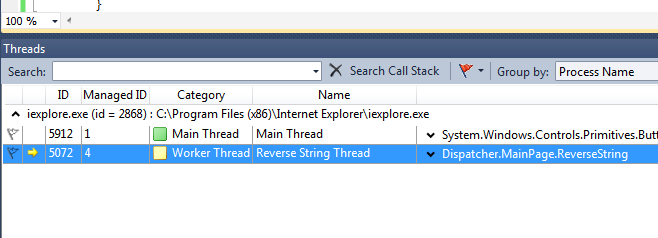
When hitting the debug and break point we can ensure that our thread is really started and running.
1

Code for the ReverseString method

private string ReverseString(string input)
{
     char[] array = input.ToCharArray();
    Array.Reverse(array);
    Thread.Sleep(4000);
    return new String(array);
}

Let’s discuss how Dispatcher can communicate across threads.

You can clearly notice that, I got the Dispatcher object using this.Dispatcher. This gives the Dispatcher of the Page (MainPage).

Dispatcher is a member of the DependencyObject class. So all the elements mainly UI controls have the Dispatcher property.

Silverlight is a Single Threaded Apartment (STA) Model. And as mentioned earlier it is incorporated with the main thread of the Silverlight. It is the thread responsible of the creation of the UI elements.

Trying to create UI elements from custom threads will throw thread exceptions as they try get the one and only Dispatcher from a different thread.

Here I compare the difference Dispatcher obrtained. First I got the Dispatcher of the RootVisual. Second the TextBlock control. Third I get the Dispatcher reference of the Deplyoment.

System.Windows.Threading.Dispatcher appDisptcher = Application.Current.RootVisual.Dispatcher;
System.Windows.Threading.Dispatcher textBlockDispatcher = textBlock1.Dispatcher;
System.Windows.Threading.Dispatcher deploymentDispatcher = System.Windows.Deployment.Current.Dispatcher;
if (appDisptcher.Equals(textBlockDispatcher))
{
    MessageBox.Show(Root Visual Dispatcher is same as TextBlock Dispatcher);
    
    if (appDisptcher.Equals(deploymentDispatcher))
    {
          MessageBox.Show(All three are same indeed);
    }
}

You can see that all Dispatchers equal. So Dispatcher works from one golden rule that is Silverlight is Single Threaded Apartment (STA) model where with that main thread Dispatcher is incorporated.

I bought only one.

We all have mobile phones. And mobile phones are part of our life. Mobile phones are no more wants they are needs. Essentials.

Nokia 6610i

nokia 6610i

I got my first mobile phone in 2003. It was a gift from my cousin brother. Nokia 6610i. It was a super cool thing. But I didn’t use it much, because most of my friends did not have a mobile phone that time. It was decent phone with color display and a VGA camera.

My second phone was Nokia 3230. Again it too was a gift from my brother. I think I got that in mid 2006. I loved the phone because it came with  Java. Some crazy 2D foot ball game was my favorite.

Nokia 3230

3230

Later in the beginning of 2008 I sold the Nokia 3230 and bought a Nokia 6630. In 2008 Nokia 6630 was bit old model. It was a heavy phone with a super display.

It had two historical points. First this is the first phone I bought. Second this is the first phone I used to write mobile applications.

“ Do you know there was a mobile framework called J2ME from Java ? Smile with tongue out

I used to write applications using J2ME and tested them in this phone.

Nokia 6630

6630

In 2010 I lost my Nokia 6630. Then my brother bought me a Nokia 6500. It was a good phone but I didn’t find it much fascinating because I just used it for SMS and calling. But it had a descent camera and audio features.

Nokia 6500

nokia-6500-slide-black

MS announced the Windows Mobile – Mango and the local MS hosted a competition for Mango app development. I did develop an app and walked away with a phone. Winking smile

It was a LG Quantum C900.

attlgquantum_2

Then I won the Imagine Cup 2012 and went to Sydney. In the grand finals all the competitors were given a super cool Nokia Lumia 800. Yes that’s the one I’m using now.

Lumia 800

Lumia 800

The fascinating point is, among all the mobile phones I’ve used I bought only one. All the other phones I’ve been using were either gifts or the ones I got from a competition.

I’m eagerly waiting for the local Windows 8 Phone app competition to be launched. Winking smile

Adapter Pattern

Adapter pattern is often mentioned as wrapper in normal convention. It is a pattern which introduces loose coupling when creating a middle interface between two unmatched types. The name itself, self describes itself.  Rolling on the floor laughing

Think we have a class which renders a dataset on the screen. So we’ve a working class like this.

class Renderer { private readonly IDbDataAdapter _adapter; public Renderer(IDbDataAdapter dataAdaper) { _adapter = dataAdaper; } public void Render() { Console.WriteLine("Writing data...."); DataSet dataset = new DataSet(); _adapter.Fill(dataset); DataTable table = dataset.Tables.OfType<DataTable>().First<DataTable>(); foreach (DataRow row in table.Rows) { foreach (DataColumn column in table.Columns) { Console.Write(row[column].ToString()); Console.Write(" "); } Console.WriteLine(); } Console.WriteLine("/n Render complete"); } }

Severe bug is, that it renders only the first table of the DataSet, but forget about the bug as of now and let’s focus on the design. Freezing

Simply Renderer does these things.

  • It has a constructor which takes an IDbDataAdapter and set it to its readonly property.
  • The Render() calls the Fill method of the IDbDataAdapter by passing a DataSet
  • Takes the first table of the DataSet
  • Displays the data


So it’s obvious any class that implements IDbDataAdapter would be a perfect candidate for the Renderer class.

Now move on to the scenario. Airplane

Think we have a data object class Game.

public class Game { public string Id { get; set; } public string Name { get; set; } public string Description { get; set; } }

And we have a class for rendering the game objects on the screen.

public class GameRenderer { public string ListGames(IEnumerable<Game> games) { // do the rendering return game.ToString(); } }

We have the Render class to do the rendering work for us. So we do not need to write the same code again. Only thing we’ve to do is connecting GameRenderer to our Renderer.

But we’ve got problems. Steaming mad

  • We need an IDbDataAdapter implementation to use the Renderer.
  • Render() is a parameter less method with no return types, which has to be mapped with the ListGames(IEnumerable<Game> games) which returns a string.

We need to have a class which works between GameRenderer and Renderer. That’s the adapter class we’re going to write. (GameCollectionDBAdapter)

So our GameCollectionDBAdapter should to be an IDbDataAdapter to work with the Renderer. In the other end it should be some other type to conform with the GameRenderer.

Create a new interface called IGameColllectionRenderer. This is the interface which conforms our adapter class with the GameRenderer.

The diagram explains the things clearly.

adapter

Not neat indeed. Shifty

So now you’ve got the idea.

The rest of the code goes here.

Code for IGameColllectionRenderer

public interface IGameColllectionRenderer { string ListGames(IEnumerable<Game> games); }

Code for the GameCollectionDBAdapter which is a IDbDataAdapter and  IGameColllectionRenderer.

public class GameCollectionDBAdapter : IDbDataAdapter, IGameColllectionRenderer { private IEnumerable<Game> _games; public string ListGames(IEnumerable<Game> games) { _games = games; Renderer renderer = new Renderer(this); renderer.Render(); return _games.Count().ToString(); } public int Fill(DataSet dataSet) { DataTable table = new DataTable(); table.Columns.Add(new DataColumn() { ColumnName = "Id" }); table.Columns.Add(new DataColumn() { ColumnName = "Name" }); table.Columns.Add(new DataColumn() { ColumnName = "Description" }); foreach (Game g in _games) { DataRow row = table.NewRow(); row.ItemArray = new object[] { g.Id, g.Name, g.Description }; table.Rows.Add(row); } dataSet.Tables.Add(table); dataSet.AcceptChanges(); return _games.Count(); } }


Here IDbDataAdapter is not fully implemented, Fill method alone enough to run the code. But you have to have blank implementations of the other methods with throw NotImplementedException.

A slight change in your GameRenderer

public class GameRenderer { private readonly IGameColllectionRenderer _gameControllerRenderer; public GameRenderer(IGameColllectionRenderer gameCollectionRenderer) { _gameControllerRenderer = gameCollectionRenderer; } public string ListGames(IEnumerable<Game> games) { return _gameControllerRenderer.ListGames(games); } }

Finally the Main method

Thumbs up

class Program { static void Main(string[] args) { List<Game> games = new List<Game>() { new Game() { Id = "2323", Name = "Need for Sleep", Description = "A game for sleepers" }, new Game() { Id = "w4334", Name = "MK4", Description = "Ever green fighter game" } }; GameRenderer gr = new GameRenderer(new GameCollectionDBAdapter()); gr.ListGames(games); Console.ReadKey(); } }

Singleton Pattern

Singleton pattern is a simple design pattern in software practice and sometimes considered as an anti-pattern due its tight coupling nature.

A very simple non thread safe implementation of the Singleton pattern would be like this.

Singleton non thread safe

class Singleton
{
  privatestatic Singleton _instance;
  private Singleton()
  {
    Console.WriteLine(Singleton instantiated);
  }
 
publicstatic Singleton SingletonInstance
{
  get
   {
        if (_instance ==null)
            {
               // delay the object creation to demonstrate the thread saftey.
               Thread.Sleep(1500);
            _instance =new Singleton();
            }
      return     _instance;
  }
 }
}

Run the above class using Main method shown below, you can notice Singleton constructor is called twice by the both threads, since it is not thread safe. ( You can use the same Main methid implementation for all 3 Singleton implementations)

Main method implementation

class Program
{
staticvoid Main(string[] args)
{
new Thread(() => { Singleton sin1 = Singleton.SingletonInstance; }).Start();
Singleton sin2 = Singleton.SingletonInstance;
 
Console.ReadKey();
}
}

Singleton thread safe

Making the above implementation to a thread safe code is not a complex task, we can use our same old locking technique.

class Singleton
{
privatestatic Singleton _instance;
privatestaticobject _lock =newobject();
 
private Singleton()
{
Console.WriteLine(Singleton instantiated);
}
 
publicstatic Singleton SingletonInstance
{
get
{
lock (_lock)
{
if (_instance ==null)
  {
      // delay the object creation to demonstrate the thread saftey.
        Thread.Sleep(1500);
         _instance =new Singleton();
   }
return _instance;
}
}
}
}

The above is a perfect Singleton implementation in C#. But is there any other way that we can have the Singleton behavior without compensating our performance into locking. Because locking is a performance drop for sure.

Singleton C# way  – The trendy way

This is a neat and a trendy way to implement the Singleton.

We do not use locks in this implementation and it is very fast yet purely thread safe.

class Singleton
{
    privatestaticreadonly Singleton _instance;
 
    static Singleton()
    {
             _instance =new Singleton();
     }
 
    private Singleton()
   {
       Console.WriteLine(Singleton instantiated);
    }
 
   public static Singleton SingletonInstance
  {
     get
    {
      return _instance;
     }
  }
}

The magic is, static constructor.

A static constructor is used to initialize any static data, or to perform a particular action that needs to be performed once only. It is called automatically before the first instance is created or any static members are referenced.

To remeber simply you can think that the static constructor is called when the class is loaded.

More about static constructors in this MSDN article.

Sending Email from C#

Pure code is here. You can just copy and use it, and you can understand easily from the comments.

string to = "someone@hotmail.com"; // here the username can be any address // this is the address that the reciever will reply to when he/she hits the Reply button // this doesn't have to be the same as the credential address below. string from = "username@gmail.com"; string subject = "My mail from C#"; string body = "<a href=\"http://www.microsoft.com\"> Click here </a><br/><img src=\"http://t0.gstatic.com/images?q=tbn:2LUYVF-U1KxK2M:http://img.bollywoodsargam.com/albumsbolly/Priyanka_Chopra/Priyanka_Chopra_In_Barsaat_Movie_Stills_002_18_08_2005.jpg\"/>"; System.Net.Mail.MailMessage msg = new System.Net.Mail.MailMessage(from, to, subject, body); msg.IsBodyHtml = true; // adding attachement System.Net.Mail.Attachment at = new System.Net.Mail.Attachment(@"C:\Users\Thurupathan\Desktop\myfile.zip"); msg.Attachments.Add(at); // sending from the gmail account // for the hotmail / live / outlook => smtp.live.com port => 587 System.Net.Mail.SmtpClient smtp = new System.Net.Mail.SmtpClient("smtp.gmail.com", 587); // provide credentials System.Net.NetworkCredential gmailAuthentication = new System.Net.NetworkCredential("username@gmail.com", "password"); smtp.Credentials = gmailAuthentication; // SSL enable based on the smtp.EnableSsl = true; try { smtp.Send(msg); } catch (Exception ex) { Console.WriteLine(ex.Message); }

Developing a simple Data bound Windows Phone Application

I was asked to develop a Windows Phone Application development tutorial for beginners. This is not an advance coding stuff, but a simple basic tutorial.

Setting the Dev Environment

Windows Phone (WP) SDK latest version is 7.1 (very recent one is 7.1.1 targeted for 512 Mb mobile devices for multimedia rich apps. but SDK 7.1 is more than enough if you are developing generic WP apps)

Download the WP SDK free from

http://go.microsoft.com/fwlink/?LinkID=226694

The above link has the ISO which includes Visual Studio (VS) Express for WP development, Emulator and all the features needed for the development in a raw machine. If you already have VS this will install the missing module only.

Optional: If you want to have 7.1.1 update apply the update from this link after installing the 7.1 SDK http://www.microsoft.com/en-us/download/details.aspx?id=29233

Developing a simple List Data Bound Application

· Open VS

· New -> Project -> Silverlight for Windows Phone -> Windows Phone Application

clip_image002

Select the version as 7.1 to target Mango (latest version) [ Mango phone version is 7.5 and the SDK version is 7.1]

clip_image003

· Initial Development Interface

clip_image006

· Find the following Grid where we place our user elements

clip_image008

· Create a List box by XAML or drag and drop from Toolbox inside the Grid

· Write the ListBox template.

<!--ContentPanel - place additional content here--> <Grid x:Name="ContentPanel" Grid.Row="1" Margin="12,0,12,0"> <ListBox x:Name="ListCourses"> <ListBox.ItemTemplate> <DataTemplate> <StackPanel Margin="0,15,0,0"> <TextBlock Text="{Binding CourseName}" FontSize="36"/> <TextBlock Text="{Binding Description}"/> </StackPanel> </DataTemplate> </ListBox.ItemTemplate> </ListBox> </Grid>

· Go to the code behind C# file of the MainPage.xaml

· Double click and open to write the code.

clip_image011 

· Create a class Course. And populate some data in a List.

public partial class MainPage : PhoneApplicationPage { private List<Course> _courses = new List<Course>() { new Course() { CourseName = "Mobile Computing", Description = "Good course ! 🙂 " }, new Course() { CourseName = "Wireless Communication", Description = "Good course ! 🙂 " }, new Course() { CourseName = "Artificial Intelligent", Description = "Good course ! 🙂 " }, new Course() { CourseName = "Database Design", Description = "Good course ! 🙂 " }, new Course() { CourseName = "Marketing", Description = "Good course ! 🙂 " }, new Course() { CourseName = "Communication Skills", Description = "Good course ! 🙂 " }, new Course() { CourseName = "Presentation Skills", Description = "Good course ! 🙂 " }, new Course() { CourseName = "Windows Phone Development", Description = "Good course ! 🙂 " }, }; // Constructor public MainPage() { InitializeComponent(); this.Loaded += new RoutedEventHandler(MainPage_Loaded); } void MainPage_Loaded(object sender, RoutedEventArgs e) { ListCourses.DataContext = typeof(Course); ListCourses.ItemsSource = _courses; } } public class Course { public string CourseName { get; set; } public string Description { get; set; } }

· In the Loaded event we set the DataContext and ItemSource of the ListBox.

· Run the App

clip_image014

Asynchronous Programing C# 5.0

C# 5.0 mostly bluff about the asynchronous programming. Of course it has some really kick ass features in the asynchronous programming world.

First of all, asynchronous programing is not new in C# 5.0. It’s been there from C# 1.0, so what’s the big deal now ?

In C# 5.0 they have created a whole new, very tidy and easy programing approach in asynchronous programing. It’s really very tidy.

Here’s a WPF sample application which downloads the headers of an HTTP request and displays in a TextBox. Simply we all know that if we do this without threads our UI will hang until the download operation completes. The solution we’ve been using is threading.

Here I want to make a point; conceptually we all know that using the threads for the above problem will yield the solution for UI unresponsiveness.  But it creates challenges like monitoring the threads and updating the UI, handling exceptions and code untidiness.

Again one more point, when using the threads for the above problem .NET provides various solutions. In Win Forms using the BackgroundWorker is the popular way, in WPF we go for the Dispatcher, we also have our same old IAsyncCallback and delegates mechanism, using the thread pool explicitly, creating and customizing our own threads.

As you see, almost all the above methods are cluttered every where, developers use their own way to handle the problem, not bad but it’s not good either.

And also we have our problems in updating the UI; especially when updating a UI control from a different thread. We get the Cross thread access exceptions.

Here’s the code that shows one way of how the above scenario can be implemented prior to C# 5.0 in WPF.

 private void OldAsyncTechnique()
        {
            SynchronizationContext sync = SynchronizationContext.Current;

            var req = (HttpWebRequest)WebRequest.Create("https://thuruinhttp.wordpress.com");
            req.Method = "HEAD";

            req.BeginGetResponse((asyncResult) =>
            {
                var resp = (HttpWebResponse)req.EndGetResponse(asyncResult);
                sync.Post(delegate
                {
                    TxtHeaders.Text = FormatHeaders(resp.Headers);
                }, null);
            }, null);
        }

Here I get the SynchronizationContext of the current thread, (means the main UI thread) and creates my web request. Then I call the asynchronous BeginGetResponse method of the HttpWebRequest class.

To make the code compact, I called the EndGetResponse in lamda. Using the SynchronizationContext of the UI thread I post the message to the UI control.

But this very complex and I have to pass state object parameters and all. (I have passed null here).

Note : This is not the only way to do this.


In C# 5.0 we have new keywords async and await. (You still can enable this in .NET 4 by installing the Async CTP, but since the VS 2012 and .NET 4.5 is released do not waste your time on doing this. You can simply upgrade yourself to .NET 4.5 world)

Here’s the code.

 private async void NewMethod()
        {
            HttpWebRequest req = (HttpWebRequest)HttpWebRequest.Create("https://thuruinhttp.wordpress.com");
            req.Method = "HEAD";
            HttpWebResponse res = (HttpWebResponse) await req.GetResponseAsync();
            TxtHeaders.Text = FormatHeaders(res.Headers);
        }

Simple as that. You declare the method async and make an awaitable type.

When the code hits the await keyword the method returns immediately, and once the await got the results, the method begins the execution from where it left. Simple theory.

But how it is possible, again that is simple inside C# when you compile the above code, C# compiler rewrites the above code in a fine and an efficient old way.

The real working pattern and how things happen are complex and it used the TPL heavily.

Important : Once you install .NET 4.5 you will get the GetResponseAsync() in the WebClient class. And most classes are enriched with these types of async methods in .NET 4.5. We can have our async and await functionality in our custom classed as well.

Here’s the implementation of the FormatHeaders method.

 private string FormatHeaders(WebHeaderCollection collection)
        {
            StringBuilder builder = new StringBuilder();
            foreach (var s in collection.Keys)
            {
                builder.Append(s + " : ");
                builder.Append(collection[s.ToString()].ToString());
                builder.Append(Environment.NewLine);
            }

            return builder.ToString();
        }

Configuring Google to IE9


Honestly this is not my type of a blog post, not C# or any new technology. But last 2 weeks I met around 4 people who complained that IE is great, but we cannot get the Google search in the address bar, thus they use other browsers.

I’m not into this browser war. But when someone says the above as a reason that they can’t use IE, as MS passionate I have to explain them how to do that. So that’s what this post is all bout.

How to configure the Google search in IE 9 address bar. (Click on the images to view in full size)

image

Open IE and click the address bar drop down (circled in yellow in right hand top corner) and in the drop down click the Add button.

This will open up the IE Gallery and in the search tab, search for the Google and add it. It is simple as that. When adding it will ask that do you want to make the new search provider as the default one. Tick that and also tick the suggestions option to get search suggestions.

Simple as that. But it is very unfortunate that even people in the technical field who deal with browsers in all time are not aware of this.