C# – implicit & explicit keywords

What are the uses of the implicit and explicit keywords in C#.

implicit is used when we need implicit conversions between types. It works on value types and as well on reference types.

The below code shows the use of implicit keyword. Create a class named Digit as below and note the two static methods with implicit keyword.

   1: class Digit

   2: {

   3:     public double val;

   4:     

   5:     public Digit(double d)

   6:     {

   7:         val = d;

   8:     }

   9:  

  10:     public static implicit operator double(Digit d)

  11:     {

  12:         return d.val;

  13:     }

  14:  

  15:     public static implicit operator Digit(double d)

  16:     {

  17:         return new Digit(d);

  18:     }

  19:  

  20: }

Since the Digit class has both the Digit to double conversion and the double to Digit conversion implicit functions defined, it is safe to do the following.

   1: Digit dig = new Digit(7);

   2:  

   3: //This call invokes the implicit "double" operator 

   4: double num = dig;

   5: //This call invokes the implicit "Digit" operator

   6: Digit dig2 = 12;

Same works on complete reference types as well. Look at the following example.

   1: class Animal

   2: {

   3:     public string  Family { get; set; }

   4:  

   5:     public static implicit operator Dog(Animal animal)

   6:     {

   7:         return new Dog() { Breed = animal.Family };

   8:     }

   9:  

  10:     public static implicit operator Animal(Dog d)

  11:     {

  12:         return new Animal() { Family = d.Breed };

  13:     }

  14: }

  15:  

  16: class Dog

  17: {

  18:     public string Breed { get; set; }

  19: }

These following conversions are possible.

   1: Animal a = new Animal() { Family = "Golden Retriever" };

   2: Dog d1 = a;

   3: a = d1;


explicit keyword does the right opposite, where we have to explicitly cast the one type to the other. Say we’ve a set of classed like this.

   1: class WaterCleaner

   2: {

   3:     public string Name;

   4: }

   5:  

   6: class RoboticCleaner

   7: {

   8:     public string Name;

   9:  

  10:     public static explicit operator WaterCleaner(RoboticCleaner r)

  11:     {

  12:         return new WaterCleaner() { Name = r.Name };

  13:     }

  14:  

  15:     public static explicit operator RoboticCleaner(WaterCleaner w)

  16:     {

  17:         return new RoboticCleaner() { Name = w.Name };

  18:     }

  19: }

Then you should do the explicit casting like this.

   1: RoboticCleaner rc = new RoboticCleaner() { Name = "Super Cleaner" };

   2: WaterCleaner wc = (WaterCleaner)rc;


If RoboticCleaner has implicit conversion defined then you don’t need the explicit conversion.

Now the question is what if the RoboticCleaner class has both implicit and explicit conversions defined.

Now your RoboticCleaner should be like this.

   1: class RoboticCleaner

   2: {

   3:     public string Name;

   4:  

   5:     public static explicit operator WaterCleaner(RoboticCleaner r)

   6:     {

   7:         return new WaterCleaner() { Name = r.Name };

   8:     }

   9:  

  10:     public static explicit operator RoboticCleaner(WaterCleaner w)

  11:     {

  12:         return new RoboticCleaner() { Name = w.Name };

  13:     }

  14:  

  15:     public static implicit operator WaterCleaner(RoboticCleaner r)

  16:     {

  17:         return new WaterCleaner() { Name = r.Name };

  18:     }

  19: }

Then the compiler gets confused and shows this message. (click on the image to enlarge)

image

Embedding Resources in Silverlight

This post explains how to embed a resource file in Silverlight and use it. For the example we’ll consider embedding a CSV file and using it.

Copy the file inside the project under the appropriate path. In the properties of the file set the Build Action as Embedded Resource.

The below sample code shows how to access an embedded CSV file.

   1: Stream shareInfo = typeof(ShareInformationManipulation)

   2:                    .Assembly

   3:                    .GetManifestResourceStream("data.csv");

You can read any type of embedded resource as  a Stream.

Uploading a file to Azure Blob

Windows Azure storage provides flexible storage services. Blob storage is one of them which is used to store binary large objects. 

Windows Azure blob has the concepts of containers (which you can think like partitions of a disk). Containers are either private or public.

Private containers are only accessible to the user and application developer with proper storage access keys. Public containers are accessible to all. So just by URL you can access a file stored in the public container.

You can use the Azure Storage Explorer to create and manipulate your Azure storage. It is a handy tool available for free from codeplex. Download link : http://azurestorageexplorer.codeplex.com/

The below code sample demonstrates how you can upload a file to a private container named ‘privatecontainer’ in Windows Azure.

   1: private void UploadFileToPrivateContainer()

   2: {

   3:     // get the storage (blob) connection string from the config file

   4:     var storageAccount = Microsoft.WindowsAzure.Storage.CloudStorageAccount.Parse

   5:         (CloudConfigurationManager.GetSetting("StorageConnectionString"));

   6:  

   7:     // creates a blob client

   8:     CloudBlobClient blobClient = storageAccount.CreateCloudBlobClient();

   9:  

  10:     // creates a container :: container name should be small otherwise you'll get Error 400 Bad Request Error.

  11:     CloudBlobContainer container = blobClient.GetContainerReference("privatecontainer");

  12:     container.CreateIfNotExists();

  13:  

  14:     // gets the physicall file path to be uploaded from ASP.NET FileUpload content.

  15:     string path = FileUpload1.FileName;

  16:     

  17:     // creating a blockBlob, if a block blob exists witht the same name then it will be replaced.

  18:     CloudBlockBlob blockBlob = container.GetBlockBlobReference(Path.GetFileName(path));

  19:  

  20:     var stream = FileUpload1.FileContent;

  21:  

  22:     // uploads the stream.

  23:     blockBlob.UploadFromStream(stream);

  24:  

  25:     stream.Close();

  26:  

  27:     Label1.Text = "Upload Success";

  28: }

I used the Azure Storage Explorer to create the container, you can create it using the code as well.

In order to run the above sample you should have Azure SDK installed and use Nuget Package manager to install the Windows Azure Storage assemblies.

Here’s the code for transfer a file from a private container to public container. Azure storage SDK doesn’t have an operation for move. So here we copy the file to the public container by downloading and re uploading it and deleting the file from the private container.

   1: protected void BtnMove_Click(object sender, EventArgs e)

   2: {

   3:     var storageAccount = Microsoft.WindowsAzure.Storage.CloudStorageAccount.Parse(CloudConfigurationManager.GetSetting("StorageConnectionString"));

   4:     CloudBlobClient blobClient = storageAccount.CreateCloudBlobClient();

   5:  

   6:     CloudBlobContainer privateContainer = blobClient.GetContainerReference("privatecontainer");

   7:  

   8:     CloudBlobContainer publicContainer = blobClient.GetContainerReference("testpubliccontainer");

   9:  

  10:     /*

  11:      * Moving is not available directly, so we download from priavte blob and upload to public blob.

  12:      * and delete the file from private file from private blob

  13:      */ 

  14:  

  15:     // getting the blob to move.

  16:     // based on my UI user has t type the name of the file he/she wants to move.

  17:     var prblob = privateContainer.ListBlobs(null, false).OfType<CloudBlockBlob>().FirstOrDefault(b => b.Name == TextBox1.Text);

  18:  

  19:     var stream = prblob.OpenRead();

  20:  

  21:     var blobref = publicContainer.GetBlockBlobReference(prblob.Name);

  22:     blobref.UploadFromStream(stream);

  23:  

  24:     stream.Close();

  25:  

  26:     prblob.DeleteIfExists();           

  27: }

Finally the below code samples how to query the files in a blob.

   1: protected void BtnGetVideos_Click(object sender, EventArgs e)

   2: {

   3:     var storageAccount = Microsoft.WindowsAzure.Storage.CloudStorageAccount.Parse(CloudConfigurationManager.GetSetting("StorageConnectionString"));

   4:  

   5:     // creates a blob client

   6:     CloudBlobClient blobClient = storageAccount.CreateCloudBlobClient();

   7:  

   8:    

   9:     CloudBlobContainer publiccontainer = blobClient.GetContainerReference("testpubliccontainer");

  10:     List<BlobDetails> list2 = new List<BlobDetails>();

  11:  

  12:     foreach (IListBlobItem item in publiccontainer.ListBlobs(null, false))

  13:     {

  14:         if (item.GetType() == typeof(CloudBlockBlob))

  15:         {

  16:             CloudBlockBlob blob = (CloudBlockBlob)item;

  17:             list2.Add(new BlobDetails() { BlobName = blob.Name, URL = blob.Uri.AbsoluteUri });

  18:         }

  19:     }

  20: }

HTTP Headers

This is a quick and a small post on reading the HTTP headers in ASP.NET. Code gets the HTTP header key – value pairs and write it to a text file.

   1: protected void Page_Load(object sender, EventArgs e)

   2: {

   3:     var headers = Request.Headers;

   4:     StreamWriter writer = new StreamWriter(Server.MapPath("~/data.txt"));

   5:  

   6:     foreach (var item in headers.AllKeys)

   7:     {

   8:         string data = item + "---" + headers[item];              

   9:         writer.WriteLine(data);

  10:     }

  11:  

  12:     writer.Flush();

  13:     writer.Close();

  14: }

Output text file as follows.

   1: Connection---Keep-Alive

   2: Accept---text/html, application/xhtml+xml, */*

   3: Accept-Encoding---gzip, deflate

   4: Accept-Language---en-US

   5: Host---localhost:24859

   6: User-Agent---Mozilla/5.0 (compatible; MSIE 9.0; Windows NT 6.1; Trident/5.0)

AES Cryptography

Contains the code for AES encryption and decryption in C#.

   1: public byte [] EncryptText(string plainData)

   2:         {

   3:             RijndaelManaged rij = new RijndaelManaged();

   4:             

   5:             rij.GenerateKey();

   6:             _key = rij.Key;

   7:  

   8:             rij.GenerateIV();

   9:             _intializationVector = rij.IV;

  10:  

  11:             ICryptoTransform encryptor = rij.CreateEncryptor(_key, _intializationVector);

  12:  

  13:             using (MemoryStream msEncrypt = new MemoryStream())

  14:             {

  15:                 using (CryptoStream csEncrypt = new CryptoStream(msEncrypt, encryptor, CryptoStreamMode.Write))

  16:                 {

  17:                     using (StreamWriter swEncrypt = new StreamWriter(csEncrypt))

  18:                     {

  19:                         swEncrypt.Write(plainData);

  20:                     }

  21:  

  22:                     return msEncrypt.ToArray();

  23:                 }

  24:             }

  25:  

  26:         }

  27:  

  28:  

  29:         public string  DecryptText(byte [] encrytedData)

  30:         {

  31:             RijndaelManaged rij = new RijndaelManaged();

  32:  

  33:             ICryptoTransform decryptor = rij.CreateDecryptor(_key, _intializationVector);

  34:  

  35:             using (MemoryStream msDecrypt = new MemoryStream(encrytedData))

  36:             {

  37:                 using (CryptoStream csDecrypt = new CryptoStream(msDecrypt, decryptor, CryptoStreamMode.Read))

  38:                 {

  39:                     using (StreamReader srDecrypt = new StreamReader(csDecrypt))

  40:                     {

  41:                         return srDecrypt.ReadToEnd();

  42:                     }

  43:                 }

  44:             }

  45:         }

  46:         

  47:     }

UI Updates – Part 2

ASP.NET

ASP.NET UI updates are handles using Ajax. In this example it is described how to use the ASP.NET Ajax for the updates.

In ASP.NET Ajax we can have update panel and make the updates via Ajax calls. Prepare your ASPX markup like below.

   1: <body>

   2:     <form id="form1" runat="server">

   3:         <asp:ScriptManager ID="ScriptManager1" runat="server"></asp:ScriptManager>

   4:         

   5:         <div>

   6:             <asp:Button ID="BtnPostback" runat="server" Text="PostBack" OnClick="BtnPostback_Click" />

   7:         </div>

   8:  

   9:         <div>

  10:             <asp:UpdateProgress ID="UpdateProgress1" runat="server">

  11:                 <ProgressTemplate>

  12:                     <asp:Label Text="Working..." ID="LblBusyIndicator" runat="server"></asp:Label>

  13:                 </ProgressTemplate>

  14:             </asp:UpdateProgress>

  15:         </div>

  16:  

  17:         <div>

  18:             <asp:UpdatePanel ID="UpdatePanel1" runat="server">

  19:                 <ContentTemplate>

  20:                     <asp:Label ID="Label1" runat="server" Text=""></asp:Label>

  21:                 </ContentTemplate>

  22:                 <Triggers>

  23:                     <asp:AsyncPostBackTrigger ControlID="BtnPostback" />

  24:                 </Triggers>

  25:             </asp:UpdatePanel>

  26:         </div>

  27:  

  28:     </form>

  29: </body>

Code behind..

   1: private void PerformTask()

   2: {

   3:     // job time 4 - 10 seconds

   4:     int time = new Random().Next(4, 11);

   5:     Thread.Sleep(1000 * time);

   6:     Label1.Text = String.Format("Hello from worker - ran for {0} seconds", time);

   7: }

   8:  

   9:  

  10: protected void BtnPostback_Click(object sender, EventArgs e)

  11: {

  12:     PerformTask();

  13: }


Silverlight

Silverlight the platform itself is asynchronous. And we can have the same mechanism we used in WPF for the UI updates, but little different.

Read the Silverlight Dispatcher for the Silverlight UI updates

UI Updates – Part 1

Updating the UI is a problem and it is tricky. There are very few simple rules to follow. Let’s see Here we’ll see  some smart ways to perform UI updates on Console applications, Windows Forms, WPF, ASP.NET, Silverlight, Windows Phone and Windows Store apps.

Console Applications

Do they have UI ? No. But we’ll check how different threads perform updates on Console applications. Look at the following code. It has a main thread and another thread (worker thread) perform some time consuming task and updates the UI. Main thread shows a rotating bar till the worker thread completes.

   1: class Program

   2:     {

   3:         static void Main(string[] args)

   4:         {

   5:             Console.WriteLine("Application Start");

   6:             Thread worker = new Thread(PerformTask);

   7:  

   8:             worker.Start();

   9:  

  10:             ShowConsoleWaitAnimation(worker);

  11:  

  12:             Console.WriteLine("Application End");

  13:             Console.ReadKey();

  14:  

  15:         }

  16:  

  17:  

  18:         private static void PerformTask()

  19:         {

  20:             // job time 4 - 10 seconds

  21:             int time = new Random().Next(4,11);

  22:             Thread.Sleep(1000 * time);

  23:             Console.WriteLine("Hello from worker - ran for {0} seconds",time);

  24:         }

  25:  

  26:  

  27:         private static void ShowConsoleWaitAnimation(Thread thread)

  28:         {

  29:             while (thread.IsAlive)

  30:             {

  31:                 Console.Write("Processing - /\r");

  32:                 Thread.Sleep(100);

  33:                 Console.Write("Processing - -\r");

  34:                 Thread.Sleep(100);

  35:                 Console.Write("Processing - \\\r");

  36:                 Thread.Sleep(100);

  37:                 Console.Write("Processing - |\r");

  38:                 Thread.Sleep(100);

  39:             }

  40:         }

  41:     }


Windows Forms

Look at the below code. In a simple Windows Forms application, for a button click event, a time consuming task runs in a separate thread and tries to update a Label control.

   1: private void BtnStartWork_Click(object sender, EventArgs e)

   2: {

   3:     Thread worker = new Thread(PerformTask);

   4:     worker.Start();

   5: }

   6:  

   7: private void PerformTask()

   8: {

   9:     // job time 4 - 10 seconds

  10:     int time = new Random().Next(4, 11);

  11:     Thread.Sleep(1000 * time);

  12:     LblStatus.Text = String.Format("Work completed - ran for {0} seconds", time);

  13: } 


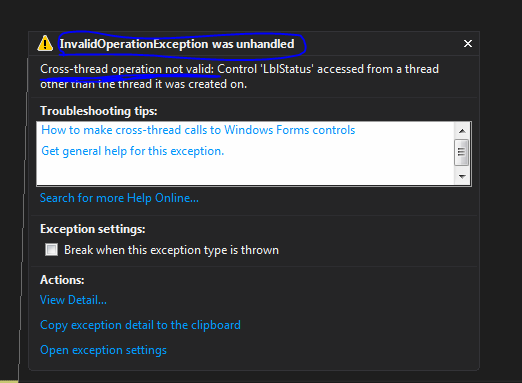
When you run the above code, you will get this famous Exception. Because the Label control is created in UI thread and our worker thread tries to reach it. Cross thread referencing cannot happen as this is a violation of operating system thread handling policies. ( Do not mistake the cross thread communication and cross thread referencing, cross thread communication can happen among threads)

image

There are plenty of solutions for this problem, but the ready made one is to use BackgroundWorker class. The below code shows how you can use BackgroundWorker class and perform UI updates and also shows a progress bar on the UI. Events are coded inline to reduce the number of methods for this small demo.

   1: public partial class Form1 : Form

   2: {       

   3:        private BackgroundWorker _bgWorker = new BackgroundWorker();

   4:        private string _result = String.Empty;

   5:  

   6:        public Form1()

   7:        {

   8:            InitializeComponent();

   9:        }

  10:  

  11:        private void BtnStartWork_Click(object sender, EventArgs e)

  12:        {

  13:            _bgWorker.WorkerReportsProgress = true;

  14:  

  15:            _bgWorker.DoWork += (s, ev) =>

  16:                {

  17:                    _result = PerformTask();

  18:                };

  19:            

  20:            _bgWorker.ProgressChanged += (s, ev) =>

  21:                {

  22:                    workerProgressBar.Value = ev.ProgressPercentage * 100;

  23:                };

  24:  

  25:            _bgWorker.RunWorkerCompleted += (s, ev) =>

  26:                {

  27:                    LblStatus.Text = _result;

  28:                };

  29:  

  30:            _bgWorker.RunWorkerAsync();

  31:        }

  32:  

  33:  

  34:        private string PerformTask()

  35:        {

  36:            // job time 4 - 10 seconds

  37:            int time = new Random().Next(4, 11);

  38:            int fullTime = time;

  39:  

  40:            while (time >= 0)

  41:            {

  42:                Thread.Sleep(1000);

  43:                _bgWorker.ReportProgress(1 - (time / fullTime));

  44:                time--;

  45:            }

  46:  

  47:            return String.Format("Work completed - ran for {0} seconds", fullTime);

  48:         }

  49:           

  50: } 


WPF

In WPF we can use the BackgroundWorker, but also there’s a well refined solution in the WPF is to use the Dispatcher object. WPF model has Dispatcher object common across all the controls. So we can use this to update the UI.

Little modification in the PerformTask() and make it return the result.

   1: private string PerformTask()

   2: {

   3:     // job time 4 - 10 seconds

   4:     int time = new Random().Next(4, 11);

   5:     int fullTime = time;

   6:  

   7:     Thread.Sleep(time);      

   8:  

   9:     return String.Format("Work completed - ran for {0} seconds", fullTime);

  10: } 

Button click event.

   1: private void BtnWork_Click(object sender, RoutedEventArgs e)

   2: {

   3:     Thread thread = new Thread(() =>

   4:         {

   5:             string result = PerformTask();

   6:             Dispatcher.Invoke(() =>

   7:                 {

   8:                     TxtStatus.Text = result;

   9:                 });

  10:         });

  11:     thread.Start();

  12: }

Part 2 – will discuss about UI updates in ASP.NET and Silverlight.

Delegates

Methods are delegate types. It is that simple. Since delegates are types in .NET we can use any method as types, that means we can pass methods as parameters and we can return methods.

The below code shows different ways we can instantiate a delegate.

   1: namespace DelegatesVsInterfaces

   2: {

   3:     public delegate string MyDelegate(string param);

   4:  

   5:     class Program

   6:     {

   7:         static void Main(string[] args)

   8:         {

   9:             // delegate initialization based on history

  10:             

  11:             // C# 1.0

  12:             MyDelegate md1 = new MyDelegate(MyMethod);

  13:             Console.WriteLine(md1("C# 1.0"));

  14:  

  15:             // C# 2.0

  16:             MyDelegate md2 = MyMethod;

  17:             Console.WriteLine(md2("C# 2.0"));

  18:  

  19:             // C# 2.0 - anonymous method

  20:             MyDelegate md3 = delegate(string message) 

  21:             { 

  22:                 return String.Format("Your message, {0} - from anonymous method",message); 

  23:             };

  24:             Console.WriteLine(md3("C# 2.0 and later"));

  25:  

  26:             // C# 3.0 - lamda expressions

  27:             MyDelegate md4 = message => 

  28:             { 

  29:                 return String.Format("Your message, {0} - from lamda methods", message); 

  30:             };

  31:             Console.WriteLine(md4("C# 3.0 and later"));

  32:  

  33:             Console.ReadKey();

  34:         }

  35:  

  36:        public static string MyMethod(string greeting)

  37:        {

  38:            //Thread.Sleep(5000);

  39:            return String.Format("Your message, {0} - relayed from MyMethod",greeting);

  40:        }

  41:    }

  42: }

A delegate has different ways of invocation. The very direct way is calling the delegate itself with the parameters. This indirectly invokes the Invoke() method of the delegate. Invoke() is generated by the compiler with the correct parameter list.

The following code shows the direct invocation.

   1: string result = md1("parameter");

   2: result = md1.Invoke("parameter");


Other way of handling a delegate invocation is, invoking the method asynchronously. BeginInvoke() and EndInvoke() of a delegate is used for this.

BeginInvoke() is generated for a delegate with that specific delegate’s parameters as first set of parameters, next parameter is a AsyncCallback type method and last one is a object which could have values to the callback method.

The following code explains how to use the BeginInvoke() and EndInvoke() to asynchronous execution.

   1: // put this in your method invocation code

   2: MyDelegate md = MyMethod;

   3: AsyncCallback callback = CallBackMethod;

   4:  

   5: IAsyncResult result = md.BeginInvoke("Param", callback, null);

   6:  

   7:  

   8: // callback method

   9: public static void CallBackMethod(IAsyncResult result)

  10: {

  11:     AsyncResult asyncResult = (AsyncResult)result;

  12:     MyDelegate caller = (MyDelegate)asyncResult.AsyncDelegate;

  13:     

  14:     string value = caller.EndInvoke(result);

  15:  

  16:     Console.WriteLine(value);

  17: }

If the method hasn’t finished the execution when the EndInvoke() is called, the callback method waits till the execution is finished.

Another way of invoking a delegate is by using its DynamicInvoke(). More often this is direct as Invoke(), but has the difference in the parameters passed to the delegate. DynamicInvoke() has a object array parameter. We should pass the parameters with the correct data types and it should be with the correct parameter count. If the parameter is not correct it will throw an ArgumentException and if the number of parameters doesn’t match it will throw TargetParameterCountException.

Posted in C#