HTTP Performance Tuning

When we talk about the HTTP performance of a web site or a web page mostly we regard to the speed the content delivered. If we summarize all the parameters of the web performance we can stick to these 3 golden rules in order to gain high performance.

  • Reduce the number of HTTP calls (Reduce the number of requests to the server)
  • Reduce the size of the content in the requests
  • Send information infrequently

These are some common practices to boost up HTTP performance.

HTTP Compression – Most of the web servers support this option. HTTP compression can be static or dynamic. In the static HTTP compression web server saves the compressed version of the content files such as CSS and Javascript. In the Dynamic compression the response HTML is compressed and sent to the client. Dynamic compression works well but eats up more CPU in your web server. Mostly static compression is configured in the web servers by default

Minification – This is a well known method for the Javascript developers. We can do minification to CSS files as well. We reduce the size of the files by removing comments, white spaces, shrinking variable names and ect. There’re plenty of Javascript minification tools available online. jQuery.min is the best example for this type.

Content Expiration – This is the cache in the browser. Browsers check for the new versions of the files and they download the files only when a new version is available. This is good since it reduces the size of the calls to the server, but if you have many small files and the browser goes on checking all of them it will be a performance hit. So better include your files in the relevant folders and set the expiration to the folders.

Content Delivery Networks – CDNs are well known and highly used by many. Geographically distributed so this reduces the travel time of data. CDNs are mostly used to deliver the static content.

Image Optimization – By optimizing the images we can reduce the size of the requests. JPEG and PNG are the heavily used file formats in the web. There are plenty of image optimization tools available. JPEG Tran for the JPEG images and PNG Crush for the PNG images are widely used and light weight.

CRUD operations in SharePoint hosted apps using Javascript Object Model (JSOM)

SharePoint hosted apps can be developed using only Javascript, but still we have 2 options and they’re Javascript Object Model (JSOM) for the SharePoint and SharePoint client REST API. This post explains how to perform CRUD operations in a list using JSOM. Click this link to see how to perform CRUD operations using REST API and Javascript.

The following code is written in ‘Revealing Module Pattern’ using the self invoking function.  A simple built it Contact List is used in this sample.

   1: var Qbe = window.Qbe || {};

   2: Qbe.Contacts;

   3: Qbe.ContactCRUD = Qbe.ContactCRUD || {};

   4:  

   5: Qbe.ContactCRUD = function () {

   6:  

   7:  

   8:     createItem = function (fname, lname, phone) {

   9:         var ctx = new SP.ClientContext.get_current();

  10:         var list = ctx.get_web().get_lists().getByTitle('ContactList');

  11:         ctx.load(list);

  12:  

  13:         var listItemCreationInfo = new SP.ListItemCreationInformation();

  14:  

  15:         var newContact = list.addItem(listItemCreationInfo);

  16:         newContact.set_item('Title', lname);

  17:         newContact.set_item('FirstName', fname);

  18:         newContact.set_item('WorkPhone', phone);

  19:  

  20:         newContact.update();

  21:         ctx.executeQueryAsync(success, error);

  22:     },

  23:  

  24:     readAll = function () {

  25:         var ctx = new SP.ClientContext.get_current();

  26:         var query = "<View><Query><OrderBy><FieldRef Name='Title'/>" +

  27:         "<FieldRef Name='FirstName'/></OrderBy></Query>" +

  28:         "<ViewFields><FieldRef Name='ID'/><FieldRef Name='Title'/>" +

  29:         "<FieldRef Name='FirstName'/><FieldRef Name='WorkPhone'/></ViewFields></View>";

  30:  

  31:         var camlQuery = new SP.CamlQuery();

  32:         camlQuery.set_viewXml(query);

  33:  

  34:         var list = ctx.get_web().get_lists().getByTitle('ContactList');

  35:         ctx.load(list);

  36:  

  37:         Qbe.Contacts = list.getItems(camlQuery);

  38:         ctx.load(Qbe.Contacts, 'Include(ID,Title,FirstName,WorkPhone)');

  39:  

  40:         ctx.executeQueryAsync(readAllSuccess, error);

  41:     },

  42:  

  43:     readAllSuccess = function () {

  44:         var html = [];

  45:         html.push("<table><thead><tr><th>ID</th><th>First Name</th>");

  46:         html.push("<th>Last Name</th><th>Title</th></tr></thead>");

  47:  

  48:         var listItemEnumerator = Qbe.Contacts.getEnumerator();

  49:  

  50:         while (listItemEnumerator.moveNext()) {

  51:             var listItem = listItemEnumerator.get_current();

  52:             html.push("<tr><td>");

  53:             html.push(listItem.get_item("ID"));

  54:             html.push("</td><td>");

  55:             html.push(listItem.get_item("FirstName"));

  56:             html.push("</td><td>");

  57:             html.push(listItem.get_item("Title"));

  58:             html.push("</td><td>");

  59:             html.push(listItem.get_item("WorkPhone"));

  60:             html.push("</td><td>");

  61:         }

  62:         html.push("</table>");

  63:         $('#displayDiv').html(html.join(''));

  64:     },

  65:  

  66:     updateItem = function (id, fname, lname, phone) {

  67:         var ctx = new SP.ClientContext.get_current();

  68:         var list = ctx.get_web().get_lists().getByTitle('ContactList');

  69:         ctx.load(list);

  70:  

  71:         var item = list.getItemById(id);

  72:         item.set_item('Title', lname);

  73:         item.set_item('FirstName', lname);

  74:         item.set_item('WorkPhone', phone);

  75:  

  76:         item.update();

  77:         ctx.executeQueryAsync(success, error);

  78:     },

  79:  

  80:     deleteItem = function (id) {

  81:         var ctx = new SP.ClientContext.get_current();

  82:         var list = ctx.get_web().get_lists().getByTitle('ContactList');

  83:         ctx.load(list);

  84:  

  85:         var item = list.getItemById(id);

  86:         item.deleteObject();

  87:         

  88:         ctx.executeQueryAsync(success, error);

  89:     },

  90:  

  91:     success = function () {

  92:         readAll();

  93:     },

  94:     error = function (sender, args) {

  95:         alert(args.get_message());

  96:     }

  97:  

  98:     // public interface

  99:     return {

 100:         createContact: createItem,

 101:         updateContact: updateItem,

 102:         deleteContact: deleteItem

 103:     }

 104: }();

CRUD operations in SharePoint hosted apps using REST API

SharePoint hosted apps can be developed using only Javascript, but still we have 2 options and they’re Javascript Object Model (JSOM) for the SharePoint and SharePoint client REST API. This post explains how to perform CRUD operations in a list using REST API.

The following code is written in ‘Revealing Module Pattern’ using the self invoking function.  A simple built it Contact List is used in this sample.

   1: var Qbe = window.Qbe || {};

   2: Qbe.RestContacts;

   3:  

   4: Qbe.RestContactsCRUD = Qbe.RestContactsCRUD || {};

   5:  

   6: Qbe.RestContactsCRUD = function () {

   7:     

   8:     createItem = function(newContact) {

   9:         $.ajax({

  10:             url: _spPageContextInfo.webServerRelativeUrl + "/_api/web/lists/getByTitle('ContactList')/items",

  11:             type: "POST",

  12:             contentType: "application/json;odata=verbose",

  13:             data: JSON.stringify(

  14:                 {

  15:                     '__metadata': {

  16:                         'type': 'SP.Data.ContactListListItem'

  17:                     },

  18:                     'Title': newContact.fname,

  19:                     'FirstName': newContact.lname,

  20:                     'WorkPhone': newContact.phone.toString()

  21:                 }),

  22:             headers: {

  23:                 "Accept": "application/json;odata=verbose",

  24:                 "X-RequestDigest": $("#__REQUESTDIGEST").val()

  25:             },

  26:  

  27:             success: function () {

  28:                 readAllContacts();

  29:             },

  30:  

  31:             error: function (err) {

  32:                 alert(JSON.stringify(err));

  33:             }

  34:         });

  35:     },

  36:  

  37:     updateItem = function (updatedContact) {

  38:         $.ajax({

  39:             url: _spPageContextInfo.webServerRelativeUrl + "/_api/web/lists/getByTitle('ContactList')/" +

  40:                 "getItemByStringId('" + updatedContact.id.toString() + "')",

  41:             type: "POST",

  42:             contentType: "application/json;odata=verbose",

  43:             data: JSON.stringify(

  44:                 {

  45:                     '__metadata': {

  46:                         'type': 'SP.Data.ContactListListItem'

  47:                     },

  48:                     'Title': updatedContact.fname,

  49:                     'FirstName': updatedContact.lname,

  50:                     'WorkPhone': updatedContact.phone.toString()

  51:                 }),

  52:             headers: {

  53:                 "accept": "application/json;odata=verbose",

  54:                 "X-RequestDigest": $("#__REQUESTDIGEST").val(),

  55:                 "IF-MATCH": "*",

  56:                 "X-HTTP-Method" : "PATCH"

  57:             },

  58:  

  59:             success: function (data) {

  60:                 readAllContacts();

  61:             },

  62:             error: function (err) {

  63:                 alert(JSON.stringify(err));

  64:             }

  65:  

  66:         })

  67:     },

  68:  

  69:     deleteItem = function (id) {

  70:         $.ajax({

  71:             url : _spPageContextInfo.webServerRelativeUrl + "/_api/web/lists/getByTitle('ContactList')/" +

  72:                 "getItemByStringId('" + id.toString() + "')",

  73:             type: "DELETE",

  74:             headers: {

  75:                 "accept": "application/json;odata=verbose",

  76:                 "X-RequestDigest": $("#__REQUESTDIGEST").val(),

  77:                 "IF-MATCH": "*"

  78:             },

  79:             success: function () {

  80:                 readAllContacts();

  81:             },

  82:             error: function (err) {

  83:                 alert(JSON.stringify(err));

  84:             }

  85:         })

  86:     },

  87:  

  88:     readAllContacts = function () {

  89:         $.ajax(

  90:             {

  91:                 url: _spPageContextInfo.webServerRelativeUrl + "/_api/web/lists/getByTitle('ContactList')/items" +

  92:                     "?$select=Id,FirstName,Title,WorkPhone" +

  93:                     "&$orderby=ID",

  94:                 type: "GET",

  95:                 contentType: "application/json;odata=verbose",

  96:                 headers: {

  97:                     "Accept": "application/json;odata=verbose"

  98:                 },

  99:                 success: function (data) {

 100:                     var html = [];

 101:                     html.push("<table><thead><tr><th>ID</th><th>First Name</th>");

 102:                     html.push("<th>Last Name</th><th>Phone</th><th>ETag</th></tr></thead>");

 103:  

 104:                     var result = data.d.results;

 105:  

 106:                     for(var i = 0; i < result.length; i++)  {

 107:                         html.push("<tr><td>");

 108:                         html.push(result[i].ID);

 109:                         html.push("</td><td>");

 110:                         html.push(result[i].FirstName);

 111:                         html.push("</td><td>");

 112:                         html.push(result[i].Title);

 113:                         html.push("</td><td>");

 114:                         html.push(result[i].WorkPhone);

 115:                         html.push("</td><td>");

 116:                         html.push(result[i].__metadata.etag);

 117:                         html.push("</td><td>");

 118:                     }

 119:                     html.push("</table>");

 120:                     $('#displayDiv').html(html.join(''));

 121:                 },

 122:                 error: function (err) {

 123:                     alert(JSON.stringify(err));

 124:                 }

 125:             })

 126:     },

 127:  

 128:     success = function () {

 129:         readAllContacts();

 130:     },

 131:  

 132:     error = function (sender, args) {

 133:         alert(args.get_message());

 134:     }

 135:  

 136:     return {

 137:         createContactREST: createItem,

 138:         updateContactREST: updateItem,

 139:         deleteContactREST: deleteItem,

 140:         displayContactREST: readAllContacts

 141:     }

 142: }();

How to create custom NuGet packages

NuGet provides an easy and a very efficient solution to distribute packages. A NuGet package can contain assemblies, content files and other tools that you want to distribute. A NuGet package is described by a manifest file known as nuspec. View the nuspec reference.

You can use 3 sub folders \lib \content and \tools in the NuGet package structure. \lib is used to store the assemblies, \content folder is used to store scripts, images, style sheets, ect… and finally \tools folder contains power shell scripts which mostly handle the package events (installation of the package, un-installation of the package)

\content folder also contains the transformation files which apply changes to files such as web.config and app.config. NuGet packages can also be used to insert code and create code files.

You can create NuGet packages either using visual designer or command line. In order to use the command line, we need NuGet.exe which can be downloaded from this link.

Open CMD and go to NuGet.exe path (or you can add the NuGet.exe path to environment variable to access it from anywhere)

Type the following command to make sure that you’re running the latest version of NuGet.exe

NuGet Update –self

Then we have to create the nuspec for the package. Create the above mentioned 3 folders and copy the assemblies inside the \lib. You can have sub folders inside the those folders. For example you can have \content\images to store images and when your package is referenced it will create a folder named ‘images’ in the project.

After setting up the file and folder structure, run the following command to create the nuspec file.

nuget spec

This will create the nuspec manifest file with tokens for the parameters like author, owner, description, urls and ect. Open this nuspec file and enter those details. A sample nuspec file looks like this.

   1: <?xml version="1.0"?>

   2: <package >

   3:   <metadata>

   4:     <id>Package</id>

   5:     <version>1.0.0</version>

   6:     <authors>Thuru</authors>

   7:     <owners>Thuru</owners>

   8:     <licenseUrl>https://thuruinhttp.wordpress.com</licenseUrl>

   9:     <projectUrl>https://thuruinhttp.wordpress.com</projectUrl>

  10:     <iconUrl>http://ICON_URL_HERE_OR_DELETE_THIS_LINE</iconUrl>

  11:     <requireLicenseAcceptance>false</requireLicenseAcceptance>

  12:     <description>Package description</description>

  13:     <releaseNotes>Summary of changes made in this release of the package.</releaseNotes>

  14:     <copyright>Copyright 2014</copyright>

  15:     <tags>Tag1 Tag2</tags>

  16:     <dependencies>

  17:     </dependencies>

  18:   </metadata>

  19: </package>

Once the nuspec file (consider the name is mypackage.nuspec) is created, you can create the NuGet package. Run the below command to create the NuGet package

nuget pack mypackage.nuspec

This will create the NuGet package. You may get errors and warnings based on some values in the nuspec.

This the structure used. (Note here I’ve copied the NuGet.exe in my working folder because I didn’t set the environment variable)

image

Power BI – Data Management Gateway

Power BI for Office 365 has a component known as Data Management Gateway which allows us to expose the on premise data sources to cloud. On premise boxes which host the data sources do not require a public IP but you servers still require an Internet connection. Currently Data Management Gateway supports SQL Server, Oracle and Power Query sources. This article guides you how to setup the Power BI Data Management Gateway and expose a SQL Server database to cloud. First Go to Power BI Admin Center from your Office 365 subscription.

image

In the Power BI Admin Center click gateways and then click new gateway

image Enter a name for you gateway and an optional description. If you want to store the credentials of the data sources you want to link to Office 365 in the cloud you can check the “Enable cloud credential store to archive business continuity for gateway” option. By checking this you agree to store the data source credentials in the cloud in a secure way. Storing the credentials in the cloud gives you the ability to restore the gateway without entering credentials. Most of the cases this would be an organizational decision based on the trust. This link explains the advantages of enabling cloud credential store. 

image

Once you click Create you will be directed to the second step. Here you will get the link to download the Data Management Gateway and the key to build the trust between the gateway and Office 365.

image

Copy the key (later you can change this). Download the Data Management Gateway and install in your on premise machine. Data Management Gateway is a Windows Service. Once the installation is done, you will get the Microsoft Data Management Gateway Configuration Manager in your machine. Open it and paste your gateway key and register the gateway.

image

In the settings you can configure the protocol and the port for the communication between your Data Management Gateway service and Office 365.  As of now we have completed setting up the gateway to communicate to the Office 365 environment. Below diagrams explains how the communication happens between your on premise machine and Office 365.

image

Click on the Settings tab in the Microsoft Data Management Gateway Configuration Manager in order to configure protocol and the port of the communication.

image

Next step is to create data sources, go to data sources tab in the Power BI admin center and setup a data source. Here we’ll setup a SQL Server data source.

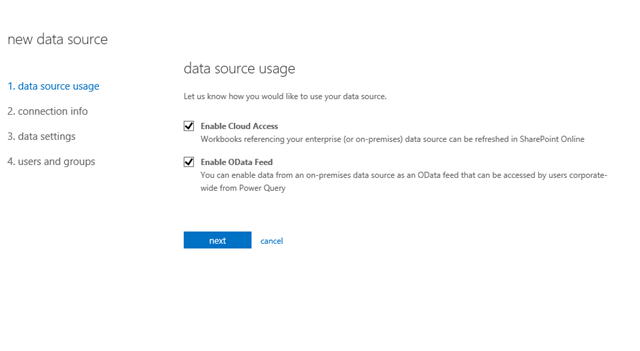
image Then we have to select how to expose the data source, only as a cloud source or as well as a OData feed. Enabling the data sources as OData feed provides the opportunity to use this data source in Power Query. Cloud Access makes the data source available in SharePoint online and refreshing is possible.

image In the next wizard enter the connection details. Select the Gateway, data source type and the appropriate provider. In this case my on premise database is SQL Server 2012 so I’ve used SQL Server Native Client 11.0. Then enter the server name and database name in order to construct the connection string. If you select the connection string option (rounded in blue) you need not to provide these details one by one, you can simple enter your connection string.

image

After setting up the server and database details along with the provider information, you can see that the credentials button is enabled. Click on the credentials this will launch a one click application. In that application enter your database credentials either Windows Authentication or SQL Authentication.

image

Test the connection and if the connection is successful click OK. This saves the credentials in the local machine specific to the application. The credentials are not transferred to the Office 365 since we didn’t select the Enable Cloud Credential Store. Now the data source setup is complete. Go to the data settings tab in the data sources and select the desired tables and views to be exposed from the Office 365.

image

That’s it, we have connected our on premise data source to Office 365. Go to data source section and click the properties shortcut (triple dots) in the context menu you can see the OData Feed URL for your on premise data base.

image

It’s amazingly simple to expose your on premise data sources across the organization and even to extranet through Power BI for Office 365. You can get the OData URL and start accessing your data source from Excel Power Query.

image 

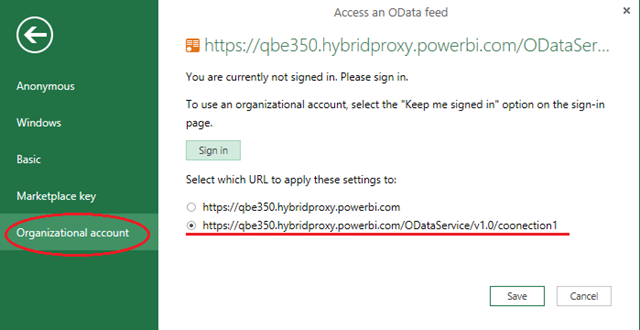
Paste the URL (note that OData feeds are exposed via HTTPS) and select the Organizational Account to enter your Office 365 credentials.

image 

Then you can access the data exposed through the OData feed in Excel. The below image shows the data exposed in this sample.

image

How does this entire process work ?

mm

Setting up Power BI Excel features

This is the second post in the Power BI category. In this post I explain how to setup Excel environment to user Power BI Excel components. Power BI offers 4 individual Add-ins for Excel.

They are Power Pivot, Power View, Power Query and Power Map

Power View and Power Pivot are available in the Office Professional Plus and Office 365 Professional Plus editions, and in the standalone edition of Excel 2013  You do not need to perform a separate installation you just have to activate them. But you have to download the Power Map and Power Query.

Power Query Download Link : http://office.microsoft.com/en-us/excel/redir/XT104104542.aspx

Power Map Download Link : http://office.microsoft.com/en-us/excel/redir/XT104048049.aspx

Once installed you should activate they aren’t activated by default. To activate the Add-ins (all the above Add-ins are COM Add-ins) click File and then Options; select the Add-Ins tab and select COM Add-Ins in the drop down.

image


Click Go and you will get the list of available COM Add-ins. Select the above 4 Add-ins and activate them. Power Query and Power Pivot reside in their own tab while Power Map and Power View are available under the Insert tab. If you do not have Silverlight installed in your machine you should install Silverlight in order to make the Power View work.

image


image


image

Now your Excel environment is enriched with the Power BI Excel features.

Recovering a SQL Server database from Suspect Mode

Yesterday my SharePoint environment didn’t respond I checked the DB server and got to know few SharePoint databases were in suspect mode. Now I want to make the databases up and running as usual in order to get my work done. This is a SQL Server thing. There could be several reasons for a database to go to the Suspect Mode. In my case my .ldf file was corrupted.

This forum thread explains more reasons why a database goes to Suspect Mode.

image

In order to get the database follow these steps. Login to the server using an account with sysadmin privileges. And set the target to database to EMERGENCY mode.

   1: ALTER DATABASE [db name] SET EMERGENCY


image

Then set the database to SINGLE USER mode in order to run the recovery.

   1: ALTER DATABASE [db name] SET SINGLE_USER

Now you can run the following command to rebuild the transactional log file. Here data loss is allowed.

   1: DBCC CheckDB ([db name], REPAIR_ALLOW_DATA_LOSS)

Then set back the database to MULTI USER mode.

   1: ALTER DATABASE [db name] SET MULTI_USER


Sometimes you might run into problems where you cannot set the database to MULTI USER mode; SQL Server complains with this error “The database is in single-user mode, and a user is currently connected to it.”

The database is in single-user mode, and a user is currently connected to it.

Sometimes you might get the above error message from SQL Server when you try to change the user mode from MULTI to SINGLE.

You have to explicitly kill the connection in order to solve the problem. First you need the dbid of your database. Run the following command.

   1: SELECT name, database_id

   2: FROM sys.databases 

   3: WHERE name = 'db name'

Once you get the dbid you can check the connections to the database. Run the following command.

   1: SELECT spid FROM sysprocesses WHERE dbid = @dbid

spid is the connection process id. We have to kill all the spids  in order to run our command which sets the MULTI USER mode. For example think you get the spid as 10. Run the following command to kill the connection and set the database user mode.

   1: USE MASTER

   2: KILL 10

   3:  

   4: ALTER DATABASE [db name] SET MULTI_USER

   5: GO