Few good to know features of Entity Framework

I have been doing some reading about advance EF features for last couple of weeks and got to know some interesting things, this post is a compilation of the information and provides links to the relevant sites.

Starting with EF 5.0 ObjectContext was replaced with DbContext. So what’s the difference between ObjectContext and DbContext ?

This link gives the simplest answer for the above question. And using the following code you get the ObjectContext from your DbContext. Say that your have model class named MyEntities the best practice is to create a partial class (partial classes are the safest way since the auto generated classes could be overridden at any time there’s a code regeneration) and create a property that returns the ObjectContext. The below code describes the idea.

   1: public partial class MyEntities : DbContext

   2: {

   3:     public System.Data.Entity.Core.Objects.ObjectContext ObjectContextProperty

   4:     {

   5:         get

   6:         {

   7:             return ((IObjectContextAdapter)this).ObjectContext;

   8:         }

   9:     }

  10: }


Compiled Queries

Compiled Queries are helpful when we want to squeeze the final drop of performance from our application. We cache the TSQL statement which is produced from LINQ to Entity queries we write. Since we write the queries in LINQ these queries first get translated into TSQL statements and they’re executed against the SQL Server. As a result of caching the TSQL statements of the LINQ queries we cut down the translation time. Microsoft has mentioned this provides 7% performance improvement. Details here

This article provides information on creating compiled queries

MSDN Compile Query Class

The reason why I haven’t mention any samples here is that we do not need to worry much about the query compilation in EF 5.0 and above because it automatically happens.

This MSDN blog post explains the automatic query compilation in EF 5.0 and above. But again if you want to have more advanced and granular control over the compilation you should consider implementing your custom compiled queries. It’s better to have the compiled queries in your data repository classes.

Performance

Read this Data Access Blog article about the EF 5.0 performance. The below image take from the blog gives a summary.

image 

As you see that updating to EF 5.0 on .NET 4.5 gives a greater performance boost to LINQ to Entities, automatic query compilation is one of the main features for this performance gain.

EF Versions – http://msdn.microsoft.com/en-us/data/jj574253

This channel 9 video is a good one about EF 5 and EF 6

 http://channel9.msdn.com/Shows/Visual-Studio-Toolbox/Entity-Framework-5-and-6

Hierarchy in TSQL – step by step guide

Hierarchy data type is introduced in SQL Server 2008. It is a CLR data type. This post gives a simple step by step guide to implement HierarchyID data type

Hierarchical navigation or simply the navigation between nodes could happen in 2 ways.

  1. Depth First
  2. Breadth First

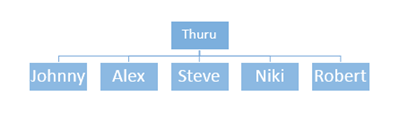
Having said that, we’ll start the tutorial. Create a table as follows. Node is the HierarchyID type, NodeLevel column is a calculated column which contains the level of the Node in the hierarchical tree. ID and Name are custom data type for the information we have. Let’s try to model a organizational reporting hierarchy in using the table h.

   1: create table h (

   2: Node HierarchyID primary key clustered,

   3: NodeLevel AS Node.GetLevel(),

   4: ID INT UNIQUE NOT NULL,

   5: Name VARCHAR(50) NOT NULL

   6: )

Since we’ve defined the Primary Key in the Node column, we get the Depth First index by default. To create a Breadth First index you can run the following query. In real scenarios you do not need to create both indexes, it depends on your requirement to decide which index to be created. Sometime you may need both as well.

   1: -- this creates the bfs index to the table.

   2: create unique index bfs_index

   3:  on h (NodeLevel,Node)

Now we’ll insert data.

   1: insert into h (Node, ID, Name)

   2:    values (HierarchyId::GetRoot(), 1, 'Thuru')

Here I’ve passed the HierarchyId::GetRoot() as the value for the Node. Few things to note here, we ask the SQL Server to give us the HierarchyID of the root node. We use the SQL CLR function GetRoot for this. The :: is marked because GetRoot is a static method inside the HierarchyID SQL CLR data type.

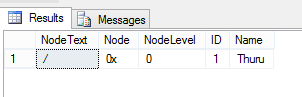
Mark this statement as our common SELECT statement. NodeText is the string representation of Node.

   1: select Node.ToString() AS NodeText, * FROM h

image

Now I insert a person in the next level.

   1: declare @parent hierarchyid = hierarchyid::GetRoot()

   2: insert into h (Node,id,Name) values

   3:     (@parent.GetDescendant(null,null),2,'Johnny')

   4: go

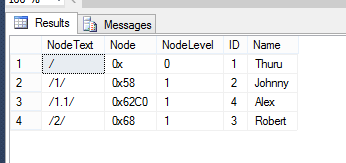
Here I get the parent Node value using the static function GetRoot(). GetDescendant() method returns the descendant Node value between the right and left sibling. In this case our top level node doesn’t have any children, apparently no siblings so we do pass null. After executing the above query now we have this structure.

image

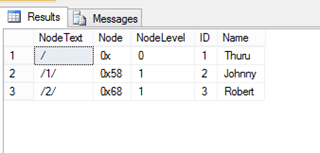
Let’s add another person below ‘Thuru’. Note this time I get the parent node using the SELECT statement which asks for the Node of ‘Thuru’. And now I want to insert the new Node in the level of Johnny and after him. So for the new node the right sibling is Johnny and the left sibling is null. The query goes like this.

   1: declare @parent hierarchyid = (select Node from h where name = 'Thuru')

   2: declare @jhony hierarchyid = (select Node from h where name = 'Johnny')

   3: insert into h (Node, ID, Name) values (@parent.GetDescendant(@jhony,null), 3, 'Robert')
image


image

Now it’s a simple guess for you what should be done to insert a new node between Johnny and Robert.

   1: declare @parent hierarchyid = (select Node from h where name = 'Thuru')

   2: declare @jhony hierarchyid = (select Node from h where name = 'Johnny')

   3: declare @robert hierarchyid = (select Node from h where name = 'Robert')

   4: insert into h (Node, ID, Name) values (@parent.GetDescendant(@jhony,@robert), 4, 'Alex')

image image


Executing couple of inserts ….

   1: declare @parent hierarchyid = (select Node from h where name = 'Thuru')

   2: declare @alex hierarchyid = (select Node from h where name = 'Alex')

   3: declare @robert hierarchyid = (select Node from h where name = 'Robert')

   4: insert into h (Node, ID, Name) values (@parent.GetDescendant(@alex,@robert), 5, 'Niki')

   5: go

   6:  

   7: declare @parent hierarchyid = (select Node from h where name = 'Thuru')

   8: declare @alex hierarchyid = (select Node from h where name = 'Alex')

   9: declare @niki hierarchyid = (select Node from h where name = 'Niki')

  10: insert into h (Node, ID, Name) values (@parent.GetDescendant(@alex,@niki), 6, 'Steve')

  11: go

  12:  

  13: select Node.ToString() AS NodeText, * FROM h

  14: go


image image


Now let’s add 2 children nodes for Steve. Execute the following query.

   1: declare @steveParent hierarchyid = (select Node from h where name = 'Steve')

   2: insert into h (Node, ID, Name) values (@steveParent.GetDescendant(null,null), 7, 'S1')

   3: go

   4:  

   5: declare @steveParent hierarchyid = (select Node from h where name = 'Steve')

   6: declare @s1 hierarchyid = (select Node from h where name = 'S1')

   7: insert into h (Node, ID, Name) values (@steveParent.GetDescendant(@s1,null), 8, 'S2')

   8: go

image image


IsDescendantOf method and GetAncestor methods are useful in querying the structure.

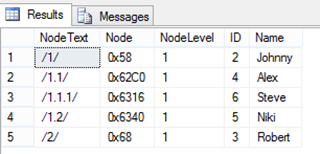
The following query returns the immediate set of nodes of the specified node.

IsDescendantOf

   1: declare @parent hierarchyid = (select Node from h where name = 'Thuru')

   2: declare @parentNodeLevel int = (select NodeLevel from h where name = 'Thuru')

   3: select Node.ToString() AS NodeText, *  from h where 

   4: Node.IsDescendantOf(@parent) = 'TRUE' and node != @parent and 

   5: NodeLevel = @parentNodeLevel + 1
image

In the above query I restricted the query to return only the immediate children using the NodeLevel column. And also notice I have opted out the parent node because IsDescendantOf method includes the parent node as well in the result.


GetAncestor

Gets the ancestors of the specified node in the passed level, if we pass 0 it returns the siblings.

   1: declare @child hierarchyid = (select node from h where name = 'S1')

   2: select * from h where Node = @child.GetAncestor(2)

2 steps above.

image

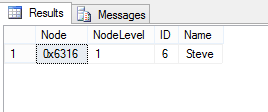
Immediate parent

   1: declare @child hierarchyid = (select node from h where name = 'S1')

   2: select * from h where Node = @child.GetAncestor(1)
image

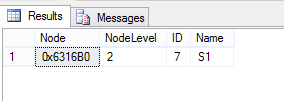
Siblings

   1: declare @child hierarchyid = (select node from h where name = 'S1')

   2: select * from h where Node = @child.GetAncestor(0)
image


Deletion

Deleting a node does not delete its children nodes. This results in orphaned children.

   1: delete from h where Name = 'Steve'

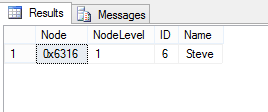
After deleting Steve if we execute our SELECT statement we get the following result

image

Note that S1 and S2 have the NodeText /1.1.1/1 and /1.1.1/2 where there’s no /1.1.1 resulting orphaned S1 and S2


Microsoft recommends to use proper stored procedures to match the business scenario to deal with the HierarchyID thus eliminating unwanted results like orphaned children.

Moving Nodes

The GetReparentedValue method is used to move the nodes to different locations.

   1: declare @newParent hierarchyid = (select Node from h where name = 'Johnny')

   2: update h set Node = Node.GetReparentedValue(Node.GetAncestor(1),@newParent)

   3: where name = 'S1'

Here we want to move the S1 as a child node of Johnny. We get the node value of Johnny and get the ancestors in the level of where Johnny is and update the Node of S1. This moves the S1 under Johnny leaving the hierarchy like this.


image

The requested content appears to be script and will not be served by the static file handler.

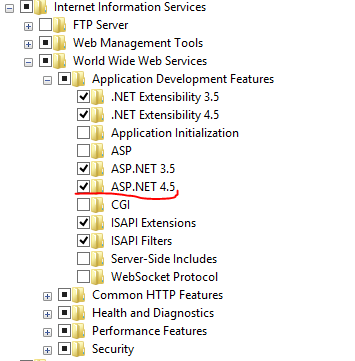
If you get the above message from IIS while working with ASP.NET 4.5 or above, the most likely cause is that you’re missing the ASP.NET 4.5 in your development IIS.

Here’s the resolution

To install or uninstall ASP.NET 4.5 on Windows 8 or Windows Server 2012, use one of the following options:

  • Run the following command from an administrative command prompt: dism /online /enable-feature /featurename:IIS-ASPNET45
  • For Windows 8 client computers, turn on “IIS-ASPNET45” in “Turn Windows Features On/Off” under “Internet Information Services-> World Wide Web Services -> Application Development Features -> ASP.NET 4.5”.
  • For Windows Server 2012 computers, enable “IIS-ASPNET45” using Server Manager, under “Web Server (IIS) -> Web Server ->Application Development -> ASP.NET 4.5”.


In Windows 8 Turn Windows Features On/Off


image

Difference between Single and First in C#

In the extension methods Single / SingleOrDefault and First / FirstOrDefault have semantic distinction. Though in many places these methods are being used without the semantic consideration, more often they return the expected results. This behavior makes this misuse more common.

Both the Single and First methods have an accompanying helper method named as xxOrDefault which does nothing more than returning the default value of the specified data type if no element matches the query in the collection. For example if it’s a string collection they return null and if it’s an integer collection they return 0.

So the main semantic distinction comes between Single and First

To check this we create 3 collections like the following.

   1: private static List<StudentViewModel> list0;

   2:  

   3: private static List<StudentViewModel> list1 = new List<StudentViewModel>()

   4: {

   5:     new StudentViewModel() { StudentId = 1, StudentName = "Thuru", Gpa = 3.92},

   6:     new StudentViewModel() { StudentId = 2, StudentName = "Kristin", Gpa = 3.92},

   7:     new StudentViewModel() { StudentId = 3, StudentName = "Jack", Gpa = 3.92},

   8:     new StudentViewModel() { StudentId = 4, StudentName = "Anna", Gpa = 3.92},

   9:     new StudentViewModel() { StudentId = 5, StudentName = "Anderson", Gpa = 3.92},

  10:     new StudentViewModel() { StudentId = 6, StudentName = "Niki", Gpa = 3.92},

  11:     new StudentViewModel() { StudentId = 7, StudentName = "Jhon", Gpa = 3.92},

  12:     new StudentViewModel() { StudentId = 7, StudentName = "Brown", Gpa = 3.92},

  13: };

  14:  

  15: private static List<StudentViewModel> list2 = new List<StudentViewModel>()

  16: {

  17:     

  18: };

list0 is null, list1 and list2 are instantiated collections where list2 has no elements.


Single / SingleOrDefault

Single as the name specifies is used and should be used where there’s one and only element match the query.

   1: //ArgumentNullException

   2: list0.Single();

   3:  

   4: //ArgumentNullException

   5: list0.SingleOrDefault();

   6:  

   7: // InvalidOperationException - Sequence contains no elements

   8: list2.Single();

   9:  

  10: // works return null if there's no elements matching the criteria

  11: StudentViewModel st = list2.SingleOrDefault();

  12:  

  13:  

  14: // InvalidOperationException - Sequence contains more than one element

  15: // if collection has only one element it returns that element

  16: Console.WriteLine(list1.Single());

  17:  

  18: // works

  19: Console.WriteLine(list1.Single(e => e.StudentId == 1));

  20:  

  21: // InvalidOperationException - Sequence contains more than one matching element

  22: Console.WriteLine(list1.Single(e => e.StudentId == 7));

  23:  

  24: // InvalidOperationException - Sequence contains no matching element

  25: Console.WriteLine(list1.Single(e => e.StudentId == 8));

  26:  

  27: StudentViewModel st1;

  28:  

  29: // InvalidOperationException - Sequence contains more than one element

  30: st1 = list1.SingleOrDefault();

  31:  

  32: //works

  33: st1 = list1.SingleOrDefault(e => e.StudentId == 1);

  34:  

  35: // InvalidOperationException - Sequence contains more than one matching element

  36: st1 = list1.SingleOrDefault(e => e.StudentId == 7);

  37:  

  38: // works st1 is null

  39: st1 = list1.SingleOrDefault(e => e.StudentId == 8);


First / FirstOrDefault

First has no issues when there’re more than one element matches the query, it simply returns the first element. But if there’re no element matching the query it prompts.

   1: // ArgumentNullException

   2: list0.First();

   3:  

   4: // ArgumentNullException

   5: list0.FirstOrDefault();

   6:  

   7: // InvalidOperationException - Sequence contains no elements

   8: list2.First();

   9:  

  10: // works return null if there's no elements matching the criteria

  11: StudentViewModel st = list2.FirstOrDefault();

  12:  

  13:  

  14: // returns the first element of the collection

  15: Console.WriteLine(list1.First());

  16:  

  17: // works

  18: Console.WriteLine(list1.First(e => e.StudentId == 1));

  19:  

  20: // returns the first element of the collection matches the query

  21: Console.WriteLine(list1.First(e => e.StudentId == 7));

  22:  

  23: // InvalidOperationException - Sequence contains no matching element

  24: Console.WriteLine(list1.First(e => e.StudentId == 8));

  25:  

  26: StudentViewModel st1;

  27:  

  28: // returns the first element of the collection

  29: st1 = list1.FirstOrDefault();

  30:  

  31: // works

  32: st1 = list1.FirstOrDefault(e => e.StudentId == 1);

  33:  

  34: // returns the first element of the collection matches the query

  35: st1 = list1.FirstOrDefault(e => e.StudentId == 7);

  36:  

  37: // works st1 is null

  38: st1 = list1.FirstOrDefault(e => e.StudentId == 8);


The code snippets and the comments describes the functions of the Single and First extension methods and their helping counter parts xxOrDefault.

 About the semantic distinction.

If you know that your query should return only one element it’s better to use Single or SingleOrDefault. For example when you query a customer collection by customer ID you know that according to the business there’s only one customer ID with a specific value. First or FirstOrDefault could be used in the scenario but it doesn’t give you the semantics of the business logic.

And Single or SingleOrDefault throws an InvalidOperationException with the message ‘sequence contains more than one element’ if the collection has more than one element matching the query. This behavior sometimes can be used to validate.

Another common misuse of the above extension methods is chaining them unnecessarily with ‘where’ statement like this

   1: // this is a common misuse

   2: list1.Where(e => e.StudentId == 7).Single();

   3:  

   4: list1.Single(e => e.StudentId == 7);


If you want the code for the demonstration purpose you can download it here

Programming AGENT smart watch using C#.NET

Smart watch is one of the current buzz words these days. From a tweet I clicked this link.  A kickstarter project initiation, this is not the one of its kind but this attracted me because we can use .NET and C# to develop apps. The above link provides the tools you need in order to start developing the apps for AGENT. The AGENT SDK (version 0.2) provides a beta level emulator and Visual Studio project templates as well. SDK utilizes the .NET micro framework.

I created a 2 simple applications using the available AGENT project template.

AGENT Watch Application

This is a simple animated human skeleton and display some text on the screen.

   1: using Microsoft.SPOT;

   2: using Microsoft.SPOT.Hardware;

   3: using Microsoft.SPOT.Presentation;

   4: using Microsoft.SPOT.Presentation.Media;

   5: using System;

   6: using System.Threading;

   7:

   8: namespace AgentWatchApplication1

   9: {

  10:     public class Program

  11:     {

  12:         static Bitmap _display;

  13:

  14:         public static void Main()

  15:         {

  16:             // initialize display buffer

  17:             _display = new Bitmap(Bitmap.MaxWidth, Bitmap.MaxHeight);

  18:             Font fontNinaB = Resources.GetFont(Resources.FontResources.NinaB);

  19:

  20:             int index = 0;

  21:

  22:             while (true)

  23:             {

  24:                 _display.Clear();

  25:

  26:                 _display.DrawText("Thuru", fontNinaB, Color.White, 44, 2);

  27:

  28:                 _display.DrawEllipse(Color.White, 55, 40, 10, 10); // head

  29:                 _display.DrawLine(Color.White, 1, 55, 50, 55, 90); // body

  30:

  31:                 _display.DrawLine(Color.White, 1, 55, 90, 40, 100); // left leg

  32:                 _display.DrawLine(Color.White, 1, 55, 90, 70, 100); // right leg 

  33:

  34:

  35:                 if (index % 2 == 0)

  36:                 {

  37:                     _display.DrawLine(Color.White, 1, 55, 55, 40, 75); // left hand down

  38:                     _display.DrawLine(Color.White, 1, 55, 55, 70, 75); // right hand down

  39:                 }

  40:                 else

  41:                 {

  42:                     _display.DrawLine(Color.White, 1, 55, 55, 40, 50); // left hand up

  43:                     _display.DrawLine(Color.White, 1, 55, 55, 70, 50); // right hand up

  44:                 }

  45:

  46:                 _display.Flush();

  47:

  48:                 if (index == 100)

  49:                     index = 0;

  50:

  51:                 index++;

  52:

  53:                 Thread.Sleep(1000);

  54:

  55:             }

  56:         }

  57:

  58:     }

  59: }

Output

image image

AGENT Watch Face

This is based on the AGENT watch face. I edited the template code to show the updates every second.

   1: using Microsoft.SPOT;

   2: using Microsoft.SPOT.Hardware;

   3: using Microsoft.SPOT.Presentation;

   4: using Microsoft.SPOT.Presentation.Media;

   5: using System;

   6: using System.Threading;

   7:

   8: namespace AgentWatchFace1

   9: {

  10:     public class Program

  11:     {

  12:         static Bitmap _display;

  13:         static Timer _updateClockTimer;

  14:

  15:         public static void Main()

  16:         {

  17:             // initialize our display buffer

  18:             _display = new Bitmap(Bitmap.MaxWidth, Bitmap.MaxHeight);

  19:

  20:             // display the time immediately

  21:             UpdateTime(null);

  22:

  23:             // obtain the current time

  24:             DateTimeOffset currentTime = DateTimeOffset.Now;

  25:             // set up timer to refresh time every minute

  26:             TimeSpan dueTime = new TimeSpan(0, 0, 0, 0, 1000 - currentTime.Millisecond); // start timer at beginning of next minute

  27:             TimeSpan period = new TimeSpan(0, 0, 0, 1, 0); // update time every minute

  28:             _updateClockTimer = new Timer(UpdateTime, null, dueTime, period); // start our update timer

  29:

  30:             // go to sleep; time updates will happen automatically every minute

  31:             Thread.Sleep(Timeout.Infinite);

  32:         }

  33:

  34:         static void UpdateTime(object state)

  35:         {

  36:             // obtain the current time

  37:             DateTimeOffset currentTime = DateTimeOffset.Now;

  38:             // clear our display buffer

  39:             _display.Clear();

  40:

  41:             // add your watchface drawing code here

  42:             Font fontNinaB = Resources.GetFont(Resources.FontResources.NinaB);

  43:             _display.DrawText(currentTime.Hour.ToString("D2") + ":" + currentTime.Minute.ToString("D2") + ":"

  44:                 + currentTime.Second.ToString("D2"), fontNinaB, Color.White, 36, 58);

  45:

  46:             // flush the display buffer to the display

  47:             _display.Flush();

  48:         }

  49:

  50:     }

  51: }

Output

image

SharePoint 2013 Item level Auditing

This post provides information about the item level auditing and how the server side object model works.

When you create site collection the auditing is not enabled by default. Each content database has a AuditData table to store the auditing information. You can enable the auditing at the site collection level through Site Settings => Site Collection Audit Settings. You can view the Audit Logs through Site Settings –> Audit Log Reports.

When no auditing is enabled and if you try to see / generate any of the available audit reports you will end up with a screen which says “Something went wrong”.

Now let’s walk through 2 scenarios to get some understanding about the SharePoint 2013 Item level Auditing.

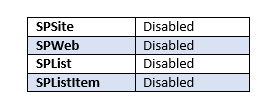
Scenario 1 – No Auditing

image

Now in a clean new environment we will check the Audit status of the SPSite, SPWeb, SPList, SPListItem.

In the example we have a site collection and it has a Document Library names “AuditDocLib” and it has one document.

   1: private static void PerformAuditFeatureCheck()

   2: {

   3:     string url = @"http://singlespserver/";

   4:  

   5:     using(SPSite site = new SPSite(url))

   6:     {

   7:         var siteAuditFlags = site.Audit.AuditFlags;

   8:     

   9:         var topLevel = site.OpenWeb();

  10:         var topLevelAuditFlags = topLevel.Audit.AuditFlags;

  11:         

  12:         var sharedDocLib = topLevel.Lists.TryGetList("AuditDocLib");

  13:         var shareDocLibAuditFlags = sharedDocLib.Audit.AuditFlags;

  14:  

  15:         var doc1 = sharedDocLib.Items.GetItemById(1);

  16:         var doc1AuditFlags = doc1.Audit.AuditFlags;        

  17:  

  18:        }

  19: }

When we run the above code AuditFlags of the SPSite, SPWeb, SPList and SPListItem is None.


Scenario 2 – Enabling Audit for specific ListItem

image

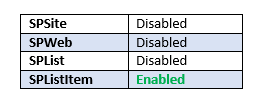
Now we’ll enable the auditing for a specific document in the AuditDocLib.

   1: private static void EnableAuditForItem()

   2: {

   3:     string url = @"http://singlespserver/";

   4:  

   5:     using(SPSite site = new SPSite(url))

   6:     {

   7:         var topLevel = site.OpenWeb();

   8:         

   9:         var sharedDocLib = topLevel.Lists.TryGetList("AuditDocLib");

  10:         

  11:         // AuditFlag is None

  12:         var shareDocLibAuditFlags = sharedDocLib.Audit.AuditFlags;

  13:  

  14:         var doc1 = sharedDocLib.Items.GetItemById(1);

  15:         

  16:         // AuditFlag is None

  17:         var doc1AuditFlags = doc1.Audit.AuditFlags;        

  18:  

  19:         //enabling auditing for the item

  20:         doc1.Audit.AuditFlags = SPAuditMaskType.View;

  21:         doc1.Audit.Update();

  22:     }

  23: }

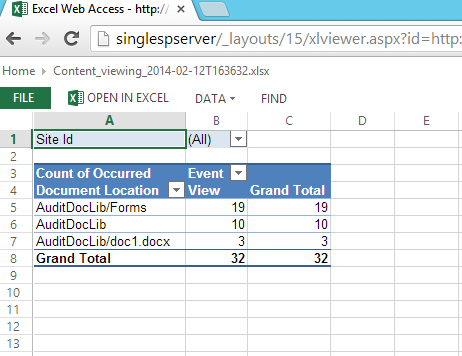
Now doc1 is audit enabled. And in the Audit Log Reports we can get the Audits. Below image shows the screen shot of the audit report after viewing the doc1 for few times. image

Notice that the report also has the log entries for the Library (AuditDocLib). It is obvious that if a person want to view an item in the library more often he/she has to navigate to the corresponding List/Library and view the Item. But we didn’t specify to audit the Library; in the code the AuditMask is set only for the item.

Again we’ll run the PerformAuditFeatureCheck method to check the AuditFlags

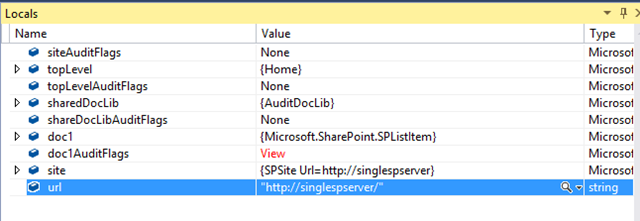
 image

You can see that the AuditFlags for the AuditDocLib is still None. This is because AuditFlags were not set for the AuditDocLib explicitly beacuse there’s no <NewAuditMask>4</NewAuditMask> event against the AuditDocLib.

This also hints us a point that just by retrieving the AuditFlags of a List / Library through the object model doesn’t give you the full insight of whether the particular List / Library is being audited. AuditFlags property gives the value of the last explicitly set AuditMask.

Accessing Contacts Information in Windows 8.1

Windows 8.1 SDK has lots of updates and changes compared to Windows 8 SDK. As an epitome of all these changes most of the Windows 8 SDK methods and classes have been deprecated and not advised to be used in the new development.

This post shows how to access the Contacts information in Windows 8.1 and 8. The new SDK is easy to use for sure and more sleek.

 Accessing Contacts Information using Windows 8 SDK

   1: private async void GetContactsDataUsingWindowd8SDK()

   2: {

   3:     var contactPicker = new Windows.ApplicationModel.Contacts.ContactPicker();

   4:     contactPicker.CommitButtonText = "Select a contact";

   5:  

   6:     ContactInformation contact = await contactPicker.PickSingleContactAsync();

   7:  

   8:     // For multiple contacts Selection

   9:     //IReadOnlyList<ContactInformation> contacts = await contactPicker.PickMultipleContactsAsync();

  10:  

  11:     var viewmodel = new ContactViewModel();

  12:  

  13:     if (contact != null)

  14:     {

  15:         string name = contact.Name;

  16:  

  17:         if (contact.Emails.Count > 0)

  18:         {

  19:             StringBuilder sb = new StringBuilder();

  20:             foreach (IContactField field in contact.Emails)

  21:             {

  22:                 sb.AppendFormat("{0} ({1}) \n", field.Value, field.Category);

  23:             }

  24:             string email = sb.ToString();

  25:         }

  26:  

  27:         // Display the contact’s thumbnail

  28:         Windows.Storage.Streams.IRandomAccessStreamWithContentType stream = await contact.GetThumbnailAsync();

  29:  

  30:         if (stream != null && stream.Size > 0)

  31:         {

  32:             BitmapImage image = new BitmapImage();

  33:             image.SetSource(stream);

  34:         }

  35:     } 


Same to be done in Windows 8.1 SDK

   1: private async void GetContactInfoUsingWindows81SDK()

   2: {

   3:     var contactPicker = new Windows.ApplicationModel.Contacts.ContactPicker();

   4:     contactPicker.CommitButtonText = "Select Contacts";

   5:  

   6:     // select specific properties only

   7:     contactPicker.SelectionMode = Windows.ApplicationModel.Contacts.ContactSelectionMode.Fields;

   8:  

   9:     //contactPicker.DesiredFieldsWithContactFieldType.Add();

  10:  

  11:     var contactCollection = await contactPicker.PickContactsAsync();

  12:     //contactCollection.Add(new Windows.ApplicationModel.Contacts.Contact());

  13:  

  14:     List<ContactViewModel> contactViewModels = new List<ContactViewModel>();

  15:  

  16:     if (contactCollection != null)

  17:     {

  18:         foreach (var contact in contactCollection)

  19:         {

  20:             var viewmodel = new ContactViewModel();

  21:  

  22:             viewmodel.Id = contact.Id;

  23:             viewmodel.FullName = contact.FirstName + " " + contact.LastName;

  24:  

  25:             if (contact.Emails.Any())

  26:             {

  27:                 foreach (var email in contact.Emails)

  28:                 {

  29:                     if (email.Kind == Windows.ApplicationModel.Contacts.ContactEmailKind.Personal)

  30:                     {

  31:                         viewmodel.PersonalEmail = email.Address;

  32:                     }

  33:                 }

  34:             }

  35:  

  36:             var thumbnail = await contact.Thumbnail.OpenReadAsync();

  37:  

  38:             if (thumbnail != null && thumbnail.Size > 0)

  39:             {

  40:                 viewmodel.ContactThumbnail.SetSource(thumbnail);

  41:             }

  42:  

  43:  

  44:         }

  45:     }

  46: }


Code for the View Model class used in 8.1

   1: public class ContactViewModel

   2: {

   3:     public string Id { get; set; }

   4:  

   5:     public string FullName { get; set; }

   6:  

   7:     public string PersonalEmail { get; set; }

   8:  

   9:     public BitmapImage ContactThumbnail { get; set; }

  10: }

You can notice that 8.1 version the methods have changes and enums have been introduced to make the development more concise.

WinRT or WinMD Components

The WinRT platform provides developers with a new way to build reusable software components. WinRT types packaged in a WinRT component, also called a WinMD component (WinRT components == WinMD components). In traditional .NET application development, you could create a dynamic-link library (DLL) as a managed class library and use it in one or more applications.

This option is still available in Visual Studio. However, you can change the output type of a library project from class library to WinRT component, and the output of such a project is a WinMD (Windows Meta Data) file.


Benefits of creating a WinMD / WinRT component.

Contrasting to the DLL files WinRT / WinMD components can be accessed by unmanaged languages like C++ and Javascript. This allows us to create a WinRT / WinMD component in a managed language (C# or Visual Basic) and use it across different Windows Store Apps (WSA) projects implemented in unmanaged languages.

But this flexibility comes with some restrictions.

  • All public classes in WinRT / WinMD component should be marked sealed.
  • public fields aren’t allowed.
  • public data members must be declared as properties
  • Data types should be WinRT / WinMD compatible
  • Creating a WinRT / WinMD component in C++ has some additional property attribute settings (activatable class and ect…)


Creating a WinRT / WinMD component in C#

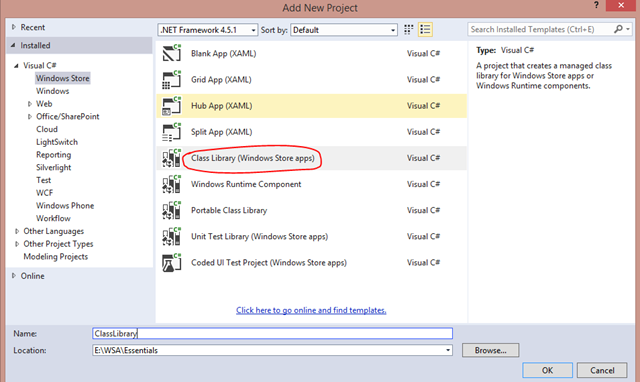
This is a very simple example and straight forward create Windows Store Apps (WSA) class library. Mark the class public and sealed. Create a method to return a string value.

image

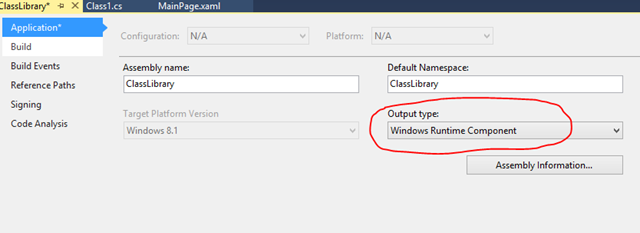
Go to Project Properties and change the output type from Class Library to Windows Runtime Component. 

image

Component Code image


Do the build.

Accessing the C# WinRT in Javascript

Create a WSA project in Javascript. Add the WinRT project reference to the Javascript project.

Create a Javascript method to call the WinRT method. VS intellisense would guide you.

Javascript Code.

image

Here you can notice that the GetDate() C# method is formatted to getDate() with Javascript naming convention.

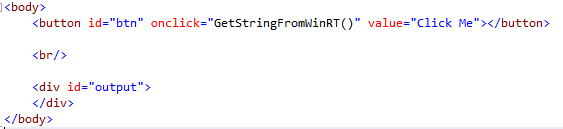
HTML Code

image

Run the code. 🙂

Things to consider

When you create a WinRT / WinMD component it is specifically designed for the Windows Runtime. Windows Runtime supports different language executions. In the above Javascript project we have a WinRT component developed in C# executed in the Javascript app. This is very useful when you want to extend your existing LOBs. You can use your existing managed code with little modifications, this cuts down development cost.

And also some complex data processing codes are hard to be written in pure Javascript. You can implement those in C++ and use the component in your front facing Javascript WSA.