Integrating Azure Power BI Embedded in your DevOps

imageimage

Before starting, this posts answers the question, Can we change the connection settings of the Power BI Embedded reports. YES. Let’s continue.

Azure Power BI Embedded is a great tool for developers to integrate reports and dashboards in the applications. You can read about what Azure Power BI Embedded is and how to use it in your application in this documentation.

The moment a feature is supported there comes the questions of how to fit it in the developer pipeline or the modern automated CI/CD DevOps process.

This article focuses on how to develop and deploy the Power BI Embedded applications in your automated CI/CD DevOps pipeline.

In order to make this works, we need to solve the burning question, can we change the connection settings of a published report in Power BI Embedded ? Answer is YES.

Power BI Embedded SDK has the support for this. In Azure Power BI Embedded we have the Workspace collection which is a container for the Workspaces. We publish our reports inside a workspace which is another container for our reports (.pbix files).

In the SDK a report is consists of two components. They are the DataSet object and the Report object. DataSet has operations to update the connection settings. Bingo, that’s what we’re looking for.

power bi embedded hierarchy


Automation

Since we can change the DataSet configuration using the Power BI SDK, we can automate this process using a small command line in our TFBuild process.

Since each application is different and there’s no solid rule on how to do this, but I have explained a simple process you can follow.

Developer creates the reports in his/her development machine connecting to the development database. Then the developer adds the .pbix to the Visual Studio solution, something similar to what is shown in the below image.

image

The command line utility adds the reports to the specified workspace and set the DataSet connection properties and updates the application database with the Ids.

In my TFBuild I’ve added this build step and specified the required arguments.

image

So now my Utility command line will do the work for me when ever I do a check-in. Same way we can maintain the CI/CD pipeline in multiple environments.  The image shows the idea.

image

When the command line utility runs it takes care of my reports and updates the connection settings.

image


Code Snippet for updating connection string

You can find this code in the Power BI Embedded sample in the Github. Check the line numbers from 212 to 236 in this file.  https://github.com/Azure-Samples/power-bi-embedded-integrate-report-into-web-app/blob/master/ProvisionSample/Program.cs

Detailing ASP.NET Core in Azure App Service

ASP.NET core is the next generation development standard for the .NET world – may be that’s how I like to express it. Every ASP.NET Core application is a DNX (.NET Execution Environment) application.

When you create an ASP.NET Core application in Visual Studio (VS) 2015, it creates the project targeted at both the .NET Framework and .NET Core. You can see this under the frameworks section of the project.json file. Also the ASP.NET Core team recommends to leave this settings as it is. (Refer : https://docs.asp.net/) letting your application targets both the frameworks.

But in order to understand how things are deployed in the Azure App Service, I compiled an ASP.NET Core application and published it to an Azure Web App. Then I browsed the app with Kudu services and the Process Explorer looked like this, which shows ASP.NET Core app is running on DNX.

image

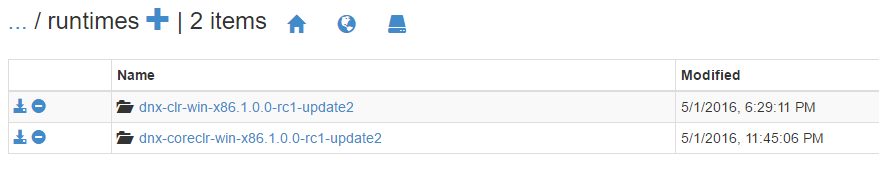
Under the Debug Console of the Kudu services in the following path site\approot\runtimes we can see the shipped .NET Core runtime, a feature which makes ASP.NET Core applications self-contained.

image

All these information are hidden from the developers and let them focus on the application development. So though the Visual Studio publishing model of the ASP.NET Core application is same as ASP.NET application publish model, based on the defined configurations Azure App Service hosts your web application under different runtimes.

Managing multiple sites with Azure Traffic Manager and deployments using TFBuilds

Introduction

Azure Traffic Manager is used to mange the traffic of your Internet resources and monitor the health of those resources. These resources may reside outside the Azure as well.

This post is focused on Azure Web Apps and how to manage multiple web apps using Azure Traffic Manager and handling deployments using new TFBuild of VSTS.

Consider a scenario of having two deployments of your site in different regions, one in the South East Asia and the other one in the North Europe. The site is deployed in two places in order to cater the users from each region with minimum latency. Traffic Manager is deployed in place in order determine the resource usage and directs the clients to the right location.

First when a client requests the site, the request hits the DNS, the DNS records have the mapping of the URL to the Traffic Manager DNS and it makes a lookup request to the corresponding Traffic Manager DNS.

Then the Traffic Manager DNS will deliver the right IP address of the web app based on the configured routing rules. This IP address will be given to the client, subsequent requests from the client will be sent directly to the obtained IP address until the local DNS cache expires.

Setting up Traffic Manager

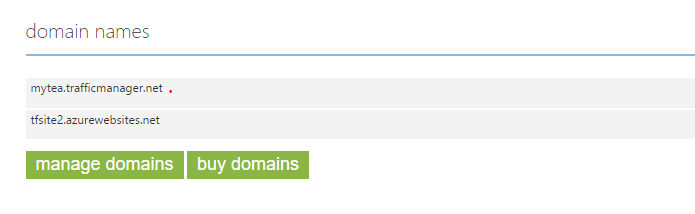
Create a Traffic Manager space and you will get a URL like domainprefix.trafficmanager.net(The below sample I generated when while sipping my iced tea and named the Traffic Manager mytea). When creating the Traffic Manager you will configure the load balancing mechanism. Here I simply chose Performance as my load balancing mechanism since I want to reduce the latency of the site based on the geographic region it is accessed from.

image

Then you add the web apps you want to manage to the Traffic Manager as endpoints. (Note, only web apps running in the standard or upper tier are allowed to be added to the Traffic Manager)

I added two web apps one in South East Asia and the other one in the North Europe as you can see in the below image.

image

How does this work ?

After creating the Traffic Manager profile (mytea.trafficmanager.net), you will add the endpoints. When adding the endpoints, the Traffic Manager will register its URL as one of the domain names in mentioned web apps. The web app URLs are registered as CNAME entries of the Traffic Manager DNS.

image

How does this work when you have a custom domain ?

When you have a custom domain, example abc.com you register that domain in the above section, and you configure the azure web app URL as a CNAME record in the abc.com domain. Now when you type abc.com in the browser you will be served with the site.

In a more simpler way, the DNS entry which holds the A record of abc.com should have CNAME record to point to the Azure web app.

When using the Traffic Manager, you register the traffic manager URL as a CNAME entry in the abc.com.

Managing deployments to multiple web apps

This had been one of the well known and highly anticipated requirement of CI/CD pipeline. But with the new TFBuilds introduced in Visual Studio Team Services it is very simple. You can simply add multiple deployments steps in your build definition and the TFBuild will take care of your deployment.

Below image shows a build definition with two azure web app deployment endpoints.

image

Testing

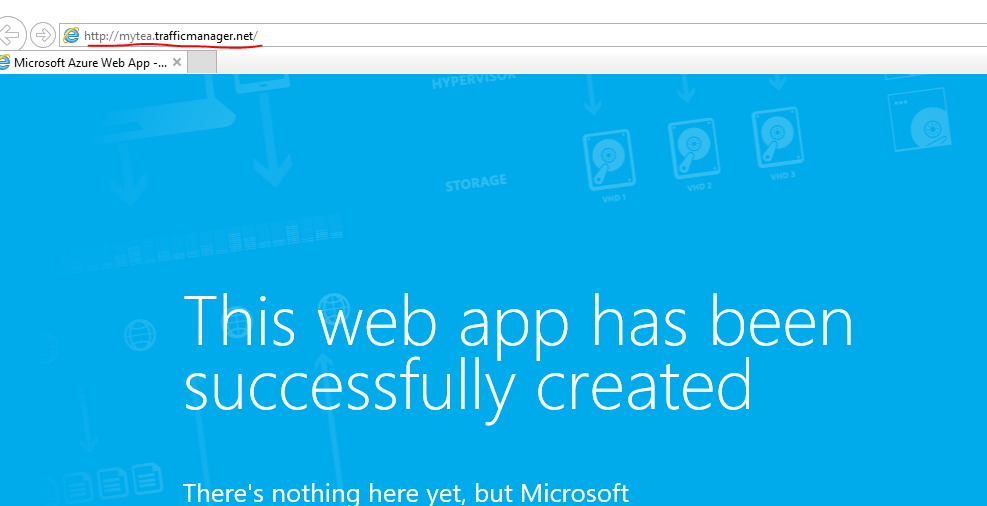
Now you can type the Traffic Manager URL in the browser with the http/https prefix and you will be served with the site.

In order to check the performance routing of the region I changed the home page of the site deployed in North Europe. Then I browsed the site using a VM deployed in North Europe and browsed it from local machine where my physical location is closer to the South East Asia.

image

image

You can see that two different sites are served based on the location from where I’m browsing the site.

Login-AzureRmAccount : The provided account does not have access to subscription ID

You might get the above error message in Azure PowerShell when using Login-AzureRmAccount cmdlet with the subscription Id parameter, even though you submit a valid subscription Id and login using the account which has the access to the subscription.

SOLUTION: User the Tenant Id parameter along with the Subscription Id in order to login to the subscription as below.

Login-AzureRmAccount –SubscriptionId <subscription id> -TenantId <tenant Id>

Scenario

This is because the cmdlet checks against the particular tenant in the Azure. In order to understand the domain consider this following scenario. The Id user@domain.com is attached to 2 Azure accounts, this is the service administrator Id for one account and co-administrator for the subscriptions in the other account. The below diagram explains this.

image

When login through Login-AzureRmAccount using the credentials without specifying any parameters you will get login to a subscription.

image

In my test case this was my Subscription 2 which is, in an Azure account doesn’t belong to me, but I’m a co-administrator for subscription 2 and 3.

In order to access Subscription 3 which is attached to the Tenant 2, just specifying the subscription Id in the cmdlet would be enough, like below.

image

As with that, trying to login to the Subscription 1 under Account 1, by specifying the subscription Id.

image

As you see the user account has full access to Account 1 and subscription 1, in fact it has higher access to this subscription than 2 & 3 since it is a service administrator for subscription 1, but still the error says that the account does not have access to the subscription.

This is due to resource manager login is associated with the Tenant 2 and not with the Tenant 1. So when I submitted a subscription Id which is not associated with the Tenant 1, it gives the error. In order to solve this provide the Tenant Id as a parameter as well.

image

Provisioning Always Encrypted in SQL Databases with Azure Key Vault, using SSMS 2016.

This article focuses on the steps on how to configure the Always Encrypted (AE) feature for SQL Databases using Azure Key Vault as the key store provider; which is still in preview at the time of this writing.

In order to try out what I have explained here you should have January 2016 preview or upper version of SSMS.

You can download the January 2016 preview version here

Please note this is not an article to discuss about what AE is and how it works nor an introduction to Azure Key Vault. I recommend to read these following posts before continuing this article in order to get the full understanding.

Settings up Always Encrypted in SQL Database using Azure Key Vault

In order to set up the Always Encrypted, first we need to create Column Master Key (CMK) and Column Encryption Key (CEK).

Creating CMK.

Navigate to the SQL Databases using SSMS. Expand the database node and then expand the Security section. Under the Security section you will see Always Encrypted Keys node. Right click on that and you will see the menu, shown in the below image.

image

Select ‘New Column Master Key’ and you will get the below dialog box. Name your CMK (cmk1) and then select the Azure Key Vault as Key Store. Click the Sign In button to login to Azure subscription.

image

You should use an Azure account with at least co-admin privileges to the Azure subscription where the Azure Key Vault is. After signing in you will see the list of Azure Key Vaults in the drop down, choose the one you want to use as KMS for the CMK.

image

Click Generate Key and let the Azure Key Vault generate a key for you. This will be your CMK.

Creating CEK.

As shown in the below image right click on the ‘Column Encryption Keys’ node and create a CEK.

image

You will get a dialog box shown below. Name the CEK and choose the CMK created above. image

When you select the CMK stored Azure Key Vault, you will see the Azure login dialog. Here you should enter the credentials of the user who has permission to access the particular key in the vault. If not you will get an error analogous to the below dialog.

image

In order to give the permission to the key from to the specific user, execute the following PowerShell script.

image

Note: When you create the CMK you login to Azure using a co-admin credential who has access to Vault, but that does not make him/her able to manage the keys created. So using the same credentials when creating the CEK might produce the above error. You should give permissions to the user account which is used to access the keys in the Vault.

Now the setup of creating CMK and CEK are done. Let’s create a table.

Execute this script in order to create the table in the database. (click on the images to enlarge)

image

We have created a table with 3 columns 2 of them are encrypted using CEK1 with Always Encrypted Feature. This completes the setup in the SQL Database.

You can query the database for more information about the Always Encrypted settings. You will find some useful queries in this article.

Application Setup

We are done with all the setups in the SQL Databases, in order to work with the Always Encrypted feature enabled database we need a .NET 4.6 application.

Also since we use Azure Key Vault as the key store provider, we need to implement a custom provider, this could be done by implementing the SqlColumnEncryptionKeyStoreProvider abstract class in System.Data.SqlClient.

You can find an implementation here.

Below is the core code snippets of the implementation.

image

The connection settings goes like below.

image

Implementing the GetToken method

Only AAD identities can access Azure Key Vault, so now our application needs an AAD identity in order to communicate with the Azure Key Vault.

So we need an AAD application which has permissions to the Azure Key Vault in order to access Azure Key Vault programmatically.

Create an AAD app and the App Id and the App secret key.

And the set the permission for the app in the Key Vault in using PowerShell.

image

So the GetToken method goes as below.

image

In the above snippet the provider name is AZURE_KEY_VAULT, you can retrieve this information by executing the following TSQL command.

image

After all the setups the application and the database both are ready with Always Encrypted enabled with Azure Key Vault.

SQL Server Dynamic Data Masking not working. Are you using the correct role permissions?

You have implemented the Dynamic Date Masking (DDM) in your SQL Database, but still you get the unmasked data. Are you using the correct role permissions and the correct logins?

I published a post before the general availability (GA) of DDM about what you need to know about the DDM GA.

There were two key points were highlighted about the DDM GA. They were

  • SQL Logins will be removed from the exclusion list and you have to specify the SQL users or Azure AD users directly in the exclusion list.
  • SQL users with administrative privileges are always excluded from dynamic data masking

I have mentioned those in the published article as well, the issue is at the time of that writing db_owner permissions also see the masked data, but recently I noted that db_owner can see the data unmasked. Data is only masked for the data_reader.

So if you’re seeing the unmasked data make sure, to use data_reader permissions to the users from whom you want to mask the data.

The issue is user with administrative privileges includes the db_owner as well, but I still have concerns on this, where we do not generally consider db_owner as an admin level permission.

I’m in some disucssions with the Microsoft internals regarding this change and told this change was made right before the GA. The documenations of DDM do not explain this. I will do the comments under this post if any interesting news come in.

Directory contains one or more applications that were added by a user or administrator.

This post summarizes and lists down the information you need to solve the specific error which occurs when you try to delete a AAD.

There are plenty of articles for this and I recommend to read the link below which explains very frequent error messages of AAD and the fixes.

https://support.microsoft.com/en-us/kb/2967860

Also read this blog for a detailed description.

http://alexmang.com/2015/06/directory-contains-one-or-more-applications-that-were-added-by-a-user-or-administrator-solution/

Some useful information

In order to manage the AAD using PowerShell we need to install two components.

  1. AAD Module for PowerShell
  2. Microsoft Online Services Sign-in Assistant

See the below article on how you can accomplish this.

https://onlinehelp.coveo.com/en/ces/7.0/administrator/installing_the_windows_azure_ad_module_for_windows_powershell.htm

Quick Steps

  1. Login to Azure Portal using your service administrator account.
  2. Make sure there are no users or other external applications. (If you find any of them delete them)
  3. Create a Global Admin user in the AAD you want to delete.
  4. In the PowerShell, login as the created Global Admin user
  5. Run the following scriptimage
  6. You will get error messages as mentioned in Alexe’s Blog but you can simply ignore them.
  7. Then go to the portal and delete the created Global Admin user.
  8. And finally delete the AAD.

Design an online forum on Azure Document DB

Couple of weeks back I posted an article on how to design an online forum application on top of Azure Table Storage. This post is about how to design the same application using Azure Document DB. Same as the previous article, I want to stress the point that the way we design an application and the thinking behind the design completely differ based on the NoSQL technology we select.

These are the basic requirements / functionalities of the application.

  • Forum members can post questions under categories.
  • Forum members can reply to posts.
  • Users have points based on their forum contribution.

Document type NoSQL databases are handy in storing data as documents, most of the modern document databases support JSON as the document storage format.

Also I assume that you have the understanding of Azure Document DB about indexing, consistency levels and how it is structured as databases, collections, documents and more.

Basic Idea

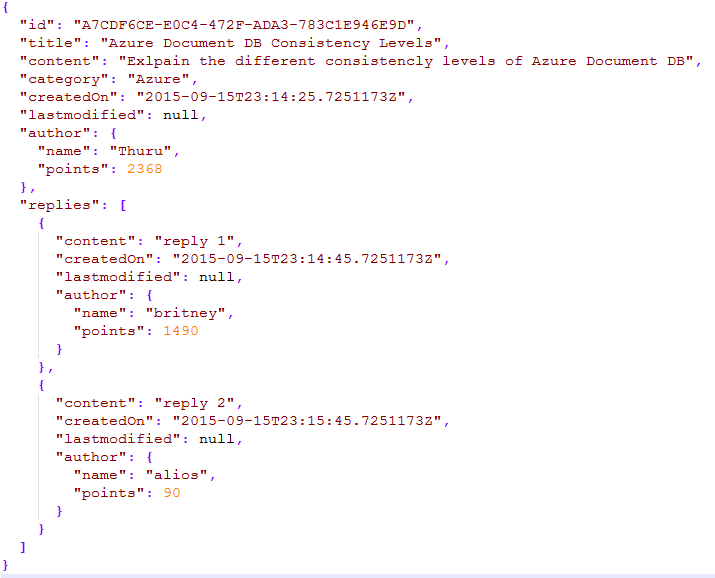
Based on the above requirements, if we design a single document it would look similar to this.

image

As you see we can have a single document structure to cover everything the application requires, but it has some drawbacks too.

Mainly user data is redundant and if we want to update the points of the user we have to go through all the documents and update it, we use other data operations like map reduce to perform these operations in a large scale document type implementations.

Design for Azure Document DB

It is recommended and straight forward to have a dedicated collection for each identified entitiy. Thinking on that base, we would require four main collections they are users, categories, posts and replies.

This design is easy, highly scalable but expensive, because Document DB databases are containers for the collections. Collections are the containers for the documents and also a single collection is the billing entity, meaning that if you create a database and two collections within that database in a tier priced $25 per month, then you will be billed $50 per month as you have two collections.

In this design will be having 4 collections.

User document

image

Category document

image

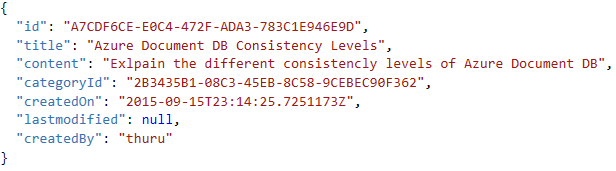
Posts document

image

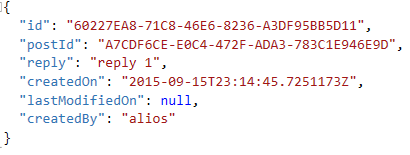
Reply document

image


But this would not be the ideal design for the solution in terms of the best tradeoff between the cost and the solution design.

Because having a dedicated collection for the category is not necessary, we can simply have the category as an attribute in the posts. Having a dedicated collection for users might sound too much. I do not totally offend this – because, sometimes it is a good idea to have a dedicated collection for the users, especially when the number of users grow in large scale.

Also remember the design using the Azure table storage where we used bucketing strategies to partition the users, we can use the same strategy here if we have millions of users. We can put them in different collections rather than keeping them in one single collection.

But say that we have only few hundreds of users and few categories, then we do not want to have separate collection for each. So we need a mechanism to put them in the same collection and query them.

The idea is simple, again this is not the technology but it is the best decision we make on top of the technologies we use.

Have two documents with their Ids represent the entities or you can have an attribute called type which represents the document.

image

image

When you change the design like this, there is a significant change that you should do in your queries.

But again the idea here is to give you the possibilities how you can design the solution on top of Document DB.

Also thinking about the posts and replies, better practice is to keep the posts and replies in separate collections as designed earlier. Because not only that you can scale them individually but also it is not a best practice to have unbounded attribute in a document, meaning an attribute who’s values have theoretically no limits. Replies is an unbounded array, so we will have a dedicated collection for that.

Conclusion

This is the second series of the post in designing applications on Azure NoSQL offerings, however one of the main point I want to clarify is the design decisions we make vary based on the NoSQL technology we pick.