Provisioning Always Encrypted in SQL Databases with Azure Key Vault, using SSMS 2016.

This article focuses on the steps on how to configure the Always Encrypted (AE) feature for SQL Databases using Azure Key Vault as the key store provider; which is still in preview at the time of this writing.

In order to try out what I have explained here you should have January 2016 preview or upper version of SSMS.

You can download the January 2016 preview version here

Please note this is not an article to discuss about what AE is and how it works nor an introduction to Azure Key Vault. I recommend to read these following posts before continuing this article in order to get the full understanding.

Settings up Always Encrypted in SQL Database using Azure Key Vault

In order to set up the Always Encrypted, first we need to create Column Master Key (CMK) and Column Encryption Key (CEK).

Creating CMK.

Navigate to the SQL Databases using SSMS. Expand the database node and then expand the Security section. Under the Security section you will see Always Encrypted Keys node. Right click on that and you will see the menu, shown in the below image.

image

Select ‘New Column Master Key’ and you will get the below dialog box. Name your CMK (cmk1) and then select the Azure Key Vault as Key Store. Click the Sign In button to login to Azure subscription.

image

You should use an Azure account with at least co-admin privileges to the Azure subscription where the Azure Key Vault is. After signing in you will see the list of Azure Key Vaults in the drop down, choose the one you want to use as KMS for the CMK.

image

Click Generate Key and let the Azure Key Vault generate a key for you. This will be your CMK.

Creating CEK.

As shown in the below image right click on the ‘Column Encryption Keys’ node and create a CEK.

image

You will get a dialog box shown below. Name the CEK and choose the CMK created above. image

When you select the CMK stored Azure Key Vault, you will see the Azure login dialog. Here you should enter the credentials of the user who has permission to access the particular key in the vault. If not you will get an error analogous to the below dialog.

image

In order to give the permission to the key from to the specific user, execute the following PowerShell script.

image

Note: When you create the CMK you login to Azure using a co-admin credential who has access to Vault, but that does not make him/her able to manage the keys created. So using the same credentials when creating the CEK might produce the above error. You should give permissions to the user account which is used to access the keys in the Vault.

Now the setup of creating CMK and CEK are done. Let’s create a table.

Execute this script in order to create the table in the database. (click on the images to enlarge)

image

We have created a table with 3 columns 2 of them are encrypted using CEK1 with Always Encrypted Feature. This completes the setup in the SQL Database.

You can query the database for more information about the Always Encrypted settings. You will find some useful queries in this article.

Application Setup

We are done with all the setups in the SQL Databases, in order to work with the Always Encrypted feature enabled database we need a .NET 4.6 application.

Also since we use Azure Key Vault as the key store provider, we need to implement a custom provider, this could be done by implementing the SqlColumnEncryptionKeyStoreProvider abstract class in System.Data.SqlClient.

You can find an implementation here.

Below is the core code snippets of the implementation.

image

The connection settings goes like below.

image

Implementing the GetToken method

Only AAD identities can access Azure Key Vault, so now our application needs an AAD identity in order to communicate with the Azure Key Vault.

So we need an AAD application which has permissions to the Azure Key Vault in order to access Azure Key Vault programmatically.

Create an AAD app and the App Id and the App secret key.

And the set the permission for the app in the Key Vault in using PowerShell.

image

So the GetToken method goes as below.

image

In the above snippet the provider name is AZURE_KEY_VAULT, you can retrieve this information by executing the following TSQL command.

image

After all the setups the application and the database both are ready with Always Encrypted enabled with Azure Key Vault.


Directory contains one or more applications that were added by a user or administrator.

This post summarizes and lists down the information you need to solve the specific error which occurs when you try to delete a AAD.

There are plenty of articles for this and I recommend to read the link below which explains very frequent error messages of AAD and the fixes.

https://support.microsoft.com/en-us/kb/2967860

Also read this blog for a detailed description.

http://alexmang.com/2015/06/directory-contains-one-or-more-applications-that-were-added-by-a-user-or-administrator-solution/

Some useful information

In order to manage the AAD using PowerShell we need to install two components.

  1. AAD Module for PowerShell
  2. Microsoft Online Services Sign-in Assistant

See the below article on how you can accomplish this.

https://onlinehelp.coveo.com/en/ces/7.0/administrator/installing_the_windows_azure_ad_module_for_windows_powershell.htm

Quick Steps

  1. Login to Azure Portal using your service administrator account.
  2. Make sure there are no users or other external applications. (If you find any of them delete them)
  3. Create a Global Admin user in the AAD you want to delete.
  4. In the PowerShell, login as the created Global Admin user
  5. Run the following scriptimage
  6. You will get error messages as mentioned in Alexe’s Blog but you can simply ignore them.
  7. Then go to the portal and delete the created Global Admin user.
  8. And finally delete the AAD.

Azure Key Vault Logging

This post goes with the series of my posts under the Azure Key Vault.

I assume that you know about Azure Key Vault and have used it, and continue this article. If you’re new to Azure Key Vault, please review the below links.

You can read more about Azure Key Vault and how to use it from this post.

PowerShell script to provision the Key Vault and the C#.NET sample to use it in the GitHub.

An Open source tool to manage Key Vault: Azure Key Vault Manager

Enabling Logging Diagnostics for Azure Key Vault

Recently Azure Key Vault team has announced the logging feature for the Key Vault (which is one of the highly required features).

Logs are written to a storage account in the Azure. So first create a storage account. Then in the PowerShell execute the following commands. Assuming that you have a vault and storage account.

It is good keep the storage account in the same Resource Group of the Key Vault as management would be easy.


We have the vault and storage details in variables, now time to setup the diagnostics


Viewing Logs

Logs are saved as JSON documents in the blob storage of the provided storage account. Do some activities which perform some operations in the Key Vault and get the JSON.

The below is log snippet for retrieving the vault. Note the operation name as VaultGet also the log provides information like the duration and client IP addresses. In the identity section it also provides the used identity information (the Azure Active Directory Identity name) for the specified operation.

The below is another JSON document snippet for the SecretGet operation. Along with the other information the request Uri property gives the details of which secret and the version information.

Disabling the logging Diagnostics

Execute the following line to disable the logging. (assuming the $vault and $storage variables are set as shown above)


What you need to know about SQL Database Dynamic Data Masking before the GA

Please read this post after reading this, as some critical changes have gone to the DDM feature of SQL Databases in GA
SQL Database Dynamic Data Masking will be Generally Available (GA) very soon by the end of this month.

For more information about Dynamic Database Masking please read this article.

As per the article you can configure the dynamic data masking on columns which have sensitive data, and also we have the options to specify the SQL Logins which should be excluded from masking. Meaning any user connecting to the database using the specified SQL login will see the data without being masked.

  • SQL Logins will be removed from the exclusion list and you have to specify the SQL users or Azure AD users directly in the exclusion list.
  • SQL users with administrative privileges are always excluded from dynamic data masking

Example:

In a SQL Database server with a SQL Database named Db1 there are 3 SQL logins.
SQL Login

SQL user

Privilege

thuru Thuru Admin (sa) for the server
login1 User1 db_owner for Db1
login2 User2 db_owner for Db1

First thing to note is, after the GA of the feature you cannot user SQL login names in the exclusion list in the portal meaning that you cannot specify login1, login2 in the list. Instead of specifying the SQL login you should specify the SQL users as user1, user2.

And SQL users who have administrative privileges always see the data.

Look at the image below as I have specified only user1 in the exclusion list.

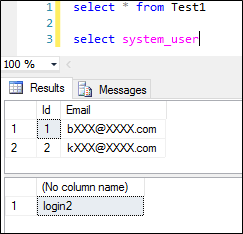
Login to the database as thuru and executing a SELECT statement results this.

As you see, though I haven’t specified the admin user in the exclusion list, still admins are automatically excluded from dynamic data masking. If you’re using admin users in your application and enabled dynamic data masking, you have to create other SQL logins to access the database.

Login to the database as user1 and user2 outputs the following results respectively.

How to create other SQL Logins in SQL Database

Login to the server using the admin user.

  1. Select the master database and create the logins using this command.

  2. Connect to the database you want to add the user to and add the user using the created SQL login in step 1

  3. Add roles to the user

SQL Server 2016 Always Encrypted

Introduction

SQL Server 2016 is yet to be released, but you can download the CTP versions. The mostly anticipated and marveled feature is Always Encrypted. Let me discuss few bits of this feature before getting into the technical side of it.
I got to know this right after reading an article about Microsoft had applied some court case to safeguard the information of one of its users, from the US laws. This is highly appreciated and I personally feel that Microsoft is at the forefront of protecting customer data. And I made a tweet.

If customer can secure their data without any control of public cloud vendors, even in the situations like powerful unauthorized people gaining access to your data results in reduced data theft. And it solves a headache for the public cloud vendors as well.

How it works

SQL Server 2016 Always Encrypted is a feature which allows the encryption and the decryption of the data in the client side, rather than in the database server itself. Since the encryption happens in the client side using a client driver data is secured not only at rest but also at transit, this makes the feature takes its pride name Always Encrypted.

Always Encrypted works as follows.

  • First we have to create Column Encryption Keys (CEK) and Column Master Keys (CMK) in the Always Encrypted section of the database

  • CEKs are symmetric keys and CMKs are asymmetric keys.
  • CEKs are stored in SQL Server where CMKs are stored outside the SQL Server. Read this MSDN article to get information about how to create these keys.
  • Create database with the table and specify the columns to be encrypted. Note that the encryption type (deterministic or randomized), encryption algorithm and the CEK to be used are specified.

  • In the demo I’ve created the CMK in the local certificate store of the machine, but you can keep the CMK wherever possible. Because SQL Server stores only the meta data of the CMK.
  • Now the database is ready. We need .NET 4.6 client application to access the data in the Always Encrypted enabled database. I summarized everything in this image.

  1. Application sends an INSERT statement, driver intercepts the statement and identifies the database it talks is an Always Encrypted feature enabled database. This identification happens because of the connection string property Column Encryption Setting=Enabled. So the driver asks the database to send the details of the encryption for the specific table.
  2. SQL Server returns column details, encrypted values of the CEK, CMK name and the path.
  3. Client driver retrieves the CMK using the meta received from the SQL Server. In this step driver gets the private key of the CMK, which is used to decrypt the encrypted CEK. (CEK is encrypted using CMK’s public key during the creation of CEK in the SQL Server, also the CEK is signed by the private key of the CMK) SQL Server does not store the CMK’s private key.
  4. Client driver encrypts the data using the decrypted CEK and send it to the SQL Server.
  • Read operations also work similar as SQL Server send the encrypted data along with the encryption details and CMK meta data information. Client driver then retrieves the CMK decrypts the CEK and the decrypts the data.
  • Client driver implements possible caching of the keys for performance.

Sample .NET application code for the above table

Management Features

You can see the definitions of the CMKs using this command. SQL Server stores the meta data of the CMKs

You can see the definitions of the CEKs using this command

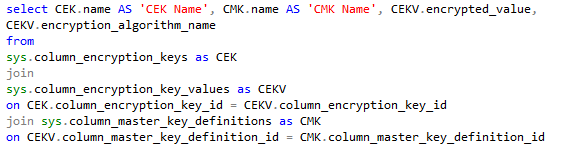
Joining the above two along with the sys.column_encryption_key_values we can get the association relationship.

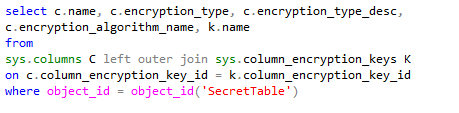
You can execute the following command to get the Always Encrypted meta data for the table.

Other useful reads

http://www.infoq.com/news/2015/06/SQL-Server-Always-Encrypted (read the comments for known FAQs)

http://blogs.msdn.com/b/sqlsecurity/archive/2015/06/04/getting-started-with-always-encrypted.aspx (Getting started with Always Encrypted)

http://sqlperformance.com/2015/08/sql-server-2016/perf-impact-always-encrypted (Performance of Always Encrypted)

You can use Azure Key Vault as the CMK store

https://thuru.net/2015/05/30/azure-key-vault-setup-and-usage-scenarios/ (Introduction to Azure Key Vault)

http://blogs.msdn.com/b/sqlsecurity/archive/2015/09/25/creating-an-ad-hoc-always-encrypted-provider-using-azure-key-vault.aspx?wt.mc_id=WW_CE_DM_OO_SCL_TW (Creating custom CMK provider, using Azure Key Vault)

Securing your Azure Web Apps FTP Endpoints

Web Apps are my favorite PaaS offering in Azure. They are simple yet powerful, but the way how Azure handles the Web App FTP Deployment Credentials is not that nifty and better you should know and understand that.

If you find very lazy to read the entire post, you can jump to the summary section to grab the findings.

You can setup FTP Deployment Credentials for your Web App, as most of the developers do this, even though they use fully integrated CI/CD because this is very handy at certain times. You can enable the FTP Deployment Credentials (FDC) for the Web App in the portal under the PUBLISHING section of your Web App.

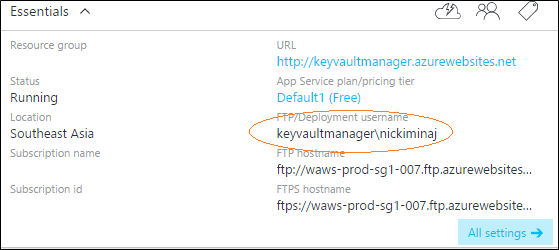
Click on Deployment credentials and you will see the blade where you can enter the FTP username and password. First I entered a common name (wonder what is it? Bob) and typed my usual password (wonder what is it? **********) and hit Save. I got the below error message. It is very clear that FTP usernames should be unique across all the Azure customers.

Then I entered a username which I assumed no any other Azure customers have taken (wonder what is it? nickiminaj), entered the usual password and hit Save. It worked. I got the success message. So now I can enter my FTP credentials when I browse to the FTP host name of the site. But this FTP Deployment Credential is shared among all your Web App regardless of which resource group or hosting plans or pricing tier or even the subscription they are in. This is generally known as Web Deployment Credentials.

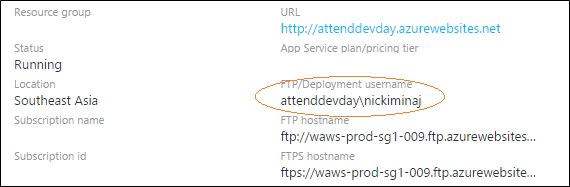
FTP Deployment Credential include a username and the password. This Username is in the following format your Web App name\username and the password. Look at these below images of two different Web Apps from 2 different subscriptions.

CAUTION

So sharing your FTP Deployment Credentials of a Web App leaves you in the danger of exposing access to all your Web Apps the particular Microsoft Account / Azure AD account has access to. This can be disastrous when you share the credentials with third party developers, they only have to guess the name of your other sites to get the full username and they can access your Web Apps simply, since they already know the passwords.

The question is how to generate different FTP credentials for each Web App?

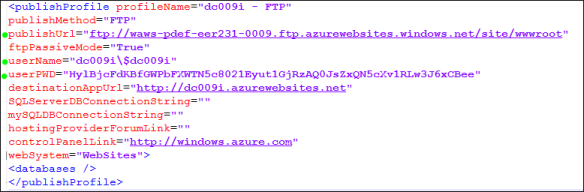
When you set up your Web App, each of it has its own FTP credential assigned by KUDU. KUDU is the project provides infrastructure for the Azure Web Apps. You can get this credential by downloading the Publish Profile of the web site.

Publishing profile is a simple XML file. Open the file and look for the <publishProfile> element where publishMethod attribute with the value of ‘FTP’.

This is credential is known as Site Level Credential of you Web App and only applicable to that particular Web App. Three green dots show the required information.

You cannot set the password but you can simply regenerate the password by clicking the Reset Publish Profile.

You can share this credentials with anyone and they can access only the particular Web App.

Summary

  • FTP Deployment Credential username should be unique across all Azure customers.
  • FTP Deployment Credential username is shared across all the Web Apps the current Microsoft Account has access to, regardless of resource groups, hosting plans, pricing tier and subscription. And the username is common for the Microsoft Account.
  • Each Web App has the FTP Deployment username as WebAppName\username
  • Ex: If you have two Web Apps (webapp1 and webapp2) and if you create the username kevin they will have the FTP deployment username webapp1\kevin and webapp2\kevin respectively, with the same password.
  • You can gain the Site Level Credential for your Web App with the generated username and password uniquely for each Web App from the Publishing Profile

Automatically Configure Azure AD in your Web Applications using VS 2015

Some of you might have noticed that in the project context menu, Visual Studio 2015 gives the option ‘Configure Azure AD Authentication

When you click on this, a wizard will open up and it will do most of the heavy lifting for you in configuring the Azure AD for your application. Though the wizard is very rich, it is somewhat flexible as well. In this post I walk you through the direct way of configuring Azure AD Authentication in your application and explain the code generated by the wizard. Read this article to know more about Azure AD authentication scenarios.

First you need an Azure AD domain in order to register your application. You should have this and the user who is going to perform this action should be in the Global Administrator roles for the Azure AD

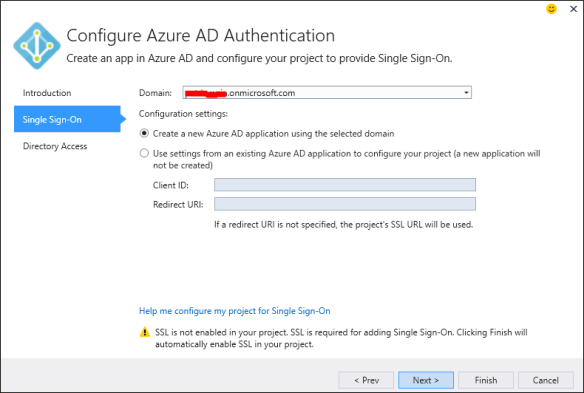
Assuming that you have the prerequisites to configure the authentication, click the above option.

Step 0


Step 1

  • Enter your Azure AD domain
  • Choose Create a new Azure AD application using the selected domain.
  • If you already have an application configured in you Azure AD you can enter the client ID and the Redirect URI of the application.


Step 2

  • Tick the Read Directory data option to read the Azure AD
  • You can use the properties you read as claims in your application
  • Click Finish


This is will take few minutes and configure the Azure AD Authentication for your application. Also it adds the [Authorize] attributes to your controllers.

Now if you log into the Azure Portal and in the Applications section of the Azure AD you can notice the new application provisioned.

Note that the wizard provisions the app as a single tenant application for you, if you want later you can change that to a multi-tenant application.

Configuring the single tenant application / multi-tenant application is beyond the scope of this post.

Code

The wizard retrieves the information about the app it created, stores them in the configuration file and write code to access them. Main part is in the App_Start folder of the web project the Startup.Auth.cs

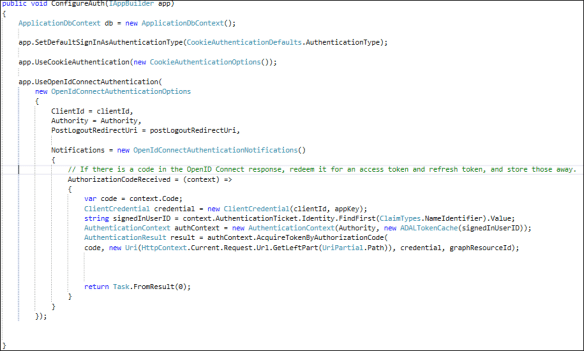
The below image shows the code generated by the wizard on a web project which hasn’t had any authentication configured before.

  • First line creates the data context object of the EF model provisioned. This is not mandatory if you are not accessing any data from the database. You can simply delete this line.
  • Second line sets the DefaultSignInAsAuthenticationType property – this will be passed to Azure AD during authentication
  • Third line sets the cookie authentication for the web application.
  • Fourth line of code which looks big and confusing but actually not. It is a common method of OWIN, commonly used in Open Id authentications.
  • Here we specify the options for the Azure AD Open Id authentication and the call backs.
  • Since the above code is bit unclear I have broken the code in a simpler way.

I have simplified the code to the level of retrieving the authentication code. The wizard generated code goes to next level and retrieves the authentication token as well. I haven’t included this in the code because I wanted to simplify the logic as much as possible. After retrieving the authentication code you can request an authentication token and perform actions. This is a separate topic and includes the authentication workflow of Azure AD.

I will discuss Azure AD authentication workflow and how to customize applications in a separate post.

Custom Authorization Filter returns 200 OK during authorization failure in Web API / MVC

This is a very specific and a quick post. In Web APIs sometimes we need to implement custom authorization filter which is extended from AuthorizeAttribute class, this is mainly useful in implementing authorization.

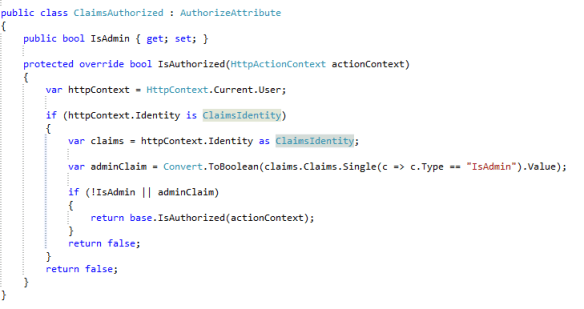
The below code shows how to implement an admin authorization in claims based authentication using ClaimsIdentity

The above code works perfectly in controllers and actions. If you pass ‘true’ to IsAdmin only the authentication requests with the claim IsAdmin true can access the respective controllers or actions.

So when a user who is not an admin tries to access controller / action decorated with the above attribute the client should receive a 401 (Unauthorized) / 403 (Forbidden) reply.

The Problem

But the in Web API you will get a response with status code 200 (OK) with the response body with the following message.

This is not a desirable behavior mainly in APIs because when you make a request from AJAX using any Javascript library, there’s a high probability that they would treat the request as success. You should in cooperate specific client logic to detect this and read the response body JSON message.

And also as API developers we do not prefer this default behavior.

The Solution

The solution is very simple, yet I thought to write a blog on this because in the Internet most of the posts say that this behavior cannot be altered from the API side. But API developers have full control over this behavior. Simply override the HandleUnauthorizedRequest method of the AuthorizeAttribute class.

Now you will get 403 error code as expected with the custom message provided in the Content in the response body.

If it is an MVC application you could do a redirection to the login page.