Design an online forum application on Azure Table Storage

NoSQL technologies provide solutions for issues that relational databases cannot provide. At the same time, designing an application on top of a NoSQL technology requires specific technology dependent design decisions and architecture.

This post addresses the issue and explains how to model a real world problem using Azure Table Storage. This is neither an introduction to Azure Table storage nor a code sample, but this post provides the thinking behind designing applications on Azure Table Storage.

Designing in Azure Table Storage

Azure Table Storage is a column store NoSQL data store, it has 4 types of querying practices.

  1. Point Query – Query based on Partition Key and Row Key, retrieves single entity.
  2. Range Query – Query based on Partition Key and range of Row Keys, retrieves multiple entities.
  3. Partition Scan – Partition Key is used but Row Key is not known / not used in the in the query, other non-key fields might be used.
  4. Table Scan – Partition Key is not used in the query, other key fields might be used.

Scenario

Think something similar to StackOverflow or MSDN forum. (Be mindful that developing a forum in that scale requires lot more technologies and strategies other than NoSQL). But as a scenario let’s assume we’re going to build a small scale forum with the following features.

    • Forum members can post questions under categories.
    • Forum members can reply to posts.
    • Users have points based on their forum contribution.

Design

In modeling our application in the Azure Table Storage, we need to identify the tables first. Users, Posts, Replies and Categories are the main tables.

Categories table can have single partition or may be two partitions – Active and Archived.

1

Row Key has been used to store the category name, in the entity class CategoryName has IgnoreProperty attribute, which makes it virtual and there will not be a physical column called CategoryName in the table. Since category name is the Row Key under a partition there won’t be duplicates in category names within the partition.

image

Keep the fixed Partition Keys as enums, this avoids mistakes (mostly typing mistakes in dealing with strings) in defining Partition Keys.

image

A simple query (partition scan) to retrieve all Active categories.

image


Users table has a special design, email address and password are used as credentials. So email address should be unique across the entire Users table regardless of the Partition Key – Row Key combination. So are we going to design the Users table in a single partition with email being the Row Key ?

This is possible but it is not a good design practice, dumping millions of user records under single partition.

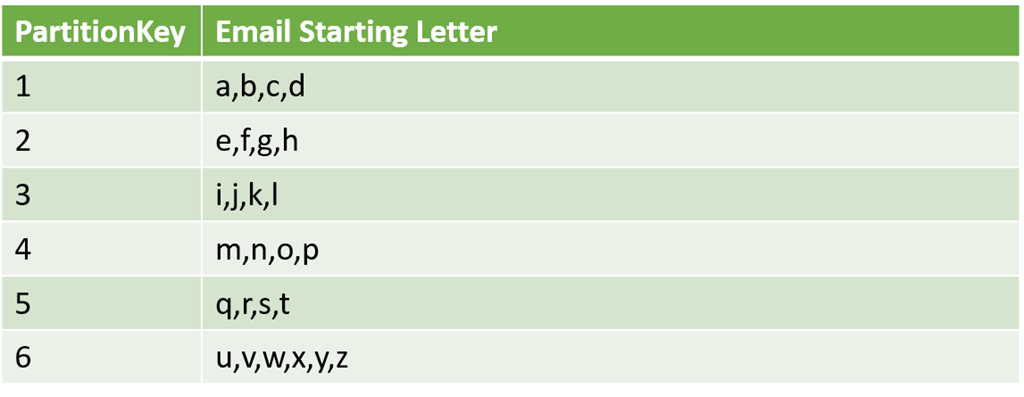
The strategy is simple bucketing, I define 6 partitions for the Users table with Partition Key simply being a single number, like 1 to 6. And allocate email addresses based on their first letter.

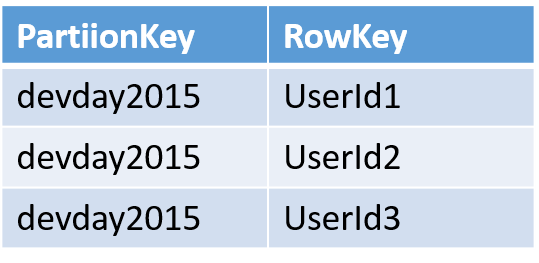
Consider, that any email address starting from ‘a’ to ‘d’ go to partition 1, email addresses starting from ‘e’ to ‘h’ go to partition 2 like shown in the table below. This achieves both the uniqueness of the email address across the table and gives the partition scalability.
aa

A simple method like below would decide the Partition Key.

image


Posts table would be a straight forward design with Partition Key being the category name and PostId (GUID) would be the Row Key. Posts of each category live in a separate parition.

image

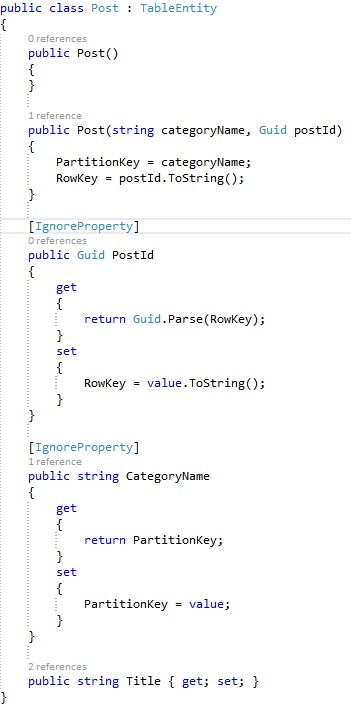
Like the Category entity, Post entity class will link Partition Key and Row Key using two properties CategoryName and PostId respectively marked with the IgnoreProperty attribute. See the code snippet given below.
image

If you think, using category names as Partition Keys would outgrow the rows in a single partition since one category can have hundreds of thousands of rows, you can concatenate the category name along with the year and create partitions like Azure-2015, Azure-2016 or use any other possible variable.

But the point is, making sure that you can calculate the Partition Keys from a formula gives you the ability to limit your queries maximum to Partition Scans.


In this scenario, Replies table can take two highly possible designs.

First, there is no separate table for Replies, use the Posts table with an additional column called ParentId. Posts will have an empty ParentId and replies will have values for ParentId of the post they are made to. Replies also go to the same partition as Posts.

Second design is having a separate table for Replies – I would personally go for this design as we can have more detailed information specific to replies.

Partition Key would be the category name and Row Key would be the Reply ID. PostId would be another column. So in order to find the replies of a Post we would trigger a Partition Scan.

Conclusion

Designing an application on top of any NoSQL technology requires specific planning and architecture based on the domain and the selected NoSQL platform. The knowledge of the underlying NoSQL technology is very essential in order to make the design efficient.

For example, in the above design if we get a requirement to show the recent 20 posts in the home page, regardless of the category, this would definitely trigger a Table Scan and also we have to bring all the posts and sort it based on the TimeStamp property.

So a good decision would be having another temporary table to keep the top 20 posts, when a new post is added the Id of the post will be updated in that table and removing the last old one. We can use write behind strategies in the application to do this.

So make sure that you design the application for the technology in a correct and efficient way.

The biggest misleading point I always here in the industry is, NoSQL development is easy and takes less time. Those two arguments are subjective and also you need to compare it with some other technology, commonly they do the comparison with relational database technologies. But in my experience I don’t see any significant time savings in using a NoSQL technology. But there are other benefits for sure.

Dev Day 2015 FB app – powered by Azure Storage

An FB app was around during the Dev Day 2015 season, which generates a picture merging dev day logo along with user’s current profile picture and posts that in his/her facebook timeline. The user who generarted more pictures announced as the winner.

Anuradha presenting the FREE ticket to the Winner.

WP_20151217_18_51_56_Pro 

There were 478 unique users generated 1023 images. These numbers aren’t that stagerring but let’s see how this app was modeled.

App used Azure Blob storage and Table storage. Blob storage was used to store the merged images of the users.

In the Azure Blob storage there were two containers one is public and the other one is private. The app specific images were stored in  the private container including the dev day logo. The generated images were kept in the public container so easy to post them to Facebook using the public URL.

Privacy policy was aligned to cater the behavior of keeping the merged images in a public repository. “according to app privacy policy – the merged images are considered as processed content of the app and can be used outside the scope of the app itself. The app did not store the raw profile pictures anywhere”

Table storage was used to store the information of participants, and initial rule was share the picture and one user will be selected in random as a winner, so the design was like this.

12

There was only single partition and no much worry on that. But Facebook User Id had been used as the RowKey making that even if a user generates the image more than one time, there will be single entry in the table. As a lazy programmer i just used a single Upsert opertaion to write data to this table.

But soon after launching the app I noticed the usage pattern is significanly different and same users had been generating more than one image, I tracked this using the Table Storage TimeStamp column and also I had another columnd to track the last updated time.

To make the competition fair and increase the traffice, I redesigned it by announcing the new rule, saying the person who generates more images will be the winner. Changed the RowKey to a GUID and adding another Id column to track users.

121

At the end of the competition a simple group by Id query with the count revealed the winner.

Speacail thanks to @Madhawee for helping in the UI of the app.

A portion of the collage generated from first 100 photos generated by the app. (Images are posted here with the privacy policy acceptance by the users, that merged images could be used externally outside the scope of the app itself)

Click to enlarge.

13

The remote server returned an error: (412) The append position condition specified was not met – Azure Append Blob issue

Azure Blob storage got a new addition recently, that is Append Blob. Based on the Microsoft documentations this is an ideal blob storage service for frequently modified data, which makes it a suitable candidate for the logging.

It is a natural tendency that we see AppendText method and we go for it for simple text based logging and you end up with this exception – The remote server returned an error : (412) The append position condition specified was not met.

This blogger has addressed the issue and provided a workaround in his post.

If you’re looking for a solution, then above link has it. If you want to read about the reason for this issue continue reading.

Investigation

I started the investigation directly by digging into the source code of the Azure Storage SDK in GitHub

In the documentation it is mentioned that AppendText method can be used only in the single write scenarios.

See this section CloudAppendBlob Methods

It is very explicit that in the SDK it has been mentioned that AppendText should be used only in the single writer scenarios, check that in line number 1739 of this file

CloudAppendBlob methods that cannot be used in concurrent access scenarios

  • AppendFromByteArray
  • AppendFromFile
  • AppendFromStream
  • AppendText

Also the Async counter parts of the above methods also cannot be used in concurrent access.

The only method that can be used in concurrent scenarios is AppendBlock / AppendBlockAsync

So Why AppendBlock is special ?

Investigating the source in GitHub it is clear that the call chain goes like this.

AppendText calls AppendFromByteArray, AppendFromByteArray calls AppendFromStream, AppendFromStream calls the internal method UploadFromStreamHelper 

UploadFromStreamHelper cannot handle concurrent scenarios.

Continuing the investigation…..

Still we need to investigate how AppendBlock can handle the concurrent requests. We pass a System.IO.Stream object to AppendBlock method and the AppendBlock method calls  WriteToSync on the passed Stream object.

Do we have a WriteToSync method in the System.IO.Stream ? No.

The Storage SDK has a implementation of WriteToSync as an extenstion method. See this file – line number 65

It is clear that WriteToAsync  has a synchronized call to the blob using the ManualResetEvent, so that is why AppendBlock could handle the concurrent access, but remember this is a blocking call.


Azure Key Vault Logging

This post goes with the series of my posts under the Azure Key Vault.

I assume that you know about Azure Key Vault and have used it, and continue this article. If you’re new to Azure Key Vault, please review the below links.

You can read more about Azure Key Vault and how to use it from this post.

PowerShell script to provision the Key Vault and the C#.NET sample to use it in the GitHub.

An Open source tool to manage Key Vault: Azure Key Vault Manager

Enabling Logging Diagnostics for Azure Key Vault

Recently Azure Key Vault team has announced the logging feature for the Key Vault (which is one of the highly required features).

Logs are written to a storage account in the Azure. So first create a storage account. Then in the PowerShell execute the following commands. Assuming that you have a vault and storage account.

It is good keep the storage account in the same Resource Group of the Key Vault as management would be easy.


We have the vault and storage details in variables, now time to setup the diagnostics


Viewing Logs

Logs are saved as JSON documents in the blob storage of the provided storage account. Do some activities which perform some operations in the Key Vault and get the JSON.

The below is log snippet for retrieving the vault. Note the operation name as VaultGet also the log provides information like the duration and client IP addresses. In the identity section it also provides the used identity information (the Azure Active Directory Identity name) for the specified operation.

The below is another JSON document snippet for the SecretGet operation. Along with the other information the request Uri property gives the details of which secret and the version information.

Disabling the logging Diagnostics

Execute the following line to disable the logging. (assuming the $vault and $storage variables are set as shown above)


Hidden gems of Azure Web Apps

Azure Web Apps is a component of Azure App Service. Developers love Web Apps as this is very simple web server as a service model. Often people ask the question, what is the difference between VMs Cloud Services and Web Apps. I think this post explains the difference in greater details.

Accessing KUDU

Azure Web Apps run on Kudu, an open source engine which is responsible for the management and operation of the Azure Web Service.

You can reach the Kudu environment of your azure web app by simply modifying your URL, example : I have this following site to manage the Azure Key Vault (in dev environments) https://keyvaultmanager.azurewebsites.net/ in order to access the Kudu environment of this site, simple add the .scm part after the web app name part of the URL. Something like this https://keyvaultmanager.scm.azurewebsites.net/

You should be logged in to the Azure Portal in order for this to work. You can configure many settings in the KUDU. You can also access KUDU using the Azure Preview Portal under the Tools section of your web application.

Server Affinity

Web Apps by default has Server Affinity enabled, meaning that the Web Apps service will direct your requests to the same server in the scaled environments. You can leverage the advantages of local in-memory session states. Please not that modern cloud application design principals do not recommend you use local session states, instead they promote the centralized session management.

However, Web Apps having Server Affinity enabled by default is an out of the box feature of the Web Apps.


You can simply set the value to false to disable the server affinity. You can access the above template of your web app using Azure Resource Explorer in the Azure Preview Portal.

If you want a simpler solution add this in your Web App’s App Settings section – clientAffinityEnabled = false

Live Monitoring

This is a great management tool for the production Web Apps. Azure Web Apps enables you to monitor your app live with very low latency monitoring. It also provides a comprehensive log of your application.

You can access from the Azure Preview Portal, under the Tools section of your Web App and click on the Troubleshoot option. The click Live HTTP Traffic


Auto Healing

You can reach this option, using Azure Preview Portal. Click on Tools section of your web app, click on Troubleshoot option and then click Mitigate.

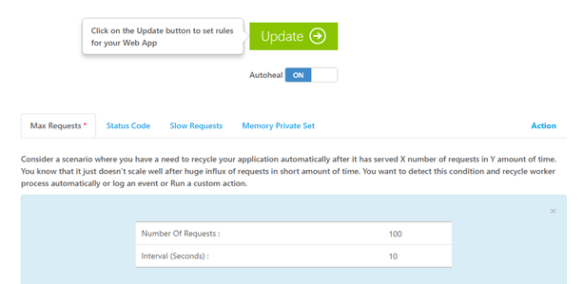
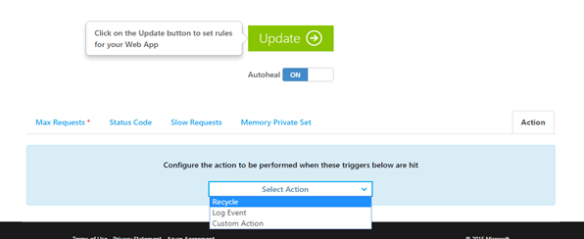
In this option you get to set an alert or logging rule, but the interesting part is that you can enable an recycle rule of your web app. So when a condition is met your web app will be recycled (in IIS application pool will be restarted).


Above I have set a rule to recycle the web app every time if receives 100 requests in 10 seconds. You can add more sophisticated rules and chain them together.


Cached-Aside Pattern using Redis on Azure

Cache-Aside is a common pattern in modern cloud applications. This is a very simple and a straight forward one. The followings are the characteristics of the pattern.

  • When an application needs data, first it looks in the cache.
  • If the data available in the cache, then application will use the data from the cache, otherwise data is retrieved from the data store and the cache entry will be updated.
  • When the application writes the data, first it writes to the data store and invalidates the cache.

How to handle the lookups and other properties and events of the cache are independent, meaning the patters does not enforce any rules on that. These diagrams summarize the idea.

  1. Application checks the cache for the data, if the data in the cache it gets it from the cache.
  2. If the data is not available in the cache application looks for the data in the data store.
  3. Then the application updates the cache with the retrieved data.

  1. Application writes the data to the data store.
  2. Sends the invalidate request to the cache.

Implementation

Project : https://github.com/thuru/CloudPatterns/tree/master/CloudPatterns/CacheAsidePatternWebTemplate

The above project has an implementation of this pattern.

Data objects implement an interface ICacheable and an abstract class CacheProvider<ICacheable> has the abstract implementation of the cache provider. You can implement any cache provider by extending CacheProvider<ICacheable>. GitHub sample contains code for the Azure Redis and AWS Elastic Cache implementations.

Implementation of ICacheable : https://github.com/thuru/CloudPatterns/blob/master/CloudPatterns/CacheAsidePatternWebTemplate/Cache/ICacheable.cs

Implementation of CacheProvider<ICacheable>: https://github.com/thuru/CloudPatterns/blob/master/CloudPatterns/CacheAsidePatternWebTemplate/Cache/CacheProvider.cs

Implementation of AzureRedisCacheProvider : https://github.com/thuru/CloudPatterns/blob/master/CloudPatterns/CacheAsidePatternWebTemplate/Cache/AzureRedisCacheProvider.cs

The template also includes Cache Priming in Global.asax. This could be used to prime your cache (loading the mostly accessed data in the application start)

What you need to know about SQL Database Dynamic Data Masking before the GA

Please read this post after reading this, as some critical changes have gone to the DDM feature of SQL Databases in GA
SQL Database Dynamic Data Masking will be Generally Available (GA) very soon by the end of this month.

For more information about Dynamic Database Masking please read this article.

As per the article you can configure the dynamic data masking on columns which have sensitive data, and also we have the options to specify the SQL Logins which should be excluded from masking. Meaning any user connecting to the database using the specified SQL login will see the data without being masked.

  • SQL Logins will be removed from the exclusion list and you have to specify the SQL users or Azure AD users directly in the exclusion list.
  • SQL users with administrative privileges are always excluded from dynamic data masking

Example:

In a SQL Database server with a SQL Database named Db1 there are 3 SQL logins.

SQL Login

SQL user

Privilege

thuru Thuru Admin (sa) for the server
login1 User1 db_owner for Db1
login2 User2 db_owner for Db1

First thing to note is, after the GA of the feature you cannot user SQL login names in the exclusion list in the portal meaning that you cannot specify login1, login2 in the list. Instead of specifying the SQL login you should specify the SQL users as user1, user2.

And SQL users who have administrative privileges always see the data.

Look at the image below as I have specified only user1 in the exclusion list.

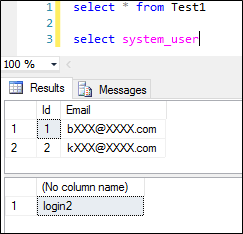
Login to the database as thuru and executing a SELECT statement results this.

As you see, though I haven’t specified the admin user in the exclusion list, still admins are automatically excluded from dynamic data masking. If you’re using admin users in your application and enabled dynamic data masking, you have to create other SQL logins to access the database.

Login to the database as user1 and user2 outputs the following results respectively.

How to create other SQL Logins in SQL Database

Login to the server using the admin user.

  1. Select the master database and create the logins using this command.

  2. Connect to the database you want to add the user to and add the user using the created SQL login in step 1

  3. Add roles to the user

Azure Elastic Database Pool – Managing SQL Databases in breeze

If you have multiple SQL databases in Azure and looking for a centralized management solution, then Elastic Database Pool is the one you’ve been looking for.

Elastic Database Pool is a feature that you can enable in SQL Database Servers which has V12 update. Elastic Database Pool is still in preview as of this writing, so you should agree the preview terms in order to use this.

Azure Elastic SQL Database Pool allows you to manage different databases at a centralized single user interface. This is a breeze feature especially if you have a SaaS application running on Azure with the single tenant strategy for your database layer. You will have different databases for each customer and rolling out updates on each database is not only a time consuming task, but also very annoying and error prone task too. Most of the developers use scripted tools either purchased from some third parties or build their own custom tools to manage collection of SQL databases. But with the introduction of Azure Elastic Database Pool, you can centrally manage your SQL databases as group.

You can add / remove any database to and from the pool when desired, apart from the centralized management – which is a very important feature for devs, cost wise benefits also possible in Elastic SQL Database Pool. Because the pool has a DTU count which is known as eDTU (elastic data through put units) shared across the databases in the pool. So there’s no fixed DTU allocation for the databases.

For example, consider that your application has customers across the globe and the database usage varies based on the time zone. If you’re using SQL Databases without adding them to the pool, you have to allocate a fixed DTU (let’s say 50) for each customer database. Assuming you have 2 databases, each has 50 DTUs allocated and are in different time zones. Your application has traffic only in the day time, during the night the DTUs are unused but you’re still paying for that tier.

But if you can put those databases in an Elastic Database Pool with an eDTU of 50 or little bit more than 50, both databases will run smoothly at a reduced cost. Because when one database is not in use the Elastic Database Pool will allocate the eDTUs to the other database. And also Elastic Database Pool has the flexibility to set the minimum and maximum number of eDTUs for databases.

Creating an Elastic SQL Database Pool

  • Go to the new Azure portal and select the SQL Database Server on which you want to create a pool. One server can have multiple pools. But one database can be attached to only one pool. In the server blade click on the Add pool button.

  • Give a name to the pool. Select the pricing tier, and you can add databases to the pool at this time or later. Note the ‘Configure Performance Section’ and you can adjust the eDTU and the storage capacity for the pool. Also you can set the minimum and maximum eDTU usage per database. You can change these settings later. The number of databases per pool, the total number of eDTUs and the maximum size of the pool are determined by the pool’s pricing tier.

Managing the Elastic Database Pool

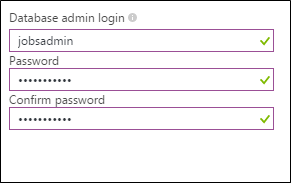
Now we have a pool and let’s see how to manage the databases in the pool. Managing the pool is done through the jobs, it requires certain installation in your azure subscription, which includes a cloud service, SQL Database, service bus and a storage account. You can click on the Manage or Create jobs button in the Elastic Pool blade, and if you haven’t set up the Jobs you will see the below screen for the first time. Jobs are in the preview stage and you should accept the preview terms, and also setup a credential. This credential will be used as the administrator credential for the Jobs SQL database.

After setting up the required resources for the jobs, now you can create jobs. Below screen shows the jobs creation blade. Jobs are scripted in TSQL, and note that here I have provided the credential of the SQL Server I want my script to run, not the credential of the Jobs SQL database.

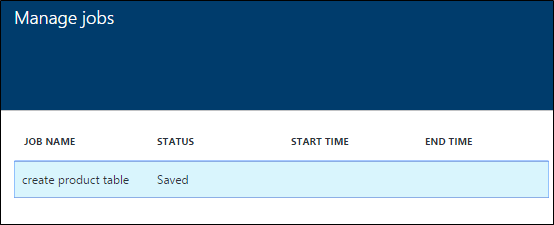
I have the option to run the jobs immediately and also save them and run later. You can see the jobs in the Manage Jobs blade.

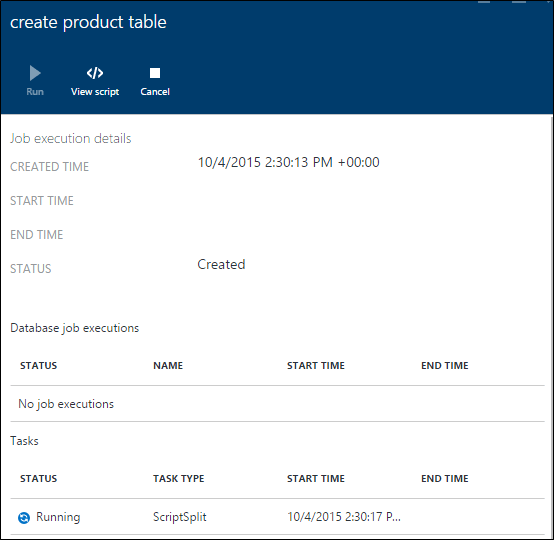
You can start a job by clicking Run and it will show real time updates about the job status.

All my databases are updated.

Elastic Database Pool is very convenient and a powerful approach to manage multiple databases as a group.

Elastic Database Pool Jobs is an application which is a hosted cloud service, which has a SQL database, a service bus and a storage account, these resources are charged separately in addition to the Elastic Database Pool cost.