Let’s hookup with ASP.NET Webhooks Preview

Webhook – A simple HTTP POST based pub/sub mechanism between web applications or services. This is a very effective that most of the modern web applications use this in order to handle event based pub/sub.

ASP.NET WebHooks is a framework which is in the preview release; this eases the task of incorporating webhooks in ASP.NET applications. It provides some predefined clients to subscribe events from, like Instagram, GitHub and others. It also provides a way to setup our custom ASP.NET web applications to send webhook notifications to the subscribed clients and prepare the clients to receive the webhook notifications. See the below URL for the more information.

https://github.com/aspnet/WebHooks

How WebHooks work and the structure of the ASP.NET WebHook Framework

Webhooks are simple HTTP POST based pub/sub.

Webhooks has the following structure.

  • The web application/service which publishes the events should provide an interface for the subscribers to register for the webhooks.
  • Subscribers select the events they want to subscribe to, submit the callback URL to be notified along with other optional parameters. Security keys are most common among the other optional parameters.
  • The publisher will persist the subscriber details.
  • When the event occurs publisher notifies all the eligible subscribers by triggering POST request to the callback back along with the event data.

The above 4 steps are the most vital steps of a working webhook. Let’s see how ASP.NET Webhooks implement this.

As of this writing ASP.NET Webhooks are in preview and nugget packages also in the preview release.

The support for sending WebHooks is provided by the following Nuget packages:

  • Microsoft.AspNet.WebHooks.Custom: This package provides the core functionality for adding WebHook support to your ASP.NET project. The functionality enables users to register WebHooks using a simple pub/sub model and for your code to send WebHooks to receivers with matching WebHook registrations.
  • Microsoft.AspNet.WebHooks.Custom.AzureStorage This package provides optional support for persisting WebHook registrations in Microsoft Azure Table Storage.
  • Microsoft.AspNet.WebHooks.Custom.Mvc This package exposes optional helpers for accessing WebHooks functionality from within ASP.NET MVC Controllers. The helpers assist in providing WebHook registration through MVC controllers as well as creating event notification to be sent to WebHook registrants.
  • Microsoft.AspNet.WebHooks.Custom.Api This package contains an  optional set of ASP.NET Web API Controllers for managing filters and registrations through a REST-style interface.

ASP.NET Webhooks works well in Web API and it has the Azure Table Storage provider for persisting the publisher metadata and event data.

Please go through this article for the detailed information

What is missing

According to the article, webhooks are delivered to the users based on authorization. So ASP.NET webhooks store the information of the subscriber along with the user information. This helps the ASP.NET webhooks to publish the event to the right subscriber.

For example, 2 users have subscribed to the same event.

User Id Event Callback URL
Thuru PhotoAdded https://thuru.net/api/webhooks/in/content
Bob PhotoAdded http://bob.net/api/hooks/incoming/photo

ASP.NET Webhooks requires the subscribers to login to the application or the REST service in order to subscribe the events.

So when the event is triggered based on the logged in user the POST request is made to the right client. ASP.NET webhooks use user based notifications. Is there any limitation in this?

Yes, consider a scenario – where you have an application with multiple customers. Each customer has many users. And the admin of one customer wants subscribe to the PhotoAdded event as above. Her intention is to be notified whenever any of her users add a photo. So if she registers for a webhook by logging in using her credentials, she will get the notifications only when she adds a photo, because ASP.NET webhooks by default provide user based notifications. Also we can’t register this event in the global level with no authentication, the she will be notified when users of the other customers add a photo.

I hope ASP.NET webhook will provide a way to customize the notification. As of now NotifyAsync is a static extension method to which the overriding is not possible.

What you need to know about SQL Database Dynamic Data Masking before the GA

Please read this post after reading this, as some critical changes have gone to the DDM feature of SQL Databases in GA
SQL Database Dynamic Data Masking will be Generally Available (GA) very soon by the end of this month.

For more information about Dynamic Database Masking please read this article.

As per the article you can configure the dynamic data masking on columns which have sensitive data, and also we have the options to specify the SQL Logins which should be excluded from masking. Meaning any user connecting to the database using the specified SQL login will see the data without being masked.

  • SQL Logins will be removed from the exclusion list and you have to specify the SQL users or Azure AD users directly in the exclusion list.
  • SQL users with administrative privileges are always excluded from dynamic data masking

Example:

In a SQL Database server with a SQL Database named Db1 there are 3 SQL logins.

SQL Login

SQL user

Privilege

thuru Thuru Admin (sa) for the server
login1 User1 db_owner for Db1
login2 User2 db_owner for Db1

First thing to note is, after the GA of the feature you cannot user SQL login names in the exclusion list in the portal meaning that you cannot specify login1, login2 in the list. Instead of specifying the SQL login you should specify the SQL users as user1, user2.

And SQL users who have administrative privileges always see the data.

Look at the image below as I have specified only user1 in the exclusion list.

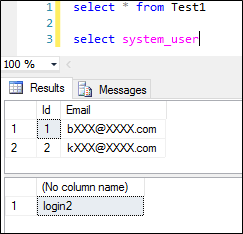
Login to the database as thuru and executing a SELECT statement results this.

As you see, though I haven’t specified the admin user in the exclusion list, still admins are automatically excluded from dynamic data masking. If you’re using admin users in your application and enabled dynamic data masking, you have to create other SQL logins to access the database.

Login to the database as user1 and user2 outputs the following results respectively.

How to create other SQL Logins in SQL Database

Login to the server using the admin user.

  1. Select the master database and create the logins using this command.

  2. Connect to the database you want to add the user to and add the user using the created SQL login in step 1

  3. Add roles to the user

SQL Server 2016 Always Encrypted

Introduction

SQL Server 2016 is yet to be released, but you can download the CTP versions. The mostly anticipated and marveled feature is Always Encrypted. Let me discuss few bits of this feature before getting into the technical side of it.
I got to know this right after reading an article about Microsoft had applied some court case to safeguard the information of one of its users, from the US laws. This is highly appreciated and I personally feel that Microsoft is at the forefront of protecting customer data. And I made a tweet.

If customer can secure their data without any control of public cloud vendors, even in the situations like powerful unauthorized people gaining access to your data results in reduced data theft. And it solves a headache for the public cloud vendors as well.

How it works

SQL Server 2016 Always Encrypted is a feature which allows the encryption and the decryption of the data in the client side, rather than in the database server itself. Since the encryption happens in the client side using a client driver data is secured not only at rest but also at transit, this makes the feature takes its pride name Always Encrypted.

Always Encrypted works as follows.

  • First we have to create Column Encryption Keys (CEK) and Column Master Keys (CMK) in the Always Encrypted section of the database

  • CEKs are symmetric keys and CMKs are asymmetric keys.
  • CEKs are stored in SQL Server where CMKs are stored outside the SQL Server. Read this MSDN article to get information about how to create these keys.
  • Create database with the table and specify the columns to be encrypted. Note that the encryption type (deterministic or randomized), encryption algorithm and the CEK to be used are specified.

  • In the demo I’ve created the CMK in the local certificate store of the machine, but you can keep the CMK wherever possible. Because SQL Server stores only the meta data of the CMK.
  • Now the database is ready. We need .NET 4.6 client application to access the data in the Always Encrypted enabled database. I summarized everything in this image.

  1. Application sends an INSERT statement, driver intercepts the statement and identifies the database it talks is an Always Encrypted feature enabled database. This identification happens because of the connection string property Column Encryption Setting=Enabled. So the driver asks the database to send the details of the encryption for the specific table.
  2. SQL Server returns column details, encrypted values of the CEK, CMK name and the path.
  3. Client driver retrieves the CMK using the meta received from the SQL Server. In this step driver gets the private key of the CMK, which is used to decrypt the encrypted CEK. (CEK is encrypted using CMK’s public key during the creation of CEK in the SQL Server, also the CEK is signed by the private key of the CMK) SQL Server does not store the CMK’s private key.
  4. Client driver encrypts the data using the decrypted CEK and send it to the SQL Server.
  • Read operations also work similar as SQL Server send the encrypted data along with the encryption details and CMK meta data information. Client driver then retrieves the CMK decrypts the CEK and the decrypts the data.
  • Client driver implements possible caching of the keys for performance.

Sample .NET application code for the above table

Management Features

You can see the definitions of the CMKs using this command. SQL Server stores the meta data of the CMKs

You can see the definitions of the CEKs using this command

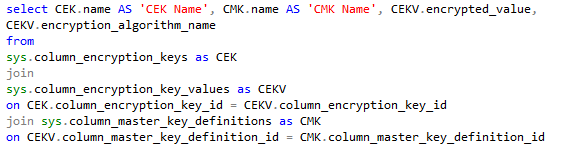
Joining the above two along with the sys.column_encryption_key_values we can get the association relationship.

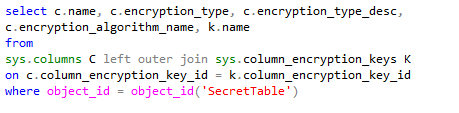
You can execute the following command to get the Always Encrypted meta data for the table.

Other useful reads

http://www.infoq.com/news/2015/06/SQL-Server-Always-Encrypted (read the comments for known FAQs)

http://blogs.msdn.com/b/sqlsecurity/archive/2015/06/04/getting-started-with-always-encrypted.aspx (Getting started with Always Encrypted)

http://sqlperformance.com/2015/08/sql-server-2016/perf-impact-always-encrypted (Performance of Always Encrypted)

You can use Azure Key Vault as the CMK store

https://thuru.net/2015/05/30/azure-key-vault-setup-and-usage-scenarios/ (Introduction to Azure Key Vault)

http://blogs.msdn.com/b/sqlsecurity/archive/2015/09/25/creating-an-ad-hoc-always-encrypted-provider-using-azure-key-vault.aspx?wt.mc_id=WW_CE_DM_OO_SCL_TW (Creating custom CMK provider, using Azure Key Vault)

Azure Elastic Database Pool – Managing SQL Databases in breeze

If you have multiple SQL databases in Azure and looking for a centralized management solution, then Elastic Database Pool is the one you’ve been looking for.

Elastic Database Pool is a feature that you can enable in SQL Database Servers which has V12 update. Elastic Database Pool is still in preview as of this writing, so you should agree the preview terms in order to use this.

Azure Elastic SQL Database Pool allows you to manage different databases at a centralized single user interface. This is a breeze feature especially if you have a SaaS application running on Azure with the single tenant strategy for your database layer. You will have different databases for each customer and rolling out updates on each database is not only a time consuming task, but also very annoying and error prone task too. Most of the developers use scripted tools either purchased from some third parties or build their own custom tools to manage collection of SQL databases. But with the introduction of Azure Elastic Database Pool, you can centrally manage your SQL databases as group.

You can add / remove any database to and from the pool when desired, apart from the centralized management – which is a very important feature for devs, cost wise benefits also possible in Elastic SQL Database Pool. Because the pool has a DTU count which is known as eDTU (elastic data through put units) shared across the databases in the pool. So there’s no fixed DTU allocation for the databases.

For example, consider that your application has customers across the globe and the database usage varies based on the time zone. If you’re using SQL Databases without adding them to the pool, you have to allocate a fixed DTU (let’s say 50) for each customer database. Assuming you have 2 databases, each has 50 DTUs allocated and are in different time zones. Your application has traffic only in the day time, during the night the DTUs are unused but you’re still paying for that tier.

But if you can put those databases in an Elastic Database Pool with an eDTU of 50 or little bit more than 50, both databases will run smoothly at a reduced cost. Because when one database is not in use the Elastic Database Pool will allocate the eDTUs to the other database. And also Elastic Database Pool has the flexibility to set the minimum and maximum number of eDTUs for databases.

Creating an Elastic SQL Database Pool

  • Go to the new Azure portal and select the SQL Database Server on which you want to create a pool. One server can have multiple pools. But one database can be attached to only one pool. In the server blade click on the Add pool button.

  • Give a name to the pool. Select the pricing tier, and you can add databases to the pool at this time or later. Note the ‘Configure Performance Section’ and you can adjust the eDTU and the storage capacity for the pool. Also you can set the minimum and maximum eDTU usage per database. You can change these settings later. The number of databases per pool, the total number of eDTUs and the maximum size of the pool are determined by the pool’s pricing tier.

Managing the Elastic Database Pool

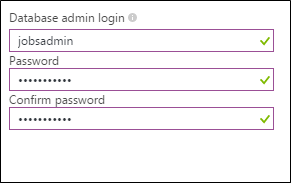
Now we have a pool and let’s see how to manage the databases in the pool. Managing the pool is done through the jobs, it requires certain installation in your azure subscription, which includes a cloud service, SQL Database, service bus and a storage account. You can click on the Manage or Create jobs button in the Elastic Pool blade, and if you haven’t set up the Jobs you will see the below screen for the first time. Jobs are in the preview stage and you should accept the preview terms, and also setup a credential. This credential will be used as the administrator credential for the Jobs SQL database.

After setting up the required resources for the jobs, now you can create jobs. Below screen shows the jobs creation blade. Jobs are scripted in TSQL, and note that here I have provided the credential of the SQL Server I want my script to run, not the credential of the Jobs SQL database.

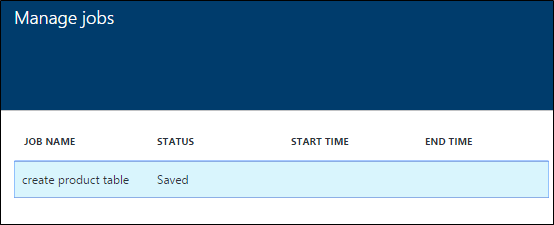
I have the option to run the jobs immediately and also save them and run later. You can see the jobs in the Manage Jobs blade.

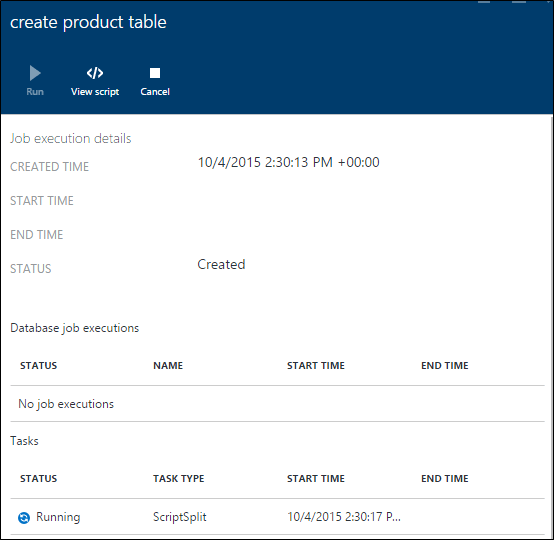
You can start a job by clicking Run and it will show real time updates about the job status.

All my databases are updated.

Elastic Database Pool is very convenient and a powerful approach to manage multiple databases as a group.

Elastic Database Pool Jobs is an application which is a hosted cloud service, which has a SQL database, a service bus and a storage account, these resources are charged separately in addition to the Elastic Database Pool cost.

Securing your Azure Web Apps FTP Endpoints

Web Apps are my favorite PaaS offering in Azure. They are simple yet powerful, but the way how Azure handles the Web App FTP Deployment Credentials is not that nifty and better you should know and understand that.

If you find very lazy to read the entire post, you can jump to the summary section to grab the findings.

You can setup FTP Deployment Credentials for your Web App, as most of the developers do this, even though they use fully integrated CI/CD because this is very handy at certain times. You can enable the FTP Deployment Credentials (FDC) for the Web App in the portal under the PUBLISHING section of your Web App.

Click on Deployment credentials and you will see the blade where you can enter the FTP username and password. First I entered a common name (wonder what is it? Bob) and typed my usual password (wonder what is it? **********) and hit Save. I got the below error message. It is very clear that FTP usernames should be unique across all the Azure customers.

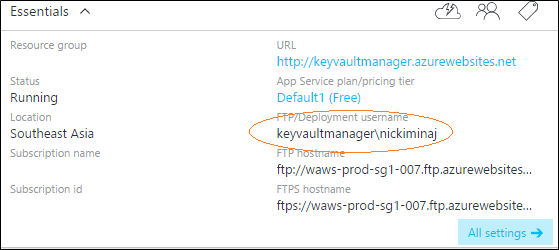
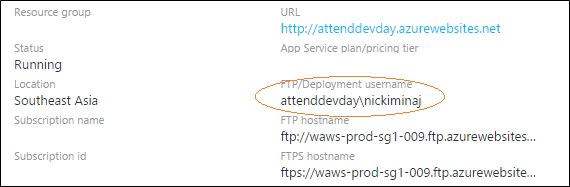
Then I entered a username which I assumed no any other Azure customers have taken (wonder what is it? nickiminaj), entered the usual password and hit Save. It worked. I got the success message. So now I can enter my FTP credentials when I browse to the FTP host name of the site. But this FTP Deployment Credential is shared among all your Web App regardless of which resource group or hosting plans or pricing tier or even the subscription they are in. This is generally known as Web Deployment Credentials.

FTP Deployment Credential include a username and the password. This Username is in the following format your Web App name\username and the password. Look at these below images of two different Web Apps from 2 different subscriptions.

CAUTION

So sharing your FTP Deployment Credentials of a Web App leaves you in the danger of exposing access to all your Web Apps the particular Microsoft Account / Azure AD account has access to. This can be disastrous when you share the credentials with third party developers, they only have to guess the name of your other sites to get the full username and they can access your Web Apps simply, since they already know the passwords.

The question is how to generate different FTP credentials for each Web App?

When you set up your Web App, each of it has its own FTP credential assigned by KUDU. KUDU is the project provides infrastructure for the Azure Web Apps. You can get this credential by downloading the Publish Profile of the web site.

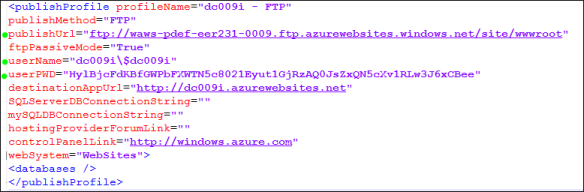
Publishing profile is a simple XML file. Open the file and look for the <publishProfile> element where publishMethod attribute with the value of ‘FTP’.

This is credential is known as Site Level Credential of you Web App and only applicable to that particular Web App. Three green dots show the required information.

You cannot set the password but you can simply regenerate the password by clicking the Reset Publish Profile.

You can share this credentials with anyone and they can access only the particular Web App.

Summary

  • FTP Deployment Credential username should be unique across all Azure customers.
  • FTP Deployment Credential username is shared across all the Web Apps the current Microsoft Account has access to, regardless of resource groups, hosting plans, pricing tier and subscription. And the username is common for the Microsoft Account.
  • Each Web App has the FTP Deployment username as WebAppName\username
  • Ex: If you have two Web Apps (webapp1 and webapp2) and if you create the username kevin they will have the FTP deployment username webapp1\kevin and webapp2\kevin respectively, with the same password.
  • You can gain the Site Level Credential for your Web App with the generated username and password uniquely for each Web App from the Publishing Profile

Automatically Configure Azure AD in your Web Applications using VS 2015

Some of you might have noticed that in the project context menu, Visual Studio 2015 gives the option ‘Configure Azure AD Authentication

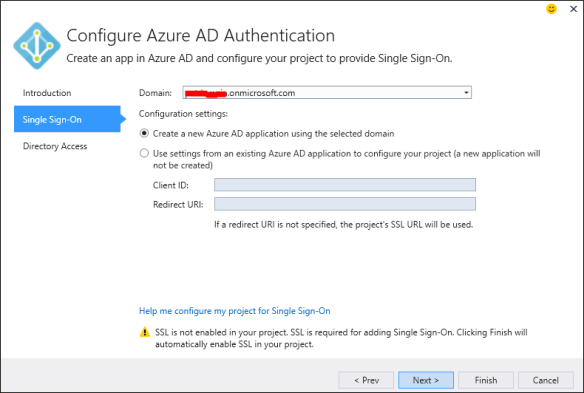
When you click on this, a wizard will open up and it will do most of the heavy lifting for you in configuring the Azure AD for your application. Though the wizard is very rich, it is somewhat flexible as well. In this post I walk you through the direct way of configuring Azure AD Authentication in your application and explain the code generated by the wizard. Read this article to know more about Azure AD authentication scenarios.

First you need an Azure AD domain in order to register your application. You should have this and the user who is going to perform this action should be in the Global Administrator roles for the Azure AD

Assuming that you have the prerequisites to configure the authentication, click the above option.

Step 0


Step 1

  • Enter your Azure AD domain
  • Choose Create a new Azure AD application using the selected domain.
  • If you already have an application configured in you Azure AD you can enter the client ID and the Redirect URI of the application.


Step 2

  • Tick the Read Directory data option to read the Azure AD
  • You can use the properties you read as claims in your application
  • Click Finish


This is will take few minutes and configure the Azure AD Authentication for your application. Also it adds the [Authorize] attributes to your controllers.

Now if you log into the Azure Portal and in the Applications section of the Azure AD you can notice the new application provisioned.

Note that the wizard provisions the app as a single tenant application for you, if you want later you can change that to a multi-tenant application.

Configuring the single tenant application / multi-tenant application is beyond the scope of this post.

Code

The wizard retrieves the information about the app it created, stores them in the configuration file and write code to access them. Main part is in the App_Start folder of the web project the Startup.Auth.cs

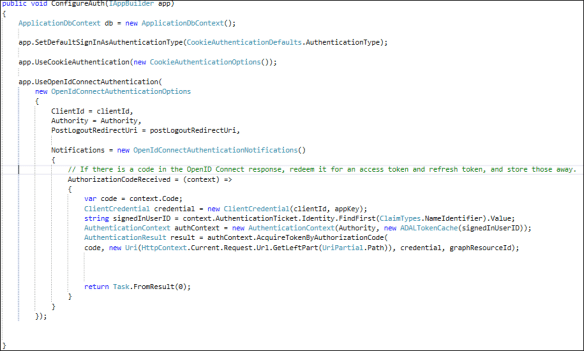
The below image shows the code generated by the wizard on a web project which hasn’t had any authentication configured before.

  • First line creates the data context object of the EF model provisioned. This is not mandatory if you are not accessing any data from the database. You can simply delete this line.
  • Second line sets the DefaultSignInAsAuthenticationType property – this will be passed to Azure AD during authentication
  • Third line sets the cookie authentication for the web application.
  • Fourth line of code which looks big and confusing but actually not. It is a common method of OWIN, commonly used in Open Id authentications.
  • Here we specify the options for the Azure AD Open Id authentication and the call backs.
  • Since the above code is bit unclear I have broken the code in a simpler way.

I have simplified the code to the level of retrieving the authentication code. The wizard generated code goes to next level and retrieves the authentication token as well. I haven’t included this in the code because I wanted to simplify the logic as much as possible. After retrieving the authentication code you can request an authentication token and perform actions. This is a separate topic and includes the authentication workflow of Azure AD.
I will discuss Azure AD authentication workflow and how to customize applications in a separate post.

SQL Azure Database best practices and TDD

This post summarizes the set of good practices you should follow when developing application on SQL Azure and how to arrange TDD or unit tests based on those practices.

Before continue reading this post, I assume that you are familiar with SQL Azure Databases, Entity Framework and TDD.

One of the highly regarded and strongly recommended cloud development strategies is resilient development, meaning that the application should expect the failures and handle them. This is more than catching the exceptions and informing to users, this includes retry logics, trying alternatives or any other way to mitigate / reduce the failure and user frustration.

Resilient Development in SQL Azure

When accessing a SQL Azure Database we should implement resilient mechanisms. EF provides an execution strategy interface to put custom logic on retrying errors. You can read more about the execution strategies here

There’s a dedicated implementation of the execution strategy named SqlAzureExecutionStrategy especially for the SQL Azure Databases.

Before continuing let us discuss why we need to implement this execution strategy and why it is highly recommended when using SQL Azure databases. You can list many transient failures in accessing databases, but I list the following two are the main culprits.

  • SQL Azure is a database as a service. Applications talk to SQL Azure through the Internet and there is a high probability of communication breakage.
  • SQL Azure has a concept of DTU (Data Throughput Units) which is a number assigned to a database, which directly maps to the usage of CPU, memory and IO. You can say that a database with higher DTU has more throughput. Since DTU is a limiting factor, when the databases reach the maximum allocated DTU usage, they start to throttle the requests, which might produce timeout exceptions.

Implementing the execution strategy comes with the limitations, mainly we cannot handle custom transactions if we implement execution strategy. So needless to say that we should implement it in a way that we can control it.

This link describes the limitations and provide the pattern to implement controllable execution strategy.

Limitation on TDD / Unit Tests

Before proceeding just by the above sub heading do not get mislead to the conclusion that TDD is same as Unit Tests, they are different approaches.

As you have read in the above link now we know the importance of implementing execution strategy and the limitations. In our unit tests we implement transactions because we can rollback them. This is very essential when running tests on production databases, so we can rollback changes done by the unit tests and leave the database unchanged after the text execution regardless of whether the tests have passed or not.

This is a great article which provides details on how to implement such a test base class.

Creating web tiles in Microsoft Band

Introduction

You can create apps for your Microsoft Band which display information from a feed URL without writing a single line of code. These app tiles are known as Web Tiles for the Microsoft Band and they are fully managed by the Microsoft Health application which manages other settings of the band.

How it works

Web tiles are files with extension .webtile, they are just packages which contain the icon image and the manifest JSON file. The manifest file contains the information like title, author, description, feed URL, tile face and the tile formation data. The feed URL can be any JSON / Atom Pub service.
Go this URL: http://developer.microsoftband.com/WebTile/

Follow the instructions

  • Click Get Started and Accept the agreement (if you have time, please read it and explain me as well)
  • Select whether you want to create a single page tile / multi page tile – Single page tiles have one tile page and multi-page tiles can have up to 8 tile pages.
  • Also choose the appearance of the tile.
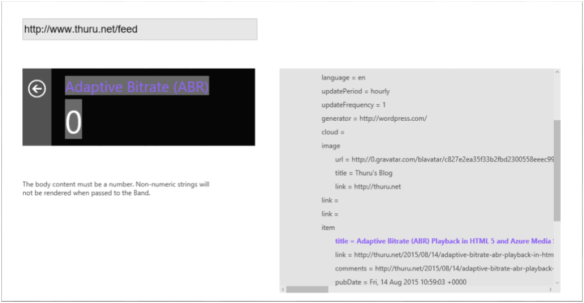
  • In the next screen enter the feed URL and drag & drop the values in the selected tile’s placeholders. See the below image.

I have used my blog feed URL and dragged & dropped the post title and the number of comments in the tile face. (Note that the tile I selected is capable showing a text title and a number)

In the next screen you can specify the title, description author and other details along with the image for the tile.

Finalize the web tile and mail it, so you can directly download it in your phone. When you open the web tile in a Microsoft Health app installed phone, it will automatically detect and continue the setup.

But before jumping into the installation process let’s look into the web tile file.

.webtile file and manifest.json

As I mentioned above .webtile files are packages. Change the extension of the .webtile files to .zip, now you can extract the contents. Inside the package you will see a folder named icons where the tile icon file is stored and the manifest.json file.

The above image shows a portion of the manifest file. All the settings are saved here and you can configure more options in the file itself. Some parameters have default restrictions like the refresh interval cannot be set less than 15 minutes.

Installation

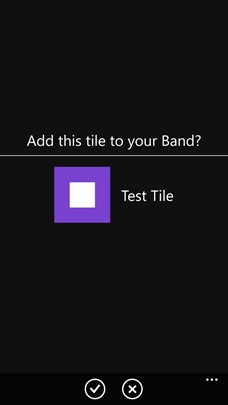
You can directly open the web tile in the phone which has Microsoft Health app installed. The tile will be managed by the app and you can uninstall it whenever you want. When you open the web tile, the Microsoft Health app will ask you whether to install it.

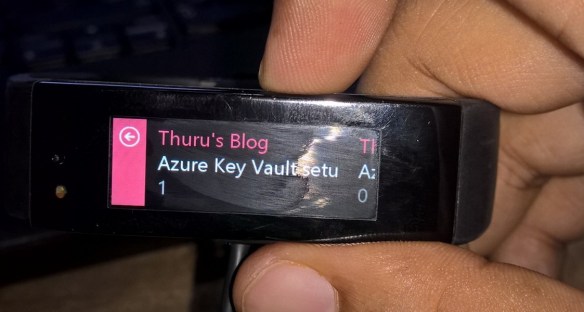
Now I can monitor the blog posts and the comment counts from my band.