Cortana – what she thinks about Microsoft, Apple and Google

Cortana the new power booster of the Windows phone 8.1 works really well. Cortana is still in beta but seems matured. I asked questions from Cortana, plenty of them. But I wanted to know what she thinks about her Microsoft, Apple and Google. The answers are impressive and funny.

image

What do you think about Microsoft ? There’s no place like home.

What do you think about Apple ? Their new headquarters looks kind of like a Halo. I’m into it.

What do you think about Google ? Impressive achievement. Still get everything I know from Bing

What is Power BI

Last week I delivered an introductory presentation about Power BI covering all the features of it in the SQL Server Universe user group meeting. I got a fair amount of time to showcase the features of Power BI to the audience.

I concluded my presentation giving the following definition to Power BI from Microsoft’s point of view or what Microsoft has been trying to do.


Productizing self service BI tools and services coupled with the company’s cloud based organizational strategy

Personally I think Microsoft is determined to have a product in the self service BI market, they’ve been trying to bring all the tools and services under one umbrella named Power BI.

It works perfectly well, it’s a very impressive product to deliver a showcase. I have delivered product introductory presentations for Azure and Windows 8 in other user group meetings. Compared to them Power BI is a small product which draws the interest of few people, but it didn’t fail to impress the audience, so thought of writing about Power BI.

Power BI has components categorized under 3 topics.

Excel Features

  • Power Query
  • Power Pivot
  • Power View
  • Power Map

Power BI for Office 365

  • Power BI Sites
  • Power BI Q&A
  • Query and Data Management
  • Power BI Windows App

IT Infrastructure service for Power BI

  • Provision Power BI for Office 365
  • Power BI Admin Center
  • Data Management Gateway

Excel features are available for download for free. You can download them from this URL

Detailed blog posts about each component will follow in the coming days.

How to enable sessions in Web API

Web API does not support native HTTP sessions. And it’s the nature of Web API, but there might be times you need HTTP sessions which resembles your bad design. Because a service framework should not support HTTP sessions as it should be a stateless element. So why do we need sessions in Web API ? I think you should not use sessions in Web API in production; eliminate HTTP sessions completely.

So the answer for the question why do we need sessions in Web API is, just to show how you can enable them. Silly though but you can use this in developing some POC and quick functional demos. Never use sessions in Web API because Web API is designed to be stateless.

First we should implement a ControllerHandler which is capable of handling sessions. In order make our ControllerHandler handle sessions we should implement IRequiresSessionState interface as well. Look at the below code.

   1: public class SessionableControllerHandler : HttpControllerHandler, IRequiresSessionState

   2: {

   3:     public SessionableControllerHandler(RouteData routeData) 

   4:         : base(routeData)

   5:     {

   6:  

   7:     }

   8: }

The next step is to create a RouteHandler as a wrapper to the ControllerHandler we created, this is because when registering routes in the RouteTable we can pass RouteHandler types not ControllerHandler types. Look at the below code for the custom RouteHandler.

   1: public class SessionStateRouteHandler : IRouteHandler

   2: {

   3:     public IHttpHandler GetHttpHandler(RequestContext requestContext)

   4:     {

   5:         return new SessionableControllerHandler(requestContext.RouteData);

   6:     }

   7: }

Then finally we have to register our RouteHandler in the RouteTable

   1: RouteTable.Routes.MapHttpRoute(

   2:     name: "DefaultApi",

   3:     routeTemplate: "api/{controller}/{id}",

   4:     defaults: new { id = RouteParameter.Optional }

   5: ).RouteHandler = new SessionStateRouteHandler();

In order to make our custom route to be used we need to put it on top of other route registrations.

Setting up Office 365 for SharePoint App Development

This is fairly straight forward. Sign up for the Office 365 account for developers using this link. You can sign up for a 30 days free Office 365 account with the developer license.

Once you get the Office 365 environment, you can start developing apps for SharePoint online. There 3 types of SharePoint apps (this MSDN article describes it better) to be developed, this categorization is done using the hosting model of the application.

In your office 365 setup go to SharePoint and create a SiteCollection with the Developer Site template. Make sure to that the template is Developer Site otherwise there’s a high chance that you’ll get an error while debugging the apps which says  “Error occurred in deployment step ‘Install app for SharePoint’: Sideloading of apps is not enabled on this site”

image

Now you’re done, you can develop the apps 🙂

Windows Azure Scheduler

Windows Azure Scheduler is one of the new feature additions to Windows Azure. This is a cloud based scheduler service which analogous to the Task Scheduler.

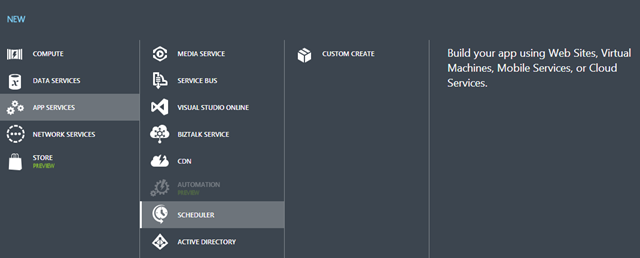
Login to you Windows Azure Management Portal, If you do not see the Scheduler tab in the left hand side either you didn’t activate it or the feature is not available in your subscription. If you haven’t activated you can activate it and continue the following; if you don’t have the access to the Scheduler in your subscription don’t worry I’ve provided the screenshots. I always include the screenshots much as possible when writing Windows Azure posts just to explain the features as they are, in case you do not have access to them.

image

Click on the CREATE SCHEDULER JOB and you will get this nice Azure pop menu

image

Click CUSTOM CREATE, Select your region and enter a name for your Job Collection. (Note that at the top it says ‘You are creating a Standard Job Collection’ you can change this in the scale tab)

image

As of now we have Job actions for HTTP, HTTPS and Storage Queue. I used the Storage Queue action. Once you select your storage account and Queue name you should give the permissions to Scheduler Job to access the Queue storage. This can be achieved very easily by generating a Shared Access Signature (SAS) for the Queue.

image

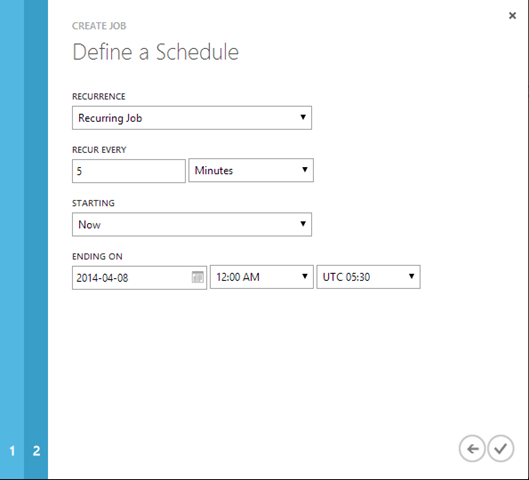
Next the you can configure the job timing schedules. It has more options; I have selected to run the job every 5 minutes till a specific date starting immediately after the job has been provisioned.

image

And that’s it. This is the sample message posted by the Job in the Queue.

   1: <?xml version="1.0" encoding="utf-16"?>

   2: <StorageQueueMessage xmlns:xsd="http://www.w3.org/2001/XMLSchema"

   3:     xmlns:xsi="http://www.w3.org/2001/XMLSchema-instance">

   4:   <ExecutionTag>4cf887834d7cd1466f549b2ac2fb56c8</ExecutionTag>

   5:   <ClientRequestId>d36f421b-9338-4e4f-ad89-69dd490530a1</ClientRequestId>

   6:   <ExpectedExecutionTime>2014-04-04T06:15:10</ExpectedExecutionTime>

   7:   <SchedulerJobId>msgQ</SchedulerJobId>

   8:   <SchedulerJobCollectionId>testjob</SchedulerJobCollectionId>

   9:   <Region>Southeast Asia</Region>

  10:   <Message />

  11: </StorageQueueMessage>

You can see the Message tag is empty since I didn’t put any messages. You have the complete control in editing the Job you created.

Windows Azure Caching

Role Based Caching

Windows Azure provides 2 primary role based caching options. Shared caching and Dedicated caching.

Shared Caching is defining a portion of the memory of the web or worker role. This does not include additional charges since you’re already paying for the cloud service instance and using the portion of the memory. This might be a performance hit when the cache size is significantly bigger portion of the total instance memory allocation. Shared caching is also known as In-Role caching and Co-Located caching. The name In-Role caching is self explanatory.

Dedicated caching is again a very self explanatory term, this enables us to have a dedicated Cache Worker Role.

In-Role Caching

This is the cache type we provision inside our role instance. Create a Windows Azure cloud service project and 2 roles. (one Web role and one Cache Worker role).
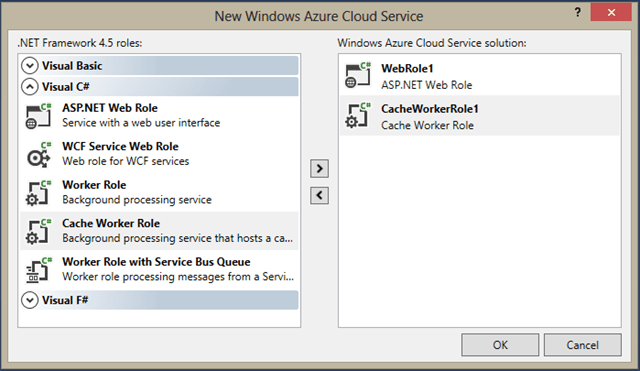
image

Right click on the WebRole1 and go to properties.

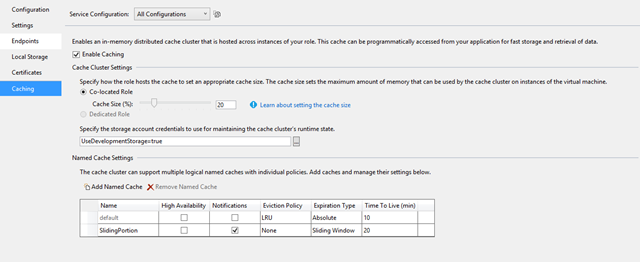
image

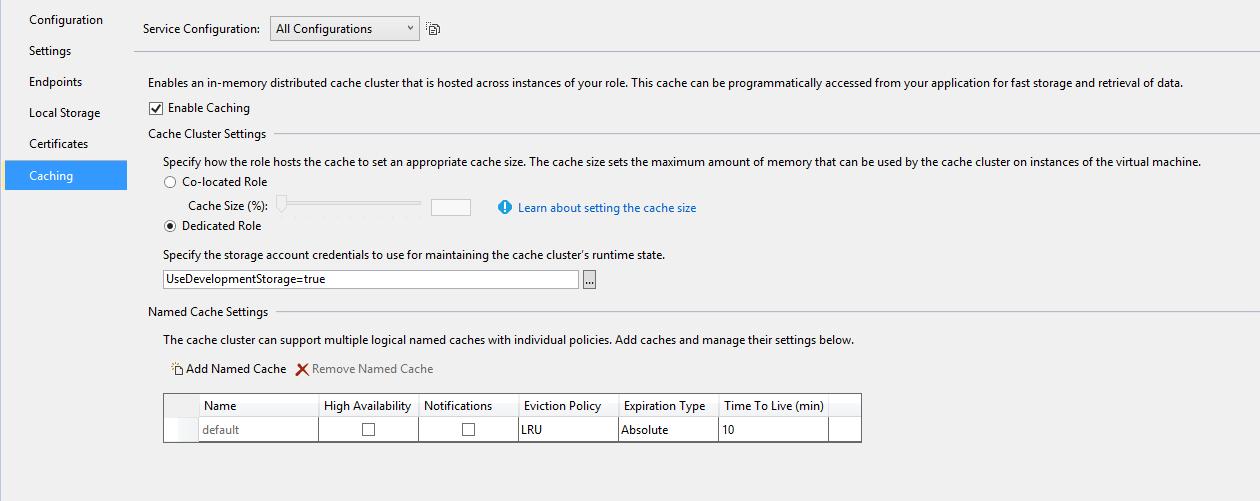
Tick Enable Caching, also notice that Dedicated Role option is disabled since this is a Web Role. You can specify the amount of cache size in percentage. You can notice that it says Cache Cluster settings. This is because Azure roles can run on more than one instance when the role runs on more than one instance this forms the cache cluster. A cache cluster is a distributed caching service that combines all the memory from all the running instances.

Each cache cluster maintains the runtime state in the Azure storage. You should provide a valid storage account information in the text box when deploying the solution to Windows Azure.

Named Cache Settings is the last section. Each cache cluster can have more than one Named Cache. This is a logical partition of the cache memory with different settings. You can see the different settings we can configure for each named cache. Eviction policy LRU means Last Recently Used.


Dedicated Caching

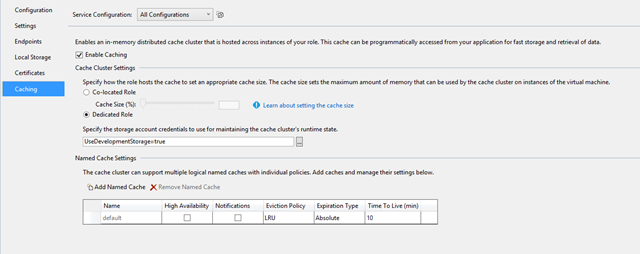
The below screen explains the dedicated caching. You can see that Dedicated Role is enabled and also you have the option of using the dedicated role as a co-located cache by specifying the amount of memory in the percentage. This is useful when you plan a strict resource framed deployment.
image


Windows Azure Caching Service

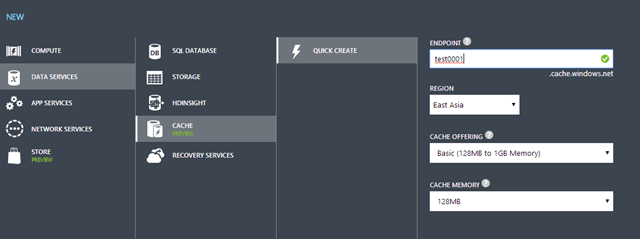
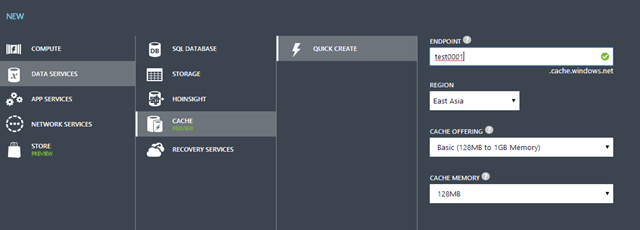
Other then the above role based cache service Windows Azure provides a Cache Service which is in preview.
image

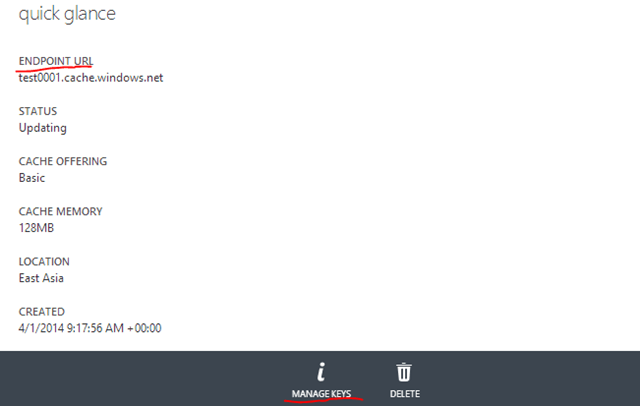
The cache offering is available in 3 different packages. Basic, Standard and Premium. The good side of these offerings is that each of them can be scaled with in a range. Once you provision a cache service you get the endpoint URL and security keys.
image

In the Azure management portal you get other options like dashboard, configuration options to create named cache instances and scaling options.


Accessing Windows Azure Cache Service in a .NET application

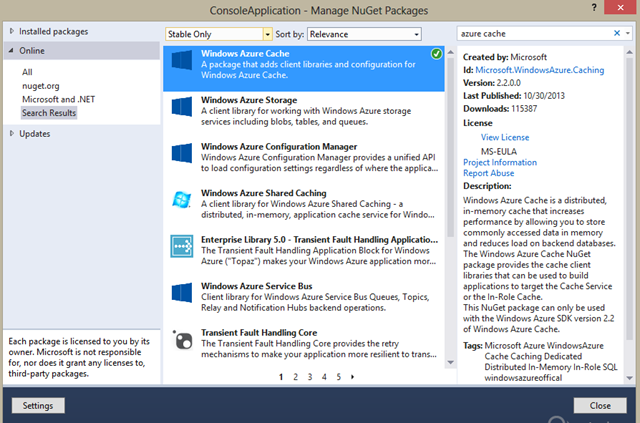
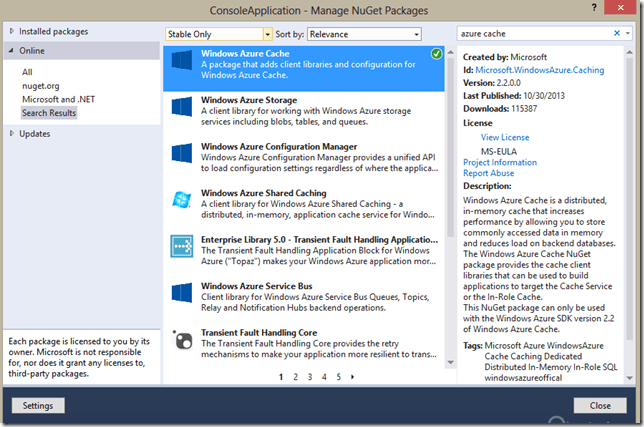
First install the Windows Azure Cache assembly from NuGet.
image

This adds some configuration settings to your config file as well. This is where you specify your endpoint URL and the security key.

image 

The programming model is simple and straight forward. We can use the DataCache class in Microsoft.ApplicationServer.Caching to access the cache. This is the same class we use in accessing the role based Windows Azure Cache as well.

A very crude code sample.

   1: static void CacheTest()

   2: {

   3:     var cache = new DataCache("default");

   4:     Console.WriteLine(cache.Name);

   5:  

   6:     cache.Add("key", "12");

   7:  

   8:     var value = cache.Get("key");

   9:     Console.WriteLine(value);

  10: }

MSDN link for the Windows Azure Cache (Preview) Development.

ObjectCache – Caching

In the ASP.NET domain all the state mechanisms can be considered as caching, both in the client side (view states, query strings, cookies) and in the server side (application state, session state and the Cache object itself.) You can define the classes and properties as static to get the effective functionality of caching. In ASP.NET the Cache object is HttpContext.Cache and .NET 4 introduced the ObjectCache to be used in non ASP.NET applications. This post will walk you through about the ObjectCache.    Learn about Windows Azure Caching.

ObjectCache

This is included in the System.Runtime.Caching assembly. MemoryCache is the concrete implementation of this library. The following method provides a quick glance on how ObjectCache can be used.

   1: public static void PutInCache(string key, object value)

   2: {

   3:     

   4:     var cache = MemoryCache.Default;

   5:     var policy = new CacheItemPolicy()

   6:     {

   7:         AbsoluteExpiration = new DateTimeOffset(DateTime.Now.AddMinutes(5)),

   8:         Priority = CacheItemPriority.Default

   9:     };

  10:  

  11:     Console.WriteLine("Cache Size for the application in MB - {0}", cache.CacheMemoryLimit / ( 1024 * 1024) );

  12:     Console.WriteLine("{0}% cache memory is used.", (100 - cache.PhysicalMemoryLimit));

  13:  

  14:     cache.Remove(key);

  15:     

  16:     cache.Add(key, value, policy);

  17:  

  18:     int result = (int) cache.Get(key);

  19:     

  20: }

CacheMemoryLimit property gives the allocated cache memory for the specific instance of your application, where as PhysicalMemoryLimit give the unused space of the cache in percentage. When the cache memory  reaches beyond the CacheMemoryLimit then cache values are removed automatically, we can track this and take actions by registering a callback for the cache item removal.

Cache have 2 types of expiration policies. AbsoluteExpiration is the definite time after which there’s no guarantee for the item to be available in the cache memory, SlidingExpiration is where if there’re no access to the particular cache item within the specified time period there’s no guarantee for that item to be available. These 2 are very common and available in the HttpContext.Cache as well.

Cache has a priority which takes the value of the CachItemPriority enum. This enum has 2 values Default and Not Removable. Default is the default set up, means when you do not mention any value this would be applied. Default ensures the default behavior of the cache. Not Removable is used to instruct the system not to clear the values from the cache even when the system runs low in memory. These values should be cleared explicitly.

Windows server 2008 Core doesn’t support the ObjectCache and some Itanium implementations also do not support ObjectCache. Windows Server 2008 R2 with SP1 and later versions (including Windows 8.1) support ObjectCache.